

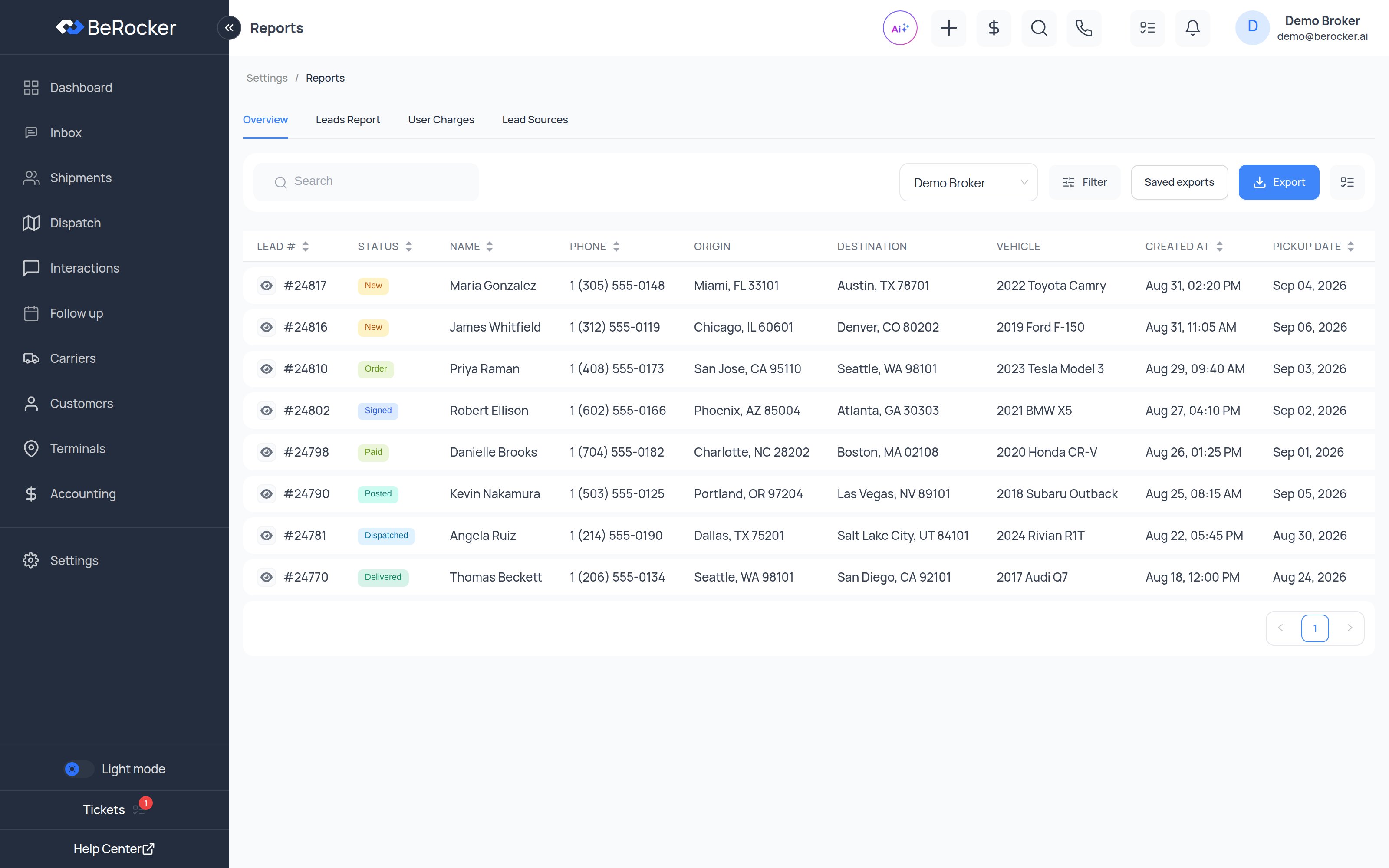
Overview
The full leads table, built for exporting rather than working. Search, filter, pick an agent, choose your columns, and export.Saved export configurations
If you build the same export every month, save it:1
Set it up
Filter and choose columns until the table shows exactly what you want.
2
Click Export
Give the file a name.
3
Tick Save this export configuration
Give the configuration a name.
4
Next month
Open Saved exports and run it again.
Leads Report
Leads broken down by status over your chosen period. The quick answer to “how much is sitting in each stage right now” and “how did last month compare”.User Charges
What each agent earned, using the payout settings on their user record:- Fixed amount
- Percentage fee
- Shareholding fee
- Total amount and Total count
Lead Sources
Per-provider performance:Reports vs Dashboard
Related
Dashboard
The same data as charts.
Accounting
Transaction-level detail.
Lead sources
Where the cost figures come from.
Team and security
Where payout rules are set.