

Notifications only fire for leads assigned to you. No assigned leads, no notifications.
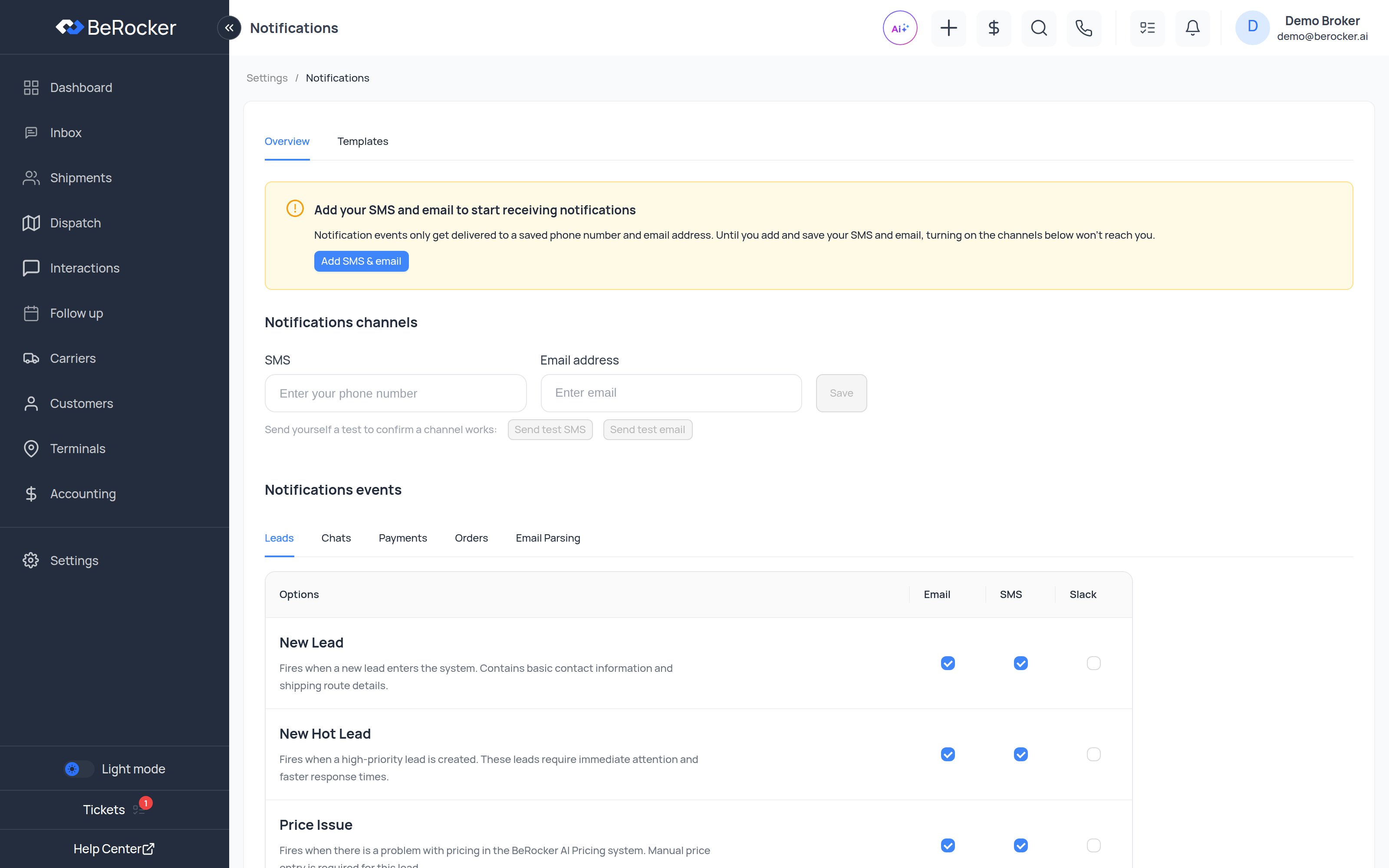
The page has two views: Overview (the settings below) and Templates (the wording of the alerts themselves).
Step 1 — where they go
Under Notifications channels there are two fields: an SMS number and an Email address. Fill them in and click Save. Then use Send test SMS and Send test email to confirm the destination actually receives something.SMS notifications are sent through your own phone number, so they count toward usage and
charges on your VoIP provider account.
Step 2 — which events
Below that is Notifications events, split into five tabs: Leads, Chats, Payments, Orders and Email Parsing. Each row is one event, and each has a tick box per channel — Email, SMS and Slack. Tick the combinations you want.- Leads
- Chats
- Payments
- Orders
- Email Parsing
What to turn on
Start narrow and add rather than starting wide and drowning:Troubleshooting
Video walkthrough
Related
Profile
Your customer-facing contacts — keep them separate from these.
Templates
Messages to customers, not alerts to you.