

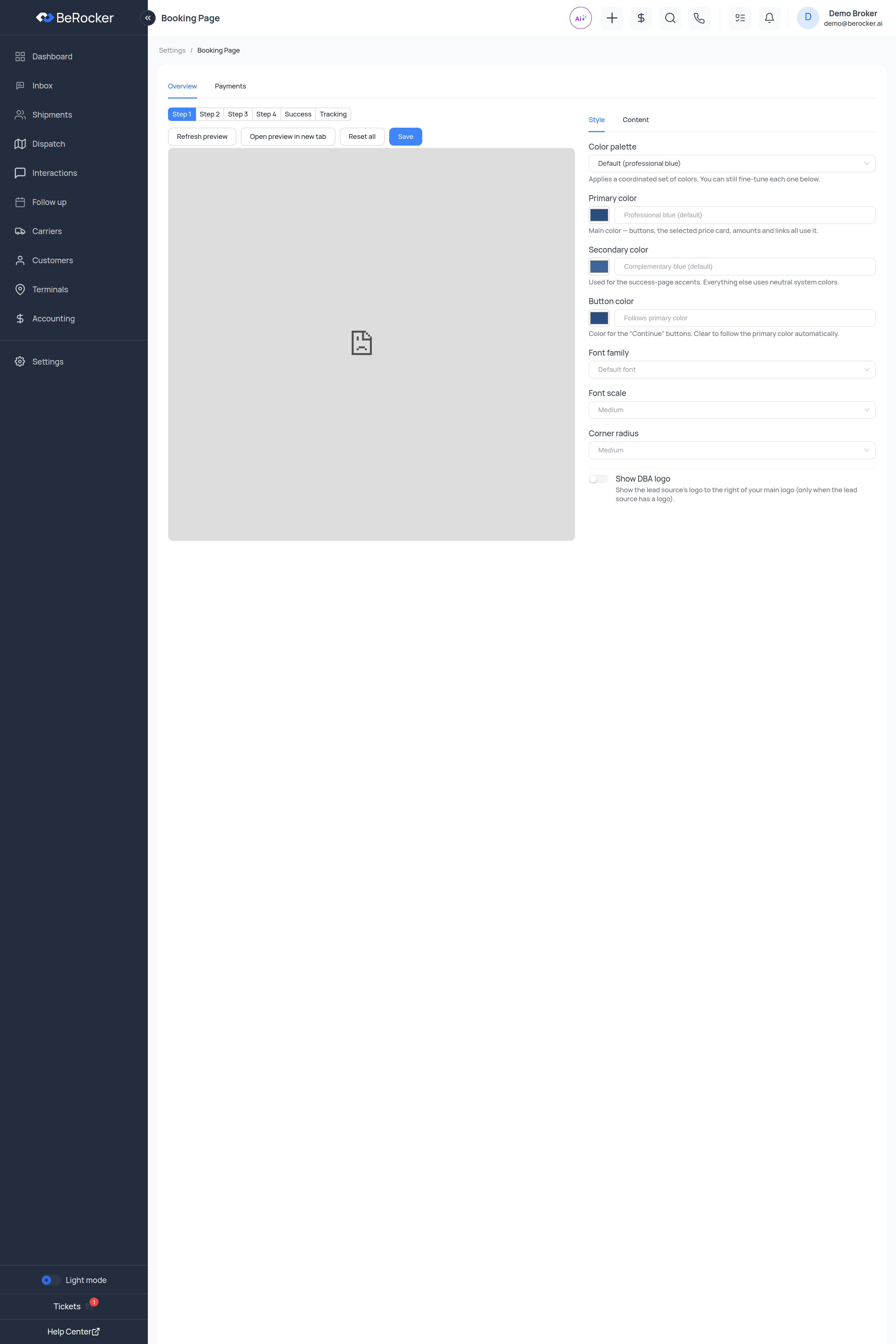
The preview
The right-hand side is the real booking page rendering as you change things. Use the step picker to check each screen: Step 1 · Step 2 · Step 3 · Step 4 · Success · Tracking Refresh preview reloads it, Open preview in new tab gives you the full-size page, Reset all puts the defaults back, and Save commits your changes. The controls themselves are split into two panels: Style and Content.Content — the wording
Every piece of text on the page is editable, grouped by where it appears: Header · Step 1 · Buttons · Step 2 · Step 3 · Step 4 · Details · Success · Tracking Some slots support rich text, so you can bold a line or add a link.Keep it short. This page is mostly read on a phone, halfway through a decision.
Style — look and feel
The palettes are pre-matched sets — if colour is not your thing, pick one and move on.
Payments
On the Payments tab: Automatic payments — Charge the card automatically on booking.- On: the customer’s card is charged as soon as they book. The shipment goes straight to Paid.
- Off: the card is collected and an agent takes the payment later.
Tracking page
The same editor covers the tracking page customers land on after booking, so the wording there matches the rest of your brand instead of reading like a system message.Related
Business
Logo, colours and legal details the page inherits.
Payment gateways
Which processor takes the money.
Templates
The message that sends the booking link.
Accounting
Where those payments land.