

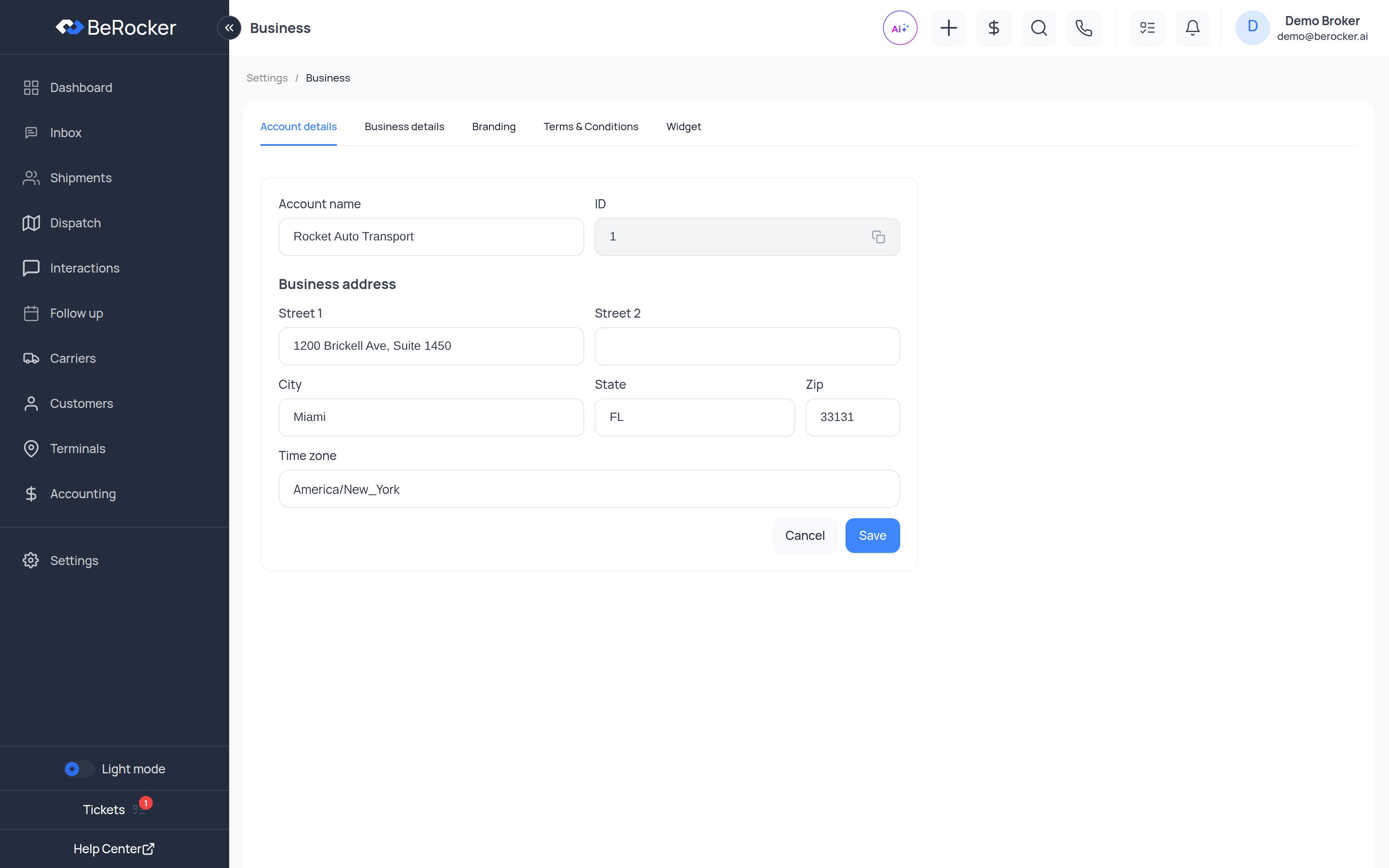
Account details
Business details
Two groups: what the business is, and what the public sees. Business- Legal name
- Website
- Address
- Privacy policy URL
Branding
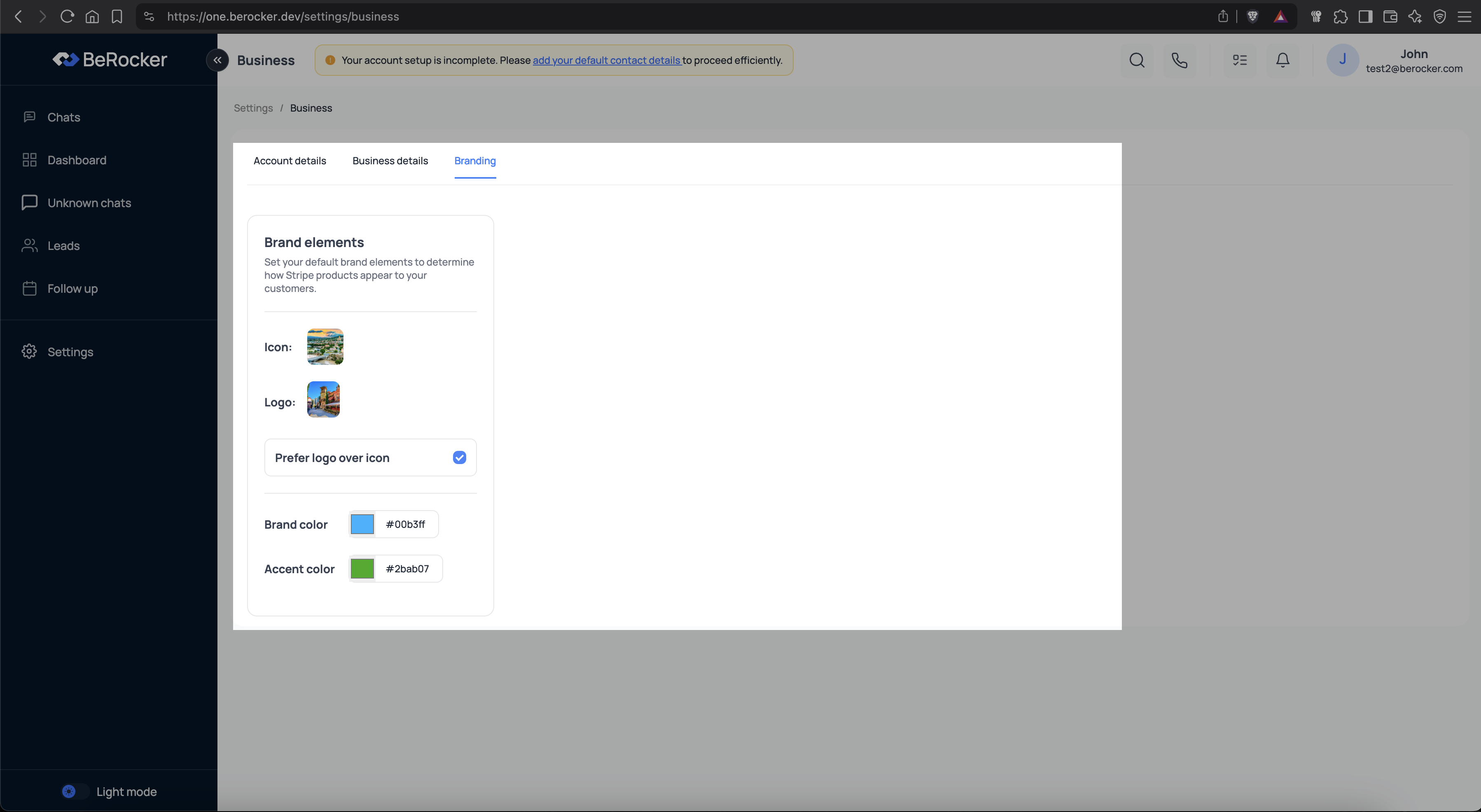
- Logo — used on documents and email templates.
- Icon — used in compact places. A square image works best.
- Brand colour and accent colour — buttons and links in emails and on the booking page.
- Prefer logo over icon — turn this on if your logo already contains your business name.
Terms & Conditions
The document templates that go to shippers and carriers. Edit the text here, and it is what gets generated when a contract goes out for signature. Message templates are a different thing and live in Templates.Widget
The quote widget you embed on your own website. Configure it here, then copy the embed snippet onto your site. Leads from the widget arrive through a lead source like any other, so they get distributed, quoted and followed up the same way.Ports and Port Route
Only shown when ocean shipping is enabled for your organization. Define the ports you use and how routes combine them — port-to-port, port-to-door and door-to-port.Why this matters
Your business settings are used automatically in:- Contracts and quotes sent to carriers and shippers
- Email templates, notifications and reminders
- Payment pages and card statements
- Your booking page
Related
Booking page
The page customers actually book on.
Templates
The messages that carry these details.