

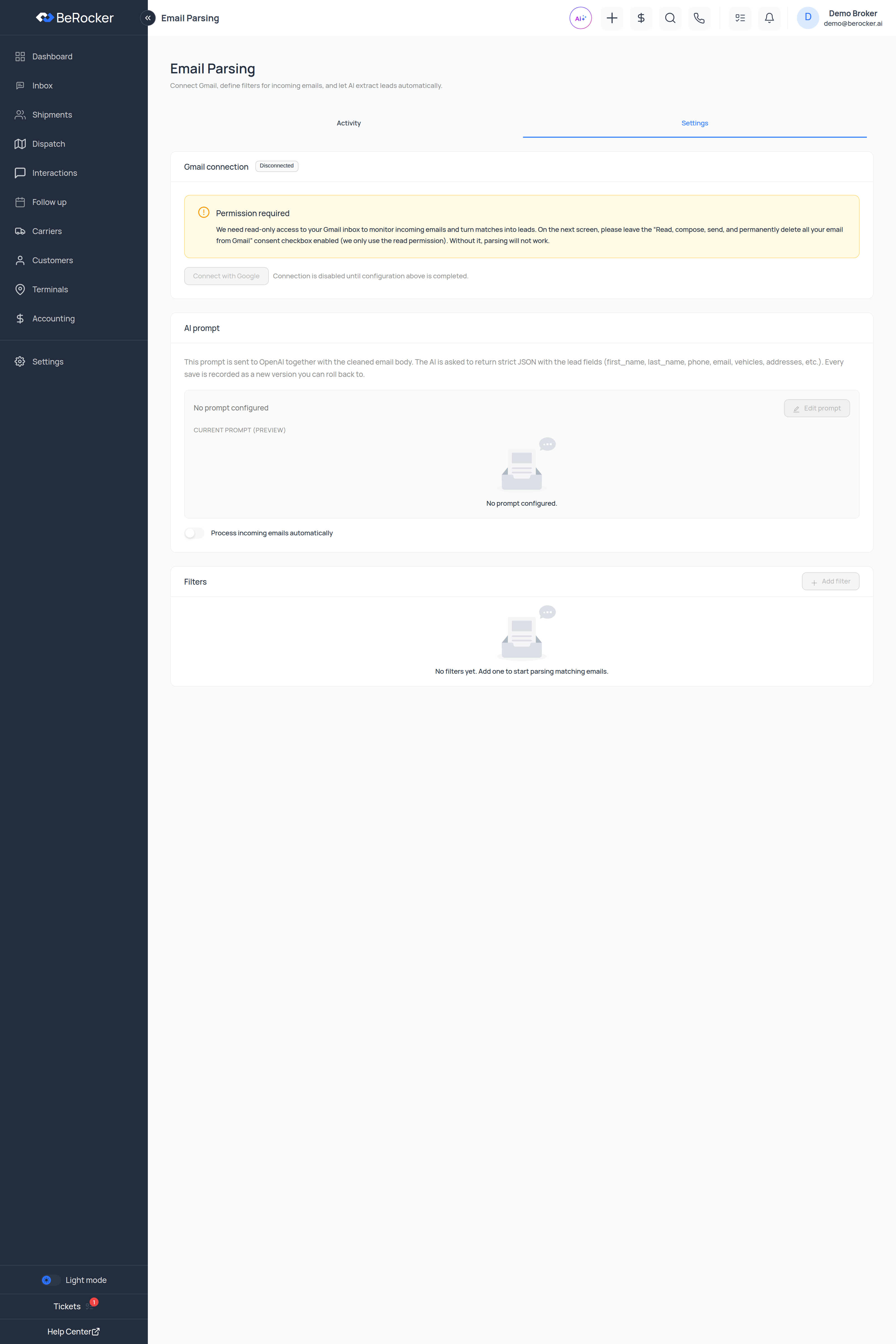
1. Connect Gmail
On the Settings tab, under Gmail connection, click Connect with Google and choose the mailbox that receives the lead emails. Once connected, Connected as shows which account is linked, Test connection checks it still works, and Disconnect revokes access.2. Set up filters
A filter decides which emails get parsed. Until you add one you will see “No filters yet. Add one to start parsing matching emails.” Click Add filter. Each filter has:
Each rule is a field, an operator and a value:
An email that matches no filter is recorded as No filter matched and nothing is created. That
is on purpose — it is how you keep the rest of your mail out.
A filter that works
Start narrow:- From contains
@leadprovider.com - AND Subject contains
New Lead
3. Set the AI prompt
This prompt is sent to OpenAI together with the cleaned email body. The AI is asked to return strict JSON with the lead fields (Current prompt (preview) shows what is in use. If it says No prompt configured, nothing will be extracted yet — click Edit prompt. The editor keeps a version history, with a What changed (AI) summary for each version and a Revert to current action, so a change that makes parsing worse can be undone.first_name,last_name,phone,vehicles,addresses, etc.). Every save is recorded as a new version you can roll back to.
4. Turn on automatic processing
Process incoming emails automatically is the master switch. Leave it off while you tune your filters, then turn it on.The Activity tab
Every email the parser has seen, with: Received · Subject · Filter · Status · Failure reason · Lead Search by subject, sender or body, filter by status, and narrow by date.Statuses
Open a row and the detail drawer shows the forwarded email, the prompt used, the OpenAI
response, the parsed JSON and any attachments — so when a lead comes out wrong you can see
exactly which step went wrong.
Troubleshooting
Related
Lead sources
The API way of receiving leads.
Profile
Your personal Gmail connection.
Notifications
Alerts for parse successes and failures.
Shipments
Where the created leads land.