

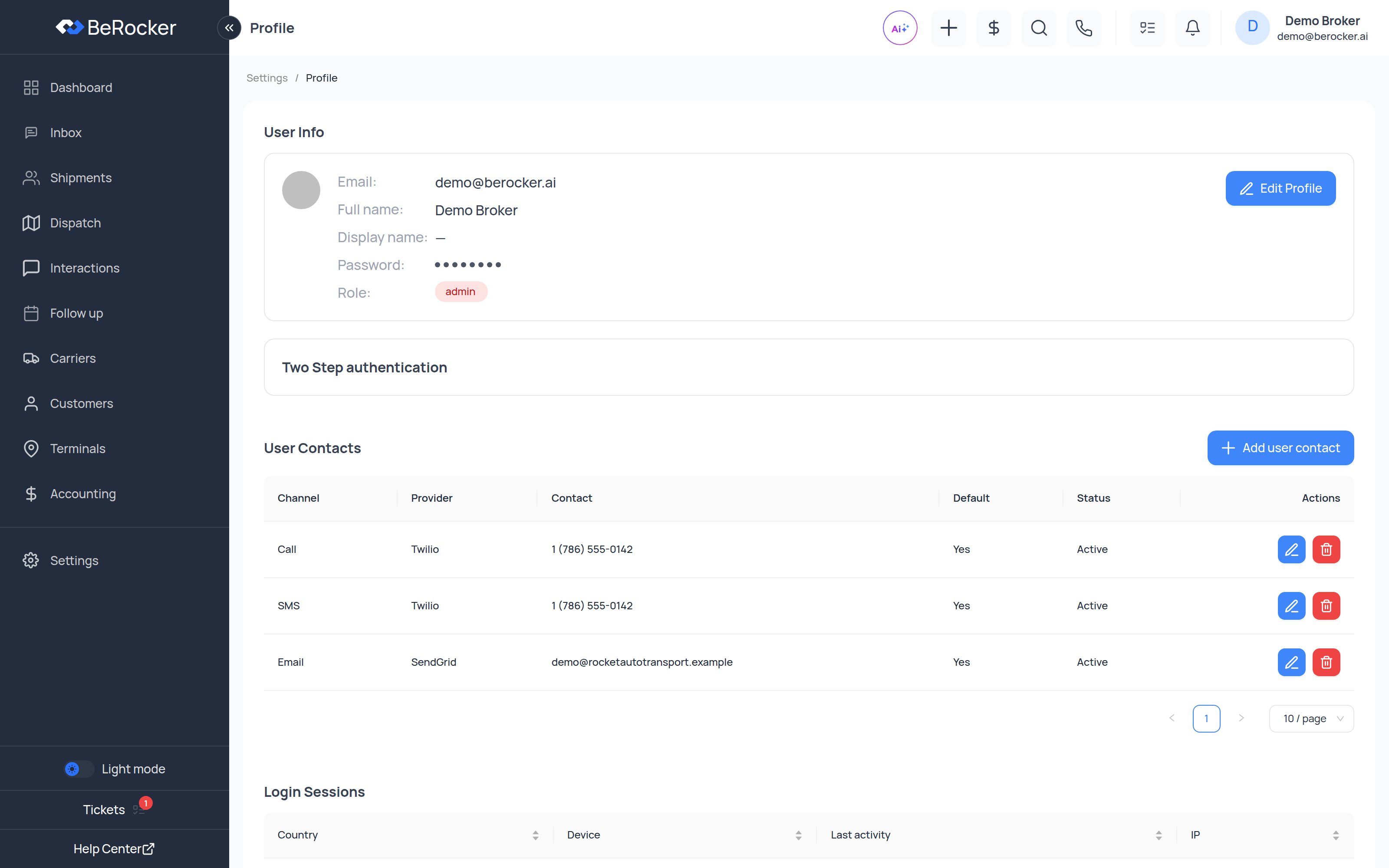
User Info
Your full name, display name, email, password and role. Display name is what customers see when a message goes out under your name — use the name you actually introduce yourself with, not your legal name. Click Edit Profile to change any of it, including your password.Two Step authentication
Adds a second step to your sign-in.- Click Enable, then confirm.
- Use Add authentication method to register how you receive the code.
User Contacts — the numbers you work from
This is the block that makes messaging work at all. Each contact is one channel on one provider.1
Click + Add user contact
A dialog opens.
2
Fill it in
- Channel — SMS, Call, WhatsApp or Email.
- Provider — Twilio, RingCentral, Telnyx, Vonage, Quo, Zoom Phone, SendGrid, Mailgun…
- Contact — the phone number or email address.
- Status.
- Is Default? — tick it to make this your main line for that channel.
3
Apply
Save it.
The rules that trip people up
- You can have one default per channel: one default call number, one default SMS number, one default email.
- You can mix providers freely — RingCentral for calls, Twilio for SMS, SendGrid for email.
- Without a default SMS or email contact you will see “No SMS / email sender available” in the Inbox and cannot message anyone.
RingCentral needs registering
If the contact’s provider is RingCentral, a Register button appears next to the number.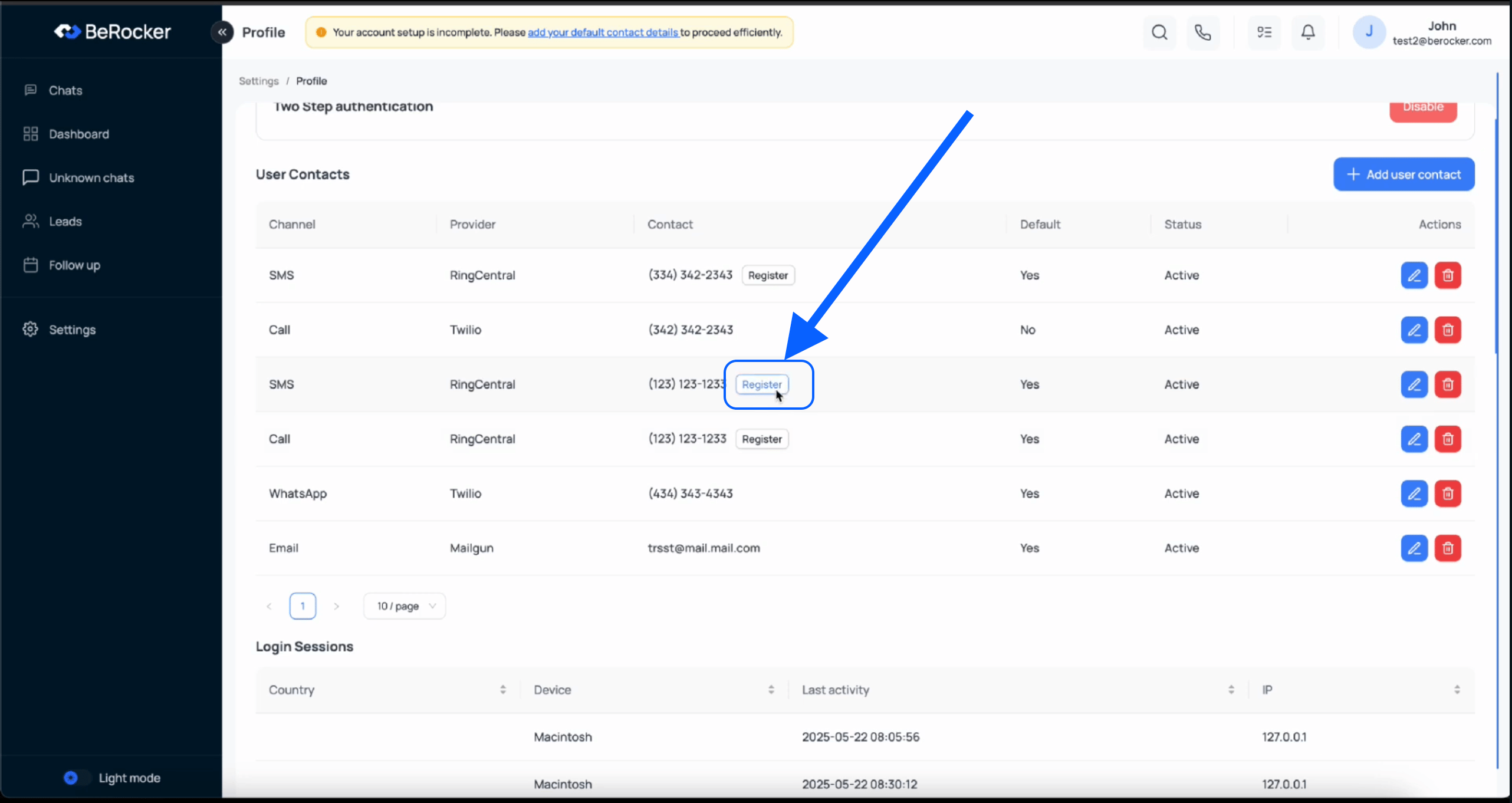
Gmail connection
Connect your own Gmail mailbox so BeRocker can read incoming email for email parsing. Test connection checks it is still working, and Disconnect revokes it.Login Sessions
Every device signed in as you: country, device, IP address and last activity. Check it if you suspect someone else has your password, and change your password immediately if anything looks wrong. Organization-wide session history for admins lives in Team and security → Security history.Checklist
Related
Notifications
Where your alerts go — use different contact details than these.
Team and security
Roles, teams and organization-wide security.