

Events
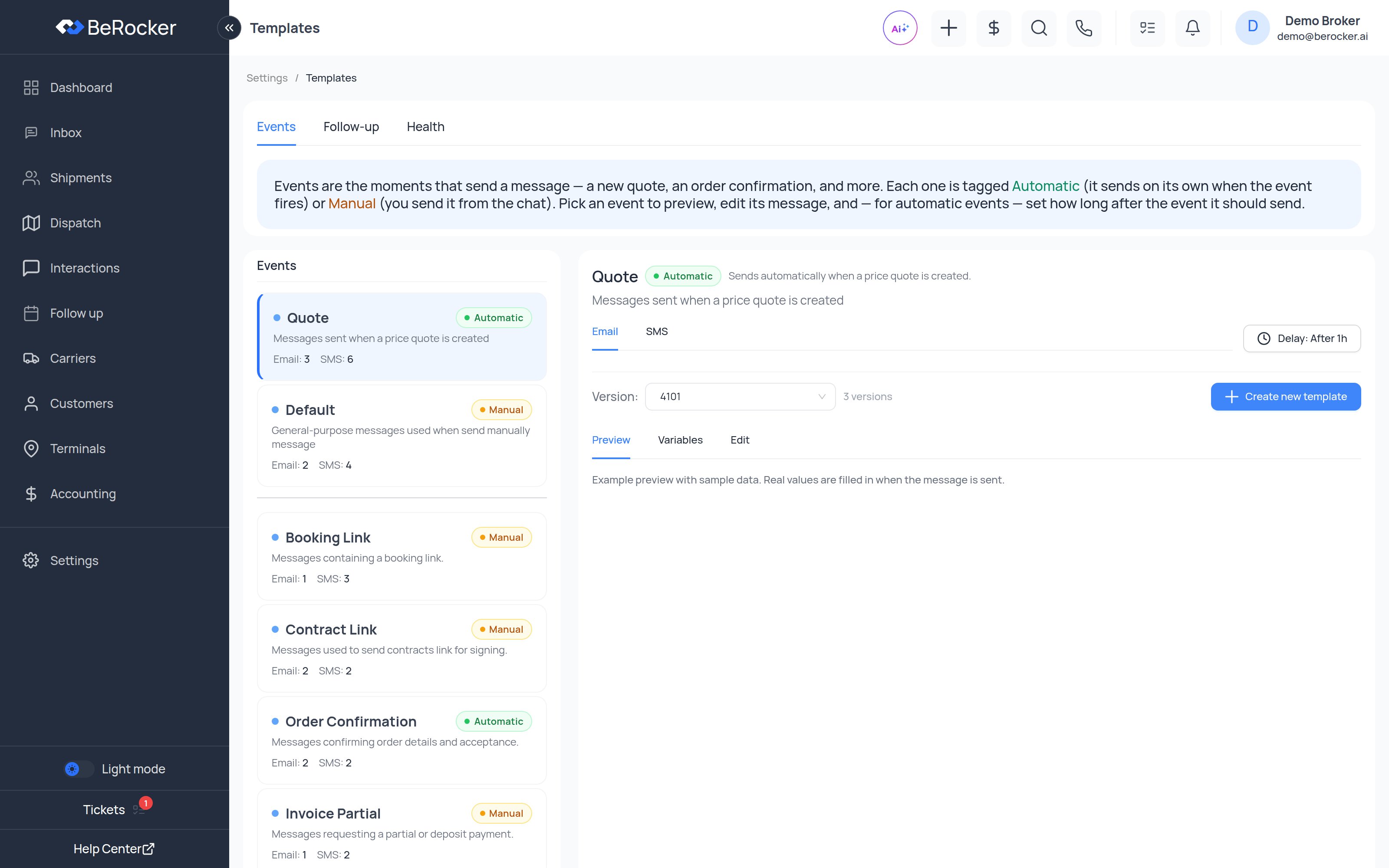
Events are the moments that send a message — a new quote, an order confirmation, and more. Each one is tagged Automatic (it sends on its own when the event fires) or Manual (you send it from the chat). Pick an event to preview, edit its message, and — for automatic events — set how long after the event it should send.The left column lists every event with its badge and how many Email and SMS templates it holds. Pick one and the right side opens.
The events
Automatic has to be earned by a real wired-up trigger. Everything else is Manual, because an
agent can always send any template by hand from the chat.
Editing a template
Once you pick an event:Keep several versions of each
Write three or four versions of every message you send often. BeRocker picks one at random each time, so a customer who gets quoted twice does not get word-for-word identical texts, and your numbers do not start looking like a bot. Example follow-ups:- “Just checking in about your transport — still interested?”
- “Quick follow-up on your quote. Want me to lock it in?”
- “Hi [lead_first_name], did you want to move forward with booking?”
Version history
Every save creates a version. The version dropdown lets you look at any earlier one, compare it and revert. Useful when a change to a quote message coincides with a drop in replies.Variables
Variables are placeholders in square brackets that get filled in when the message is sent. The Variables tab lists every one available with a sample value, grouped by subject — the live list in the app is always the authoritative one. The most-used ones:Customer
[greeting] · [lead_first_name] · [lead_last_name] · [lead_full_name] ·
[lead_phone] · [lead_email]The shipment
[lead_id] · [lead_vehicles] · [lead_origin] · [lead_destination] ·
[lead_origin_city] · [lead_destination_city] · [lead_pickup_date] ·
[lead_drop_off_date] · [lead_delivery_days] · [lead_trailer_type]Money
[lead_price] · [lead_open_price] · [lead_enclosed_price] · [lead_deposit] ·
[carrier_pay] · [lead_discount] · [lead_discount_code] · [refund_amount] ·
[cancellation_fee]Links
[lead_booking_link] · [lead_contract_link] · [review_link] · [unsubscribe_link]Carrier and driver
[carrier_name] · [carrier_phone] · [lead_driver_fullname] · [lead_driver_contact]Your company
[company_name] · [company_phone] · [company_email] · [company_website] ·
[company_address] · [company_logo] · [company_mc_number] · [company_dot_number] ·
[company_terms_and_conditions]The agent
[assistant_first_name] · [assistant_last_name] · [assistant_company_name] ·
[assistant_company_phone] · [assistant_company_email] · [assistant_company_website]Addresses and contacts
[pickup_address] · [dropoff_address] · [pickup_contact] · [dropoff_contact] ·
[pickup_phone] · [dropoff_phone] · [today_date] · [last_quote_date]Follow-up
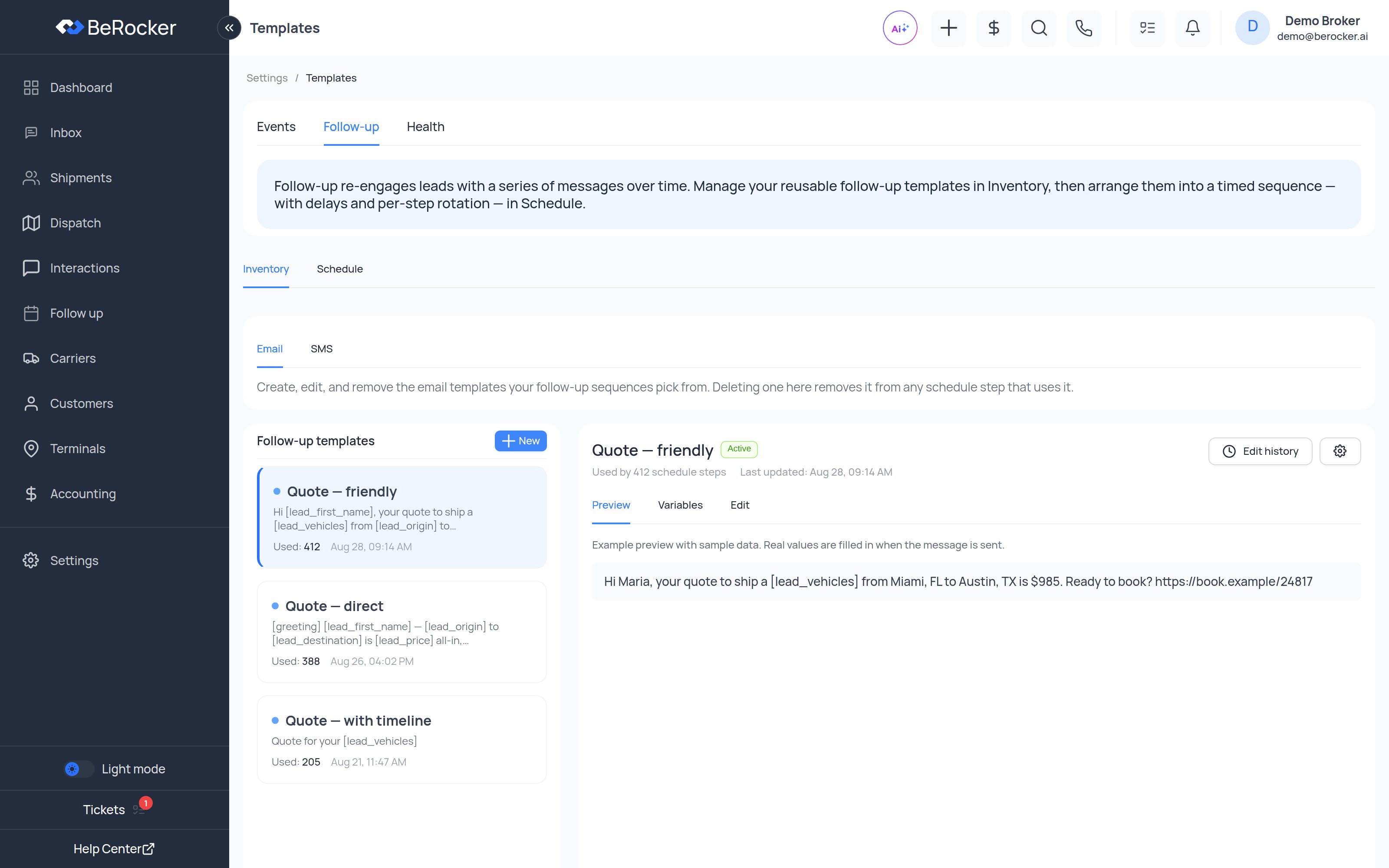
When you save a changed sequence, BeRocker tells you what it did to leads already part-way
through: how many were in progress, how many moved to a different step, and how many stopped
because the step they were waiting on no longer exists.
Building one that works
- First step within the hour. Response time is the single biggest lever on conversion.
- Spread the rest out. Something like 1 hour, 1 day, 3 days, 7 days.
- One ask per message. “Click to book” or “reply YES” — never both.
- Give SMS an opt-out. The Opt-out line on the Health tab is added to the first automated text of a conversation, and again once a month.
- Stop somewhere. A sequence with no end is how numbers get flagged.
Health
The third tab is Messaging health — what your automated messaging is actually doing right now: sending numbers, delivery rates, the queue, quiet hours and opt-outs.Troubleshooting
Video walkthroughs
- Standard
- Enterprise
The videos show an earlier layout — the tabs were renamed to Events, Follow-up and
Health in a later redesign. The concepts are unchanged.
Related
Messaging health
Why a message has not gone out yet.
Triage
The human half of following up.
Business
Where the company variables get their values.
Notifications
Internal alerts, not customer messages.