

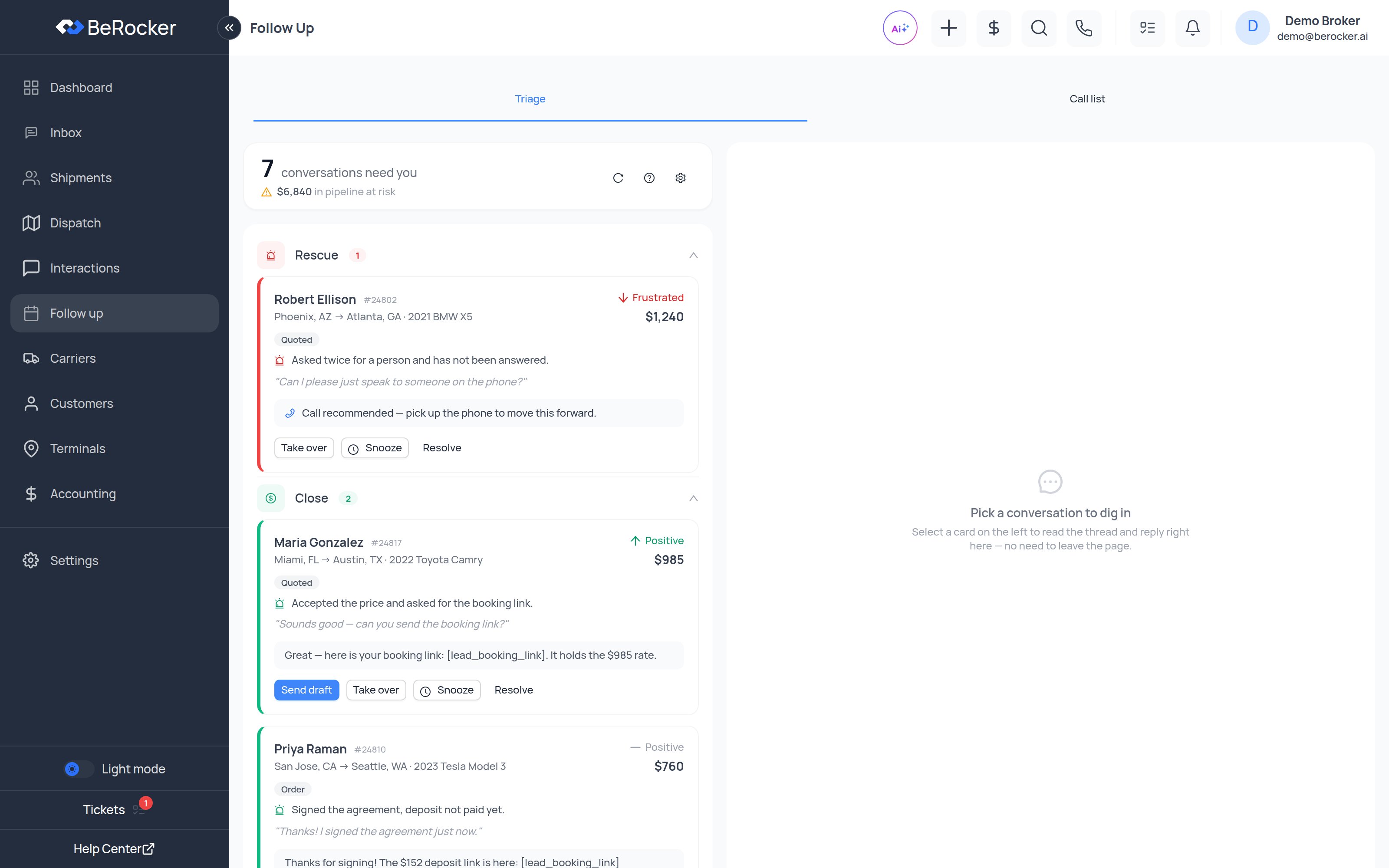
Triage
Triage reads every active conversation with AI and sorts them into queues, so you always know who needs you right now, why, and what to do next — without scrolling through dozens of threads. The header shows how many conversations need you and the dollar value of pipeline at risk, so you can prioritise by impact. It refreshes on its own every minute.The five queues
Cards are sorted by priority — deal value × how much a human can move it × recency — so the top of
each queue is always the best use of your time. Work each queue top-down.
What each card tells you
Customer, lane and vehicle, quote amount, the deal stage, the customer’s sentiment with a trend arrow (improving / steady / slipping), a one-line reason it was flagged, and the latest message — enough to act without opening the thread.Actions on a conversation
Selecting a card opens the live conversation on the right, so you can read the thread and reply
without leaving the page.
Triage settings
The gear icon opens Triage settings:- Sensitivity — how eagerly conversations get pulled into the queues.
- Visible queues — hide queues your desk does not use.
- Autopilot — let the AI keep handling the conversations it is already on.
Call list
The second tab is your scheduled calls: customers you or the system set a callback time for. Work it top-down, and open the conversation straight from a row. Calls get scheduled when a customer asks to be called, when you set a reminder on a conversation in the Inbox, or from an automated follow-up step.Triage vs follow-up sequences
They solve different halves of the same problem, and you want both:Related
Inbox
The full conversation, with everything attached.
Follow-up templates
Build the automated message ladder.