1. Register for SendGrid Account
1
Go to the Sign-Up Page
Visit SendGrid Sign-Up. Choose Domain Authentication
(recommended for businesses).
2
Create Your Account
Enter your name, company name, email, and password. Agree to the terms and click Create
Account.
3
Confirm Your Email
Check your inbox for a SendGrid verification email. Click the verification link to activate
your account.
4
Log In to Dashboard
After confirming, log in at SendGrid Dashboard. You’re now ready to
set up domain authentication.
2. Authenticate Your Domain
Domain authentication ensures your emails are trusted and not flagged as spam. It also removes the “via sendgrid.net” label from your messages.1
Navigate to Sender Authentication
In the left sidebar, go to Settings → Sender Authentication.
2
Start Domain Authentication
Click Get Started under Domain Authentication. Enter your domain name (e.g.,
yourcompany.com).3
Select DNS Host
Choose your DNS provider (e.g., Cloudflare, GoDaddy, Google Domains). If not listed, select
Other Host (Manual Setup).
4
Add DNS Records
SendGrid will generate CNAME records. Copy and paste these into your DNS provider’s
settings. Wait up to 24–48 hours for propagation.
5
Verify Domain
Go back to the SendGrid dashboard and click Verify. Once successful, your domain will show
as Authenticated.
3. Generate an API Key
An API key is required for integration with applications (e.g., CRMs, servers, or custom apps).1
Go to API Keys
From the left sidebar, click Settings → API Keys.
2
Create API Key
Click Create API Key and give it a clear name (e.g., “Production Mail”).
3
Set Permissions
- Full Access: Grants all permissions (not recommended unless required). - Restricted Access: Recommended — select only what you need, e.g., Mail Send. - Read Access: View-only.
4
Save the Key
Click Create & View. Copy the key immediately (example:
SG.xxxxx.yyyyy). Store it securely
in environment variables or a secret manager.4. Connect SendGrid to BeRocker
1
Open BeRocker Dashboard
Log in to your BeRocker Dashboard.
2
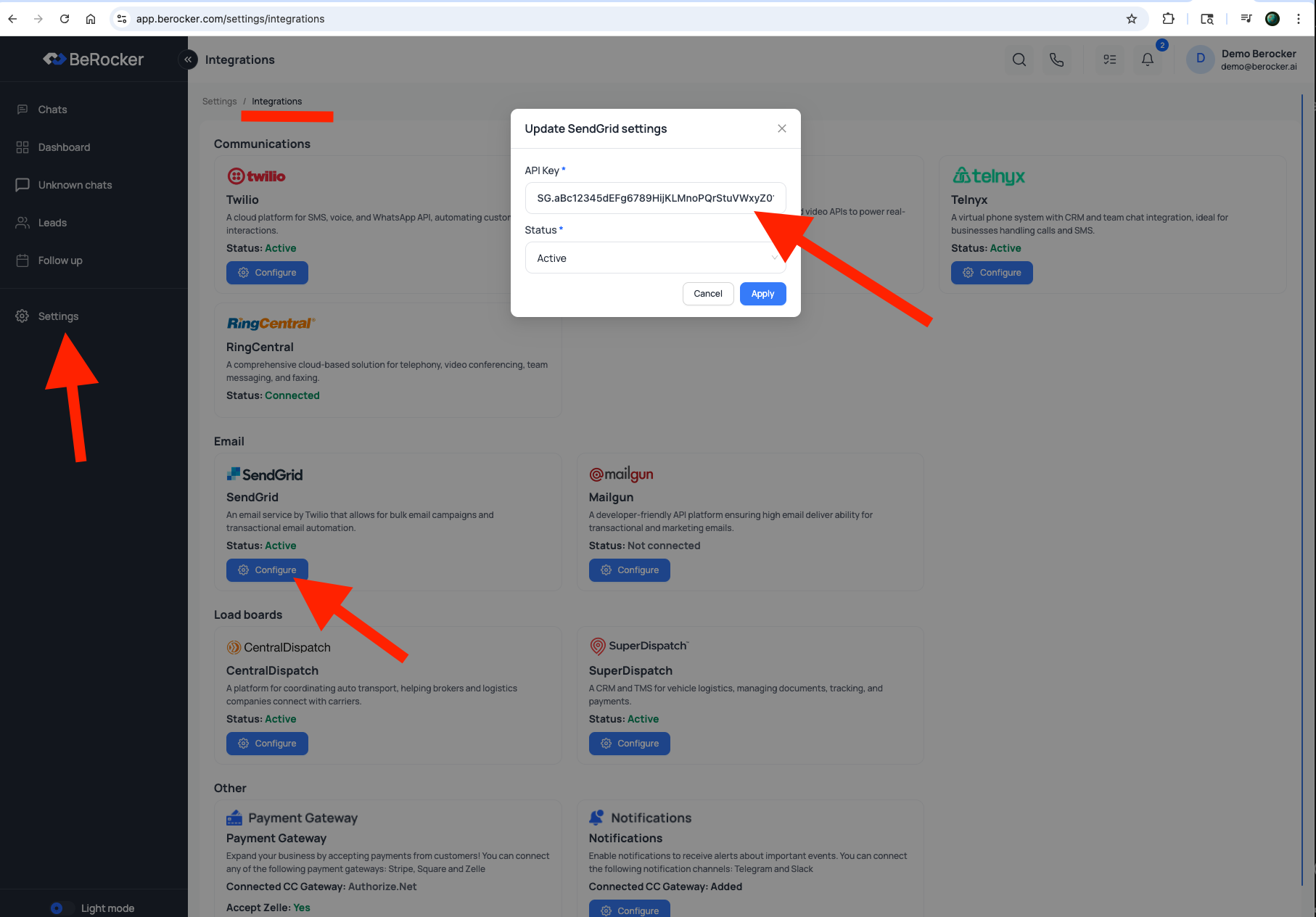
Go to Integrations
Navigate to Settings → Integrations from the sidebar menu.
3
Configure SendGrid
Locate the SendGrid integration item. Click Configure to open the setup window.
4
Add API Key
Paste your generated SendGrid API key into the API Key field. Set the status to Active.
5
Apply Changes
Click Apply to save your configuration. Your BeRocker system will now send emails using your
authenticated SendGrid account.