Five minutes here will save you a lot of clicking. Every screenshot on this page is the real CRM.

The sidebar

Everything in BeRocker hangs off the left sidebar. The order is deliberate: the things you touch every hour are at the top, records in the middle, money and settings at the bottom.
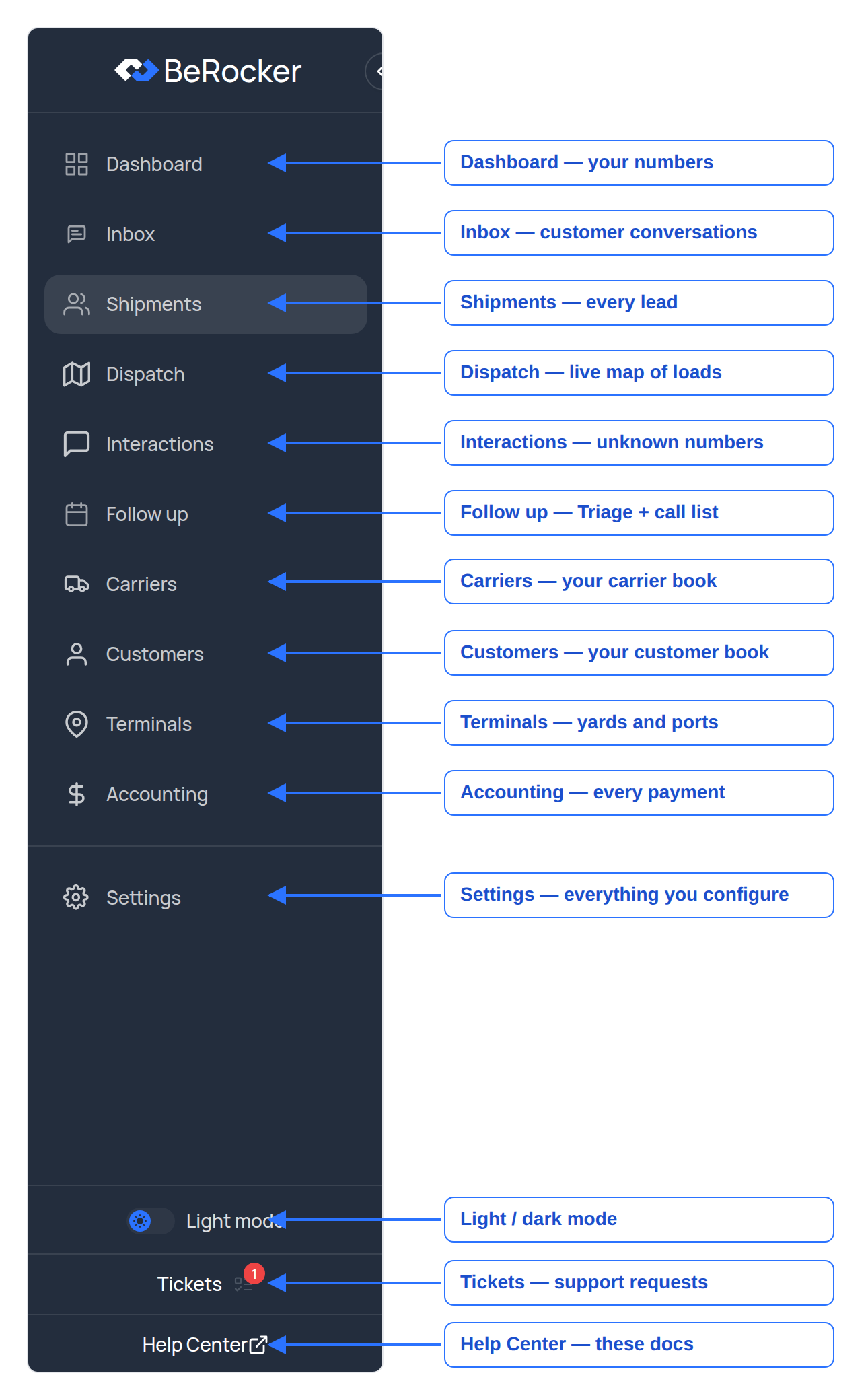
BeRocker sidebar with each navigation item labelled

The main navigation. Items you do not have permission for are simply not shown.

Below the divider you will also find Tickets (support requests to the BeRocker team), the Help Center link that brought you here, and the light/dark mode switch. The « button collapses the sidebar to icons.
If a menu item is missing for you, it is your role, not a bug. Ask an admin — see Team and security.

The top bar

BeRocker top bar with each button numbered one to eight

The top bar follows you across every screen.


Inbox — where you talk to customers
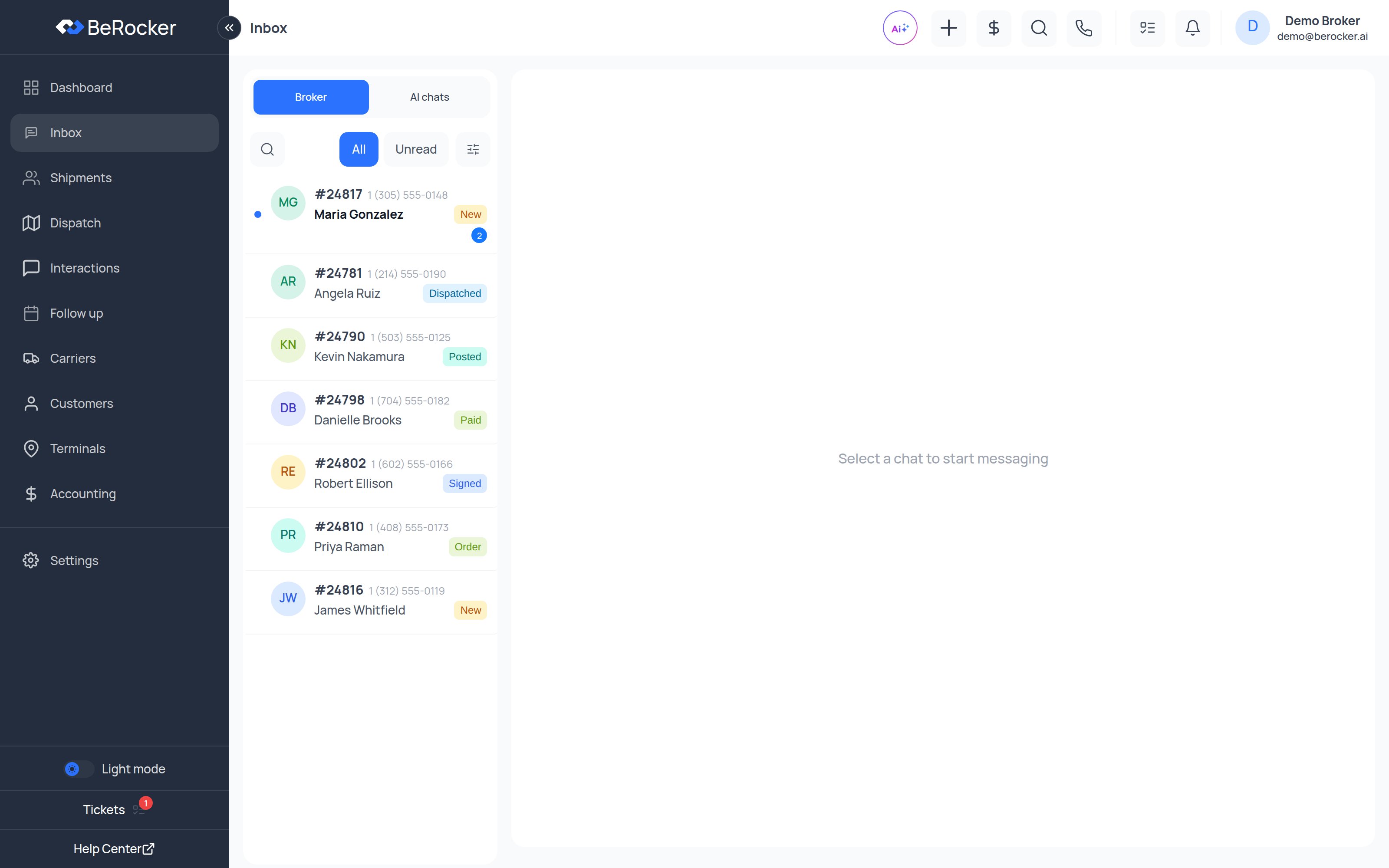
The BeRocker Inbox with the conversation list on the left
  • Broker / AI chats — switch between conversations you are handling and the ones the AI is handling.
  • All / Unread and the filter icon narrow the list.
  • Open a conversation and you get the message thread in the middle and the lead panel on the right, with tabs for Lead, Documents and Drivers.
Full page: Inbox

Shipments — every lead in one table

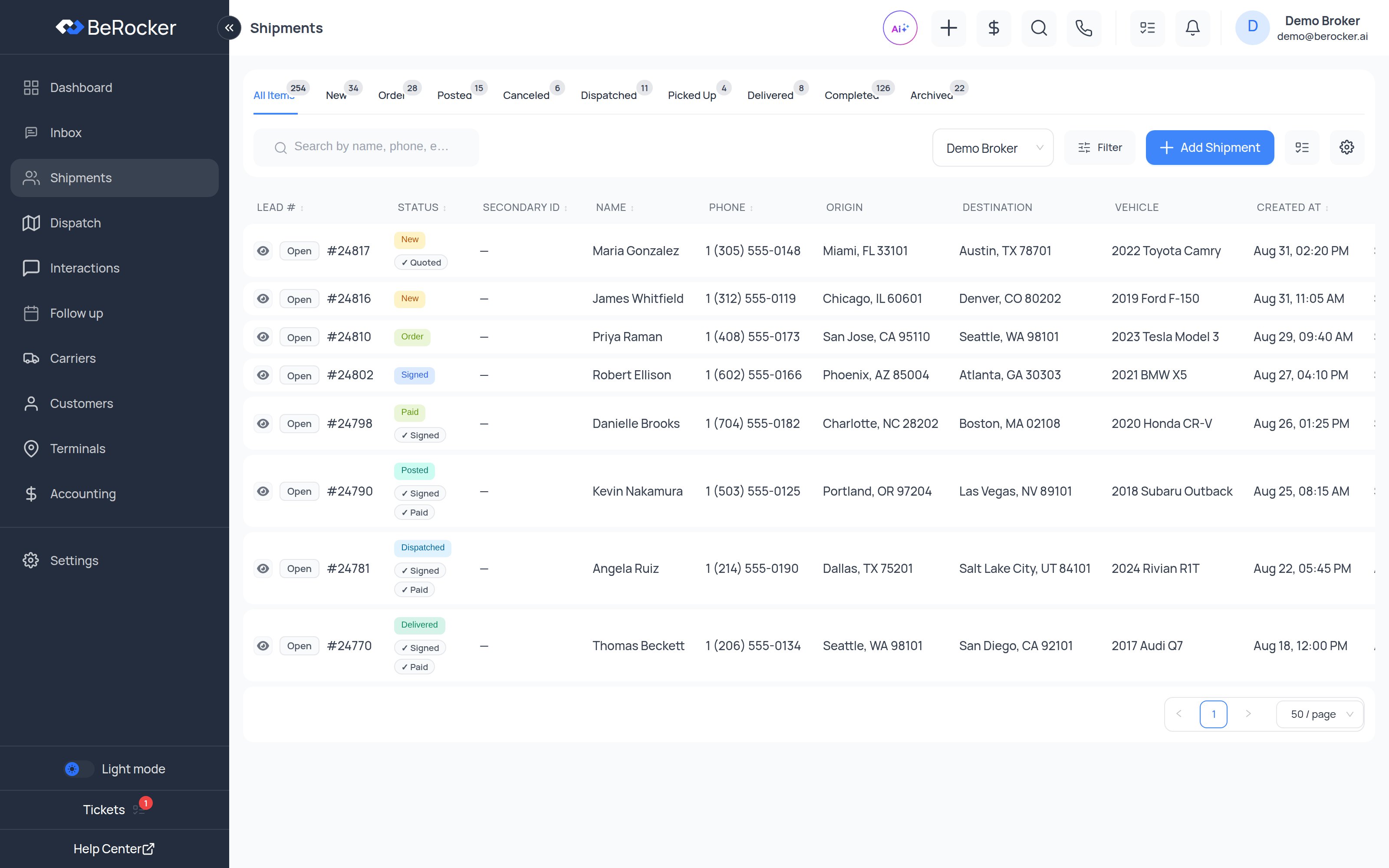
The Shipments table with status tabs across the top
The tabs across the top are the pipeline: All Items, New, Order, Posted, Canceled, Dispatched, Picked Up, Delivered, Completed, Archived, each with a live count. Inside New, Order and Posted there is a second row of sub-filters (Not Quoted / Quoted, Needs Contract / Contract Sent / Signed / Paid, No Offers / Has Offers). Full page: Shipments

Dashboard — the numbers

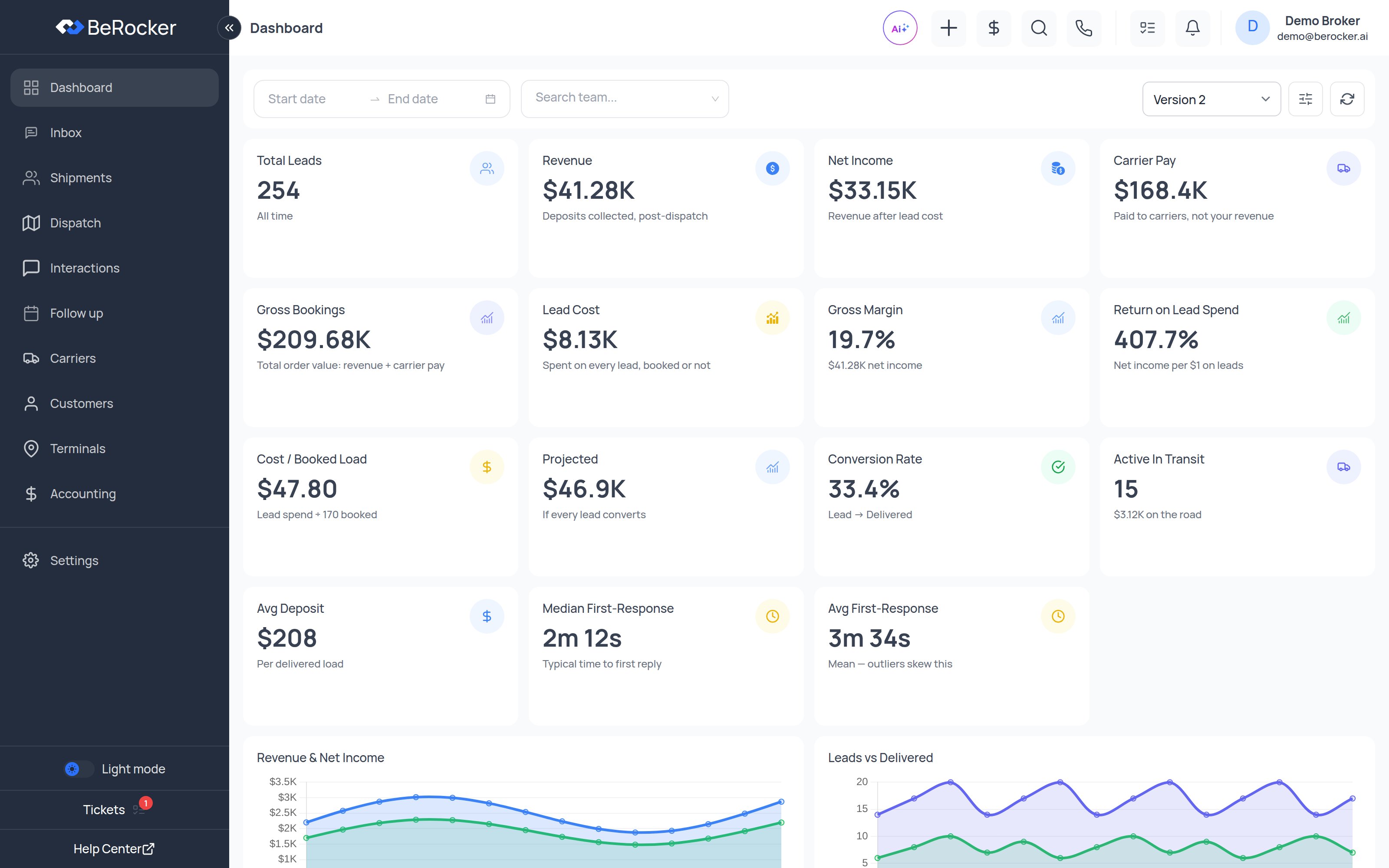
The BeRocker dashboard showing KPI tiles and trend charts
Every tile says what it measures underneath the number, so nobody has to guess whether “Revenue” means deposits or gross bookings. Full page: Dashboard

Settings — one page per thing

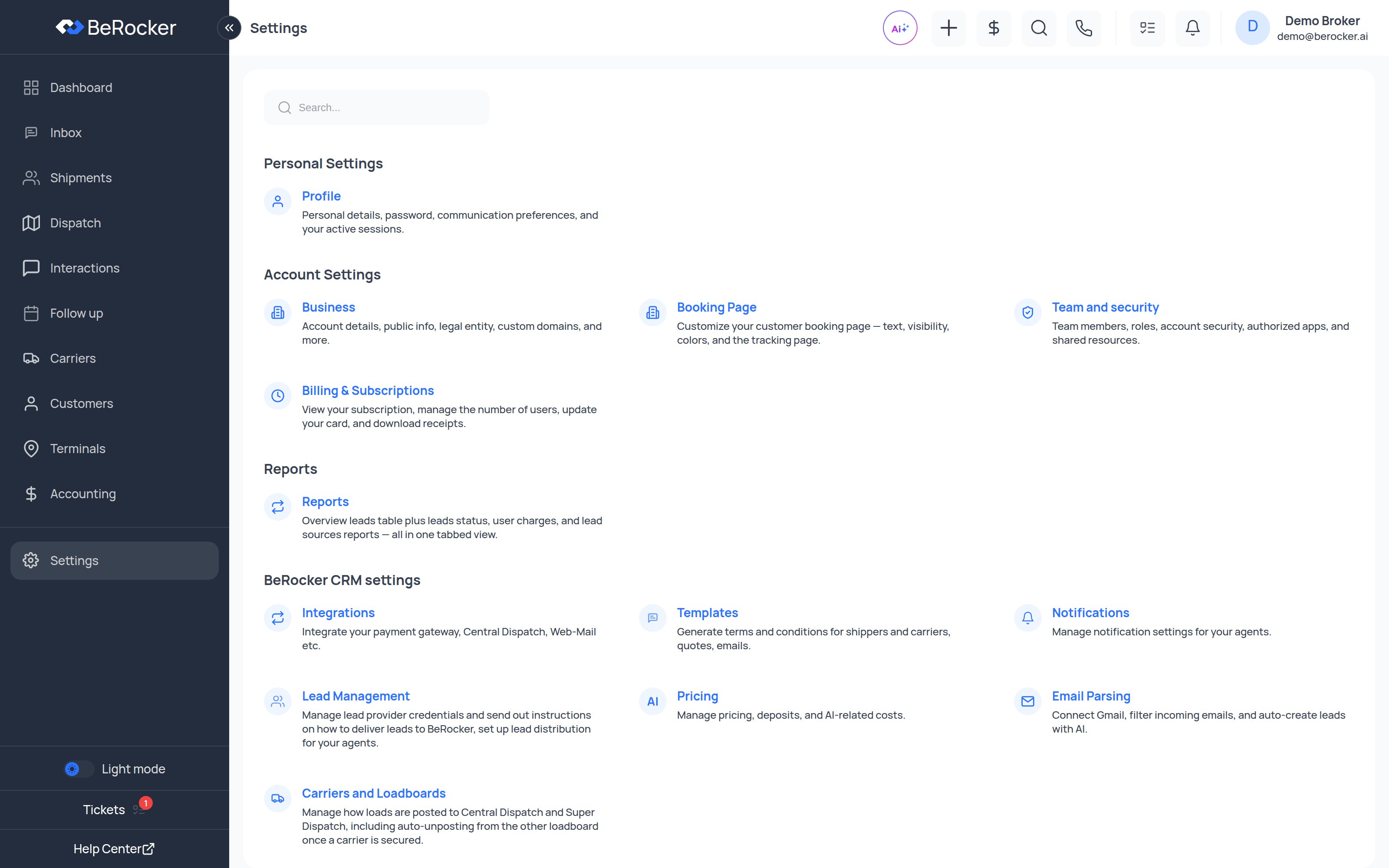
The BeRocker settings hub, grouped into Personal, Account, Reports and CRM settings
Settings is grouped into Personal Settings, Account Settings, Reports and BeRocker CRM settings. The search box at the top jumps straight to any settings page or tab — type “quiet hours”, “deposit”, “2FA” and press Enter. Full section: Settings

Next

How a lead becomes a load

The pipeline explained status by status.

Setup checklist

Everything to configure before you go live.