

Connecting Integrations to Power BeRocker CRM
Why this matters: Before you can use BeRocker CRM effectively, you need to connect the
communication, email, and load board tools your business already relies on. This is the foundation
of your automation — no integrations = no activity.
Goal of this step: Select and connect the services you already use (e.g. Twilio, Mailgun,
CentralDispatch) so your CRM can send emails, place calls, track shipments, and more.
Step 1: Log In to Your BeRocker CRM
- Go to https://app.berocker.com
- Log in with your account credentials
- You’ll land on your main dashboard
Step 2: Go to the Integrations Page
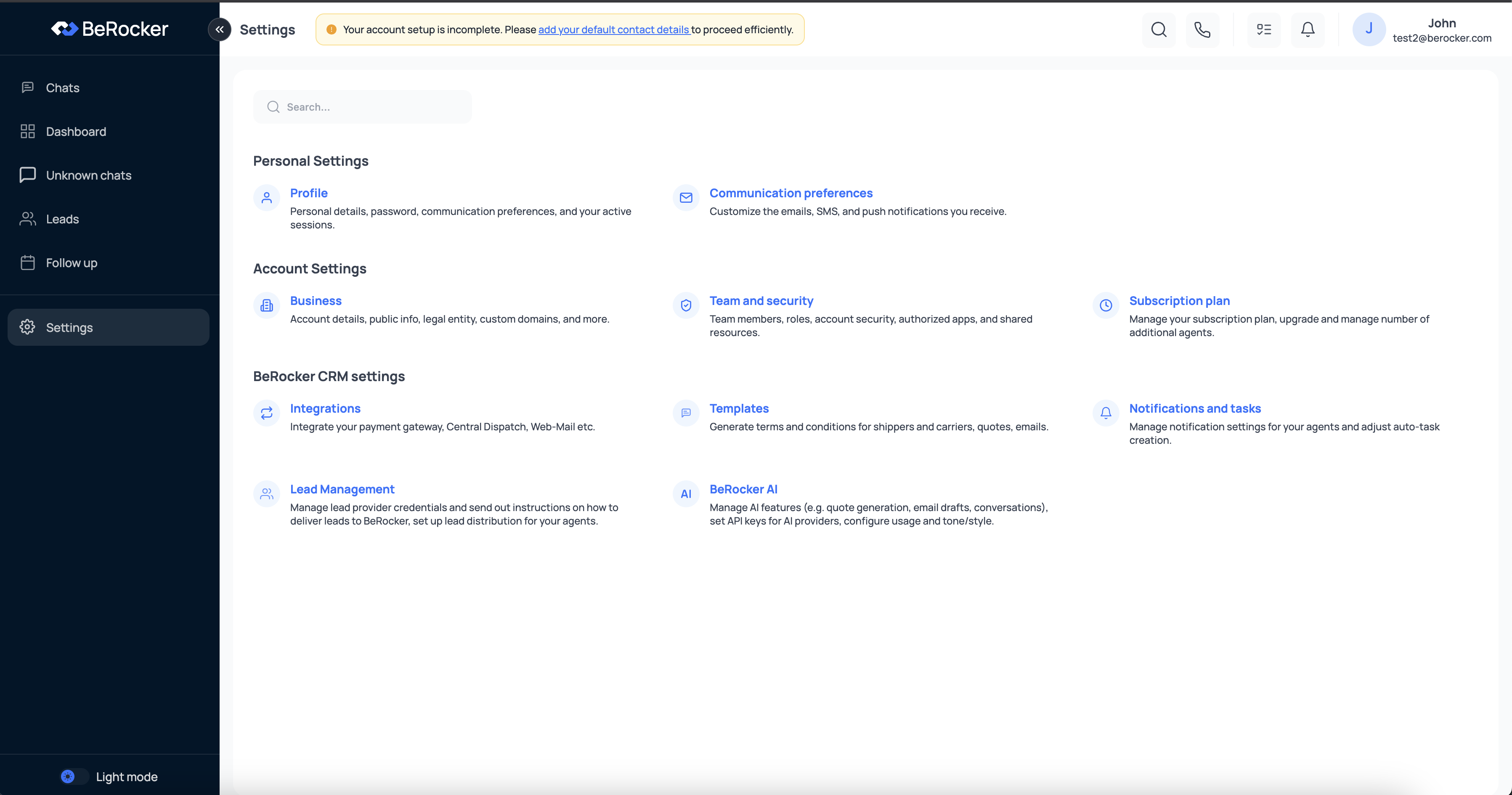
- Click Settings in the left-hand menu
- Under BeRocker CRM settings, click Integrations
Step 3: Connect Your Core Tools
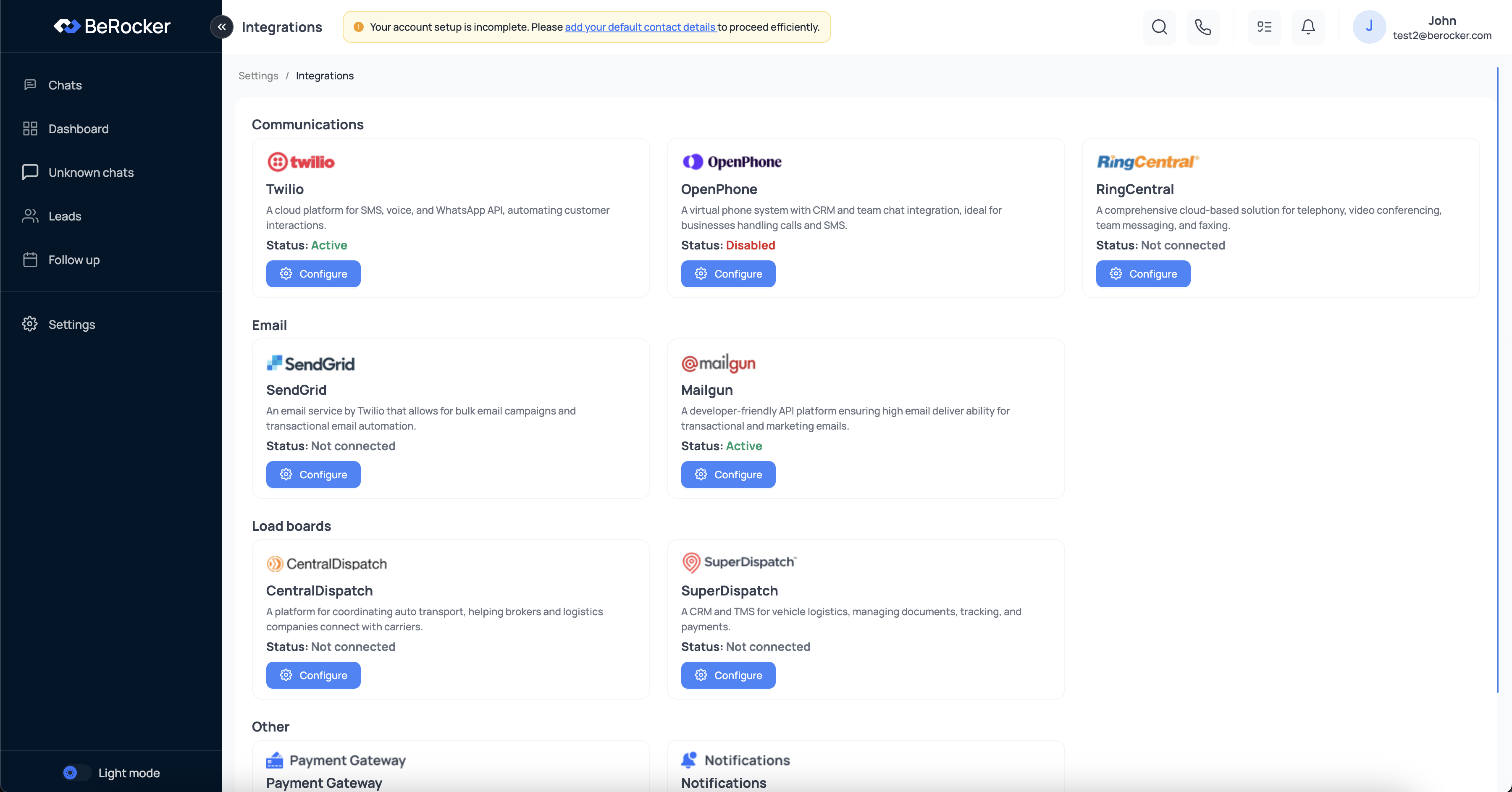
Pick the tools your business already uses and click Configure next to each one to connect it. You’ll see integrations grouped into categories:Communications
- Twilio
- OpenPhone
- RingCentral
- Mailgun
- SendGrid
Load Boards
- CentralDispatch
- SuperDispatch
Other
- Payment Gateway
- Notifications
Important: You only need to connect the platforms you actually use. At least one email and one communication integration is required for full CRM functionality.
Final Step: Set Your Default Contact Info
Before proceeding, click the yellow banner: “Please add your default contact details to proceed
efficiently.”
FAQ
Q: What happens if I skip integrations? A: The CRM won’t be able to send messages, place calls, or sync leads from boards — which defeats its purpose. Integrations are essential.
Q: Can I change tools later? A: Yes. You can disconnect or switch providers anytime from the same Integrations page.
Q: How do I know if it worked? A: When successfully connected, you’ll see Status: Active in green below the tool.
You’re now ready to use BeRocker!
Once your integrations are active, BeRocker can:- Automatically send quotes, updates, and reminders
- Power phone and SMS outreach
- Sync leads and loads directly into your pipeline