

Set Up Your Business Info for Contracts & Branding
Before sending quotes, contracts, or emails to shippers and carriers, you need to configure your Business Settings in BeRocker. This includes your contact info, branding, and legal links — all of which appear in outgoing documents and messages.Step 1: Go to Business Settings
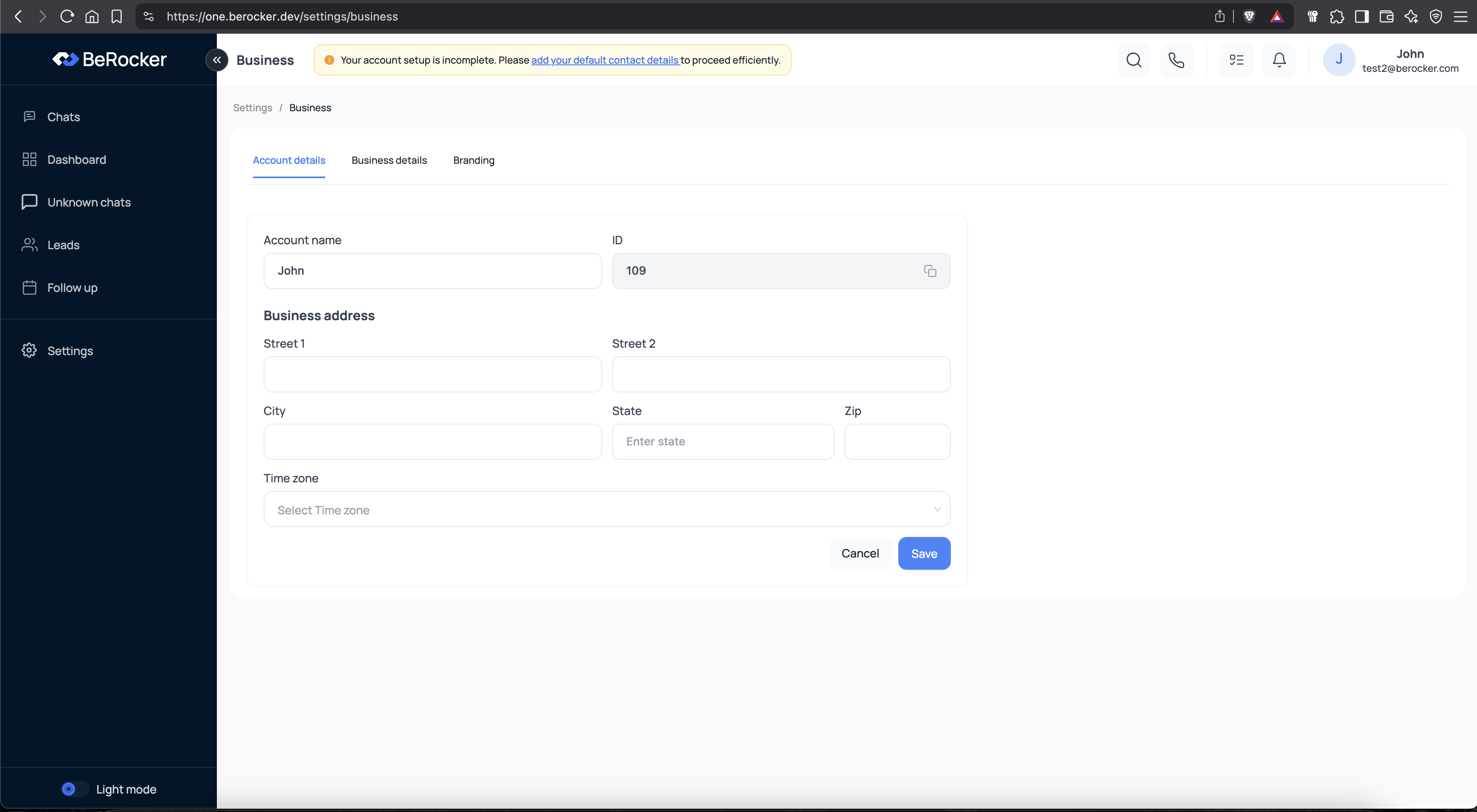
- From the sidebar, click Settings
- Then select Business
- Account details – Contact info and timezone
- Business details – Legal & public company info
- Branding – Logos, brand color, and visual identity
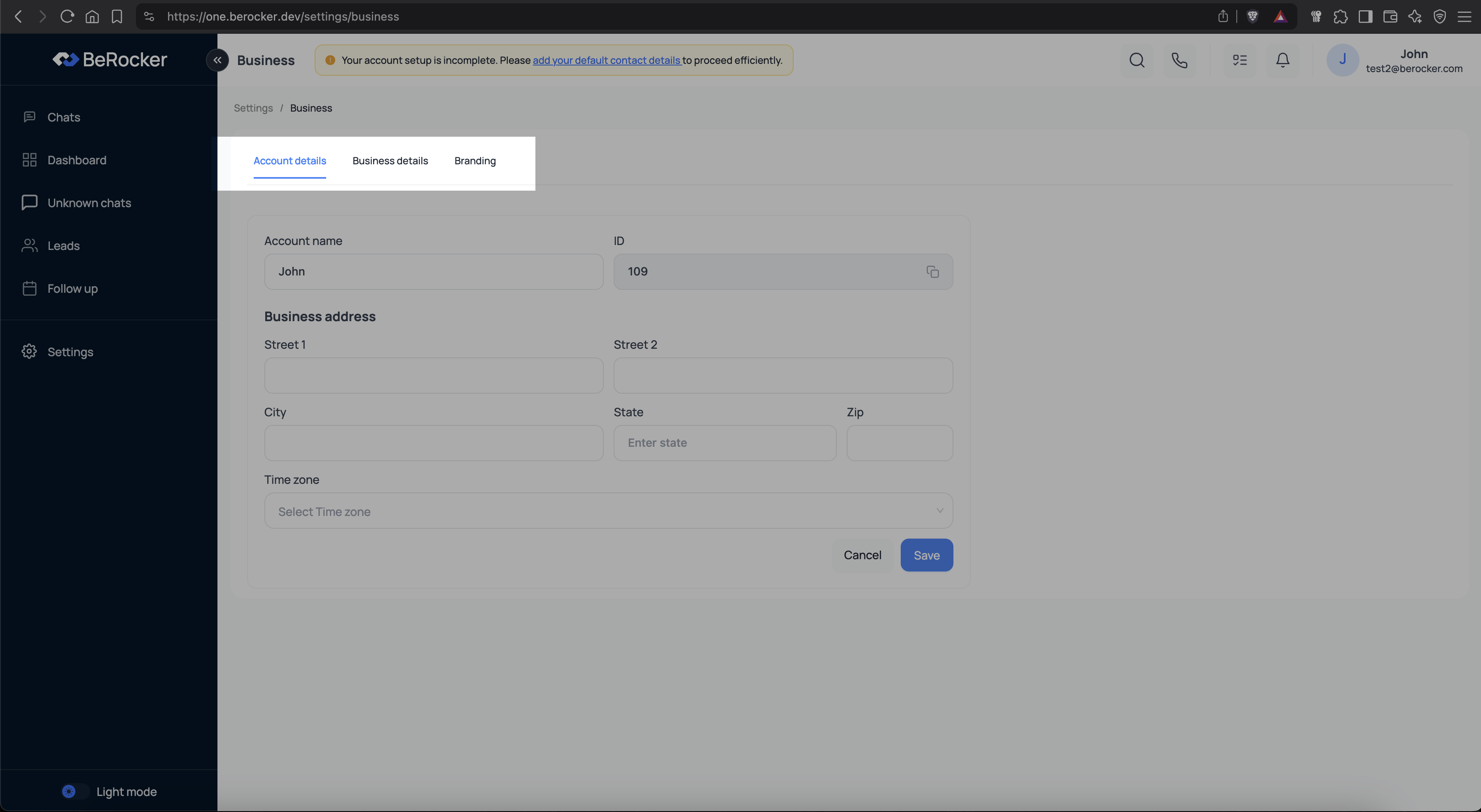
Step 2: Fill in Your Company Info
Under the Account details tab:- Account name: Your business or brand name
- Business address: Fill in your full legal address
- Time zone: Select your local time zone (used for automation and scheduling)
This data is used in contracts, quote PDFs, and email headers.
Step 3: Add Legal & Public Details
Go to the Business details tab to: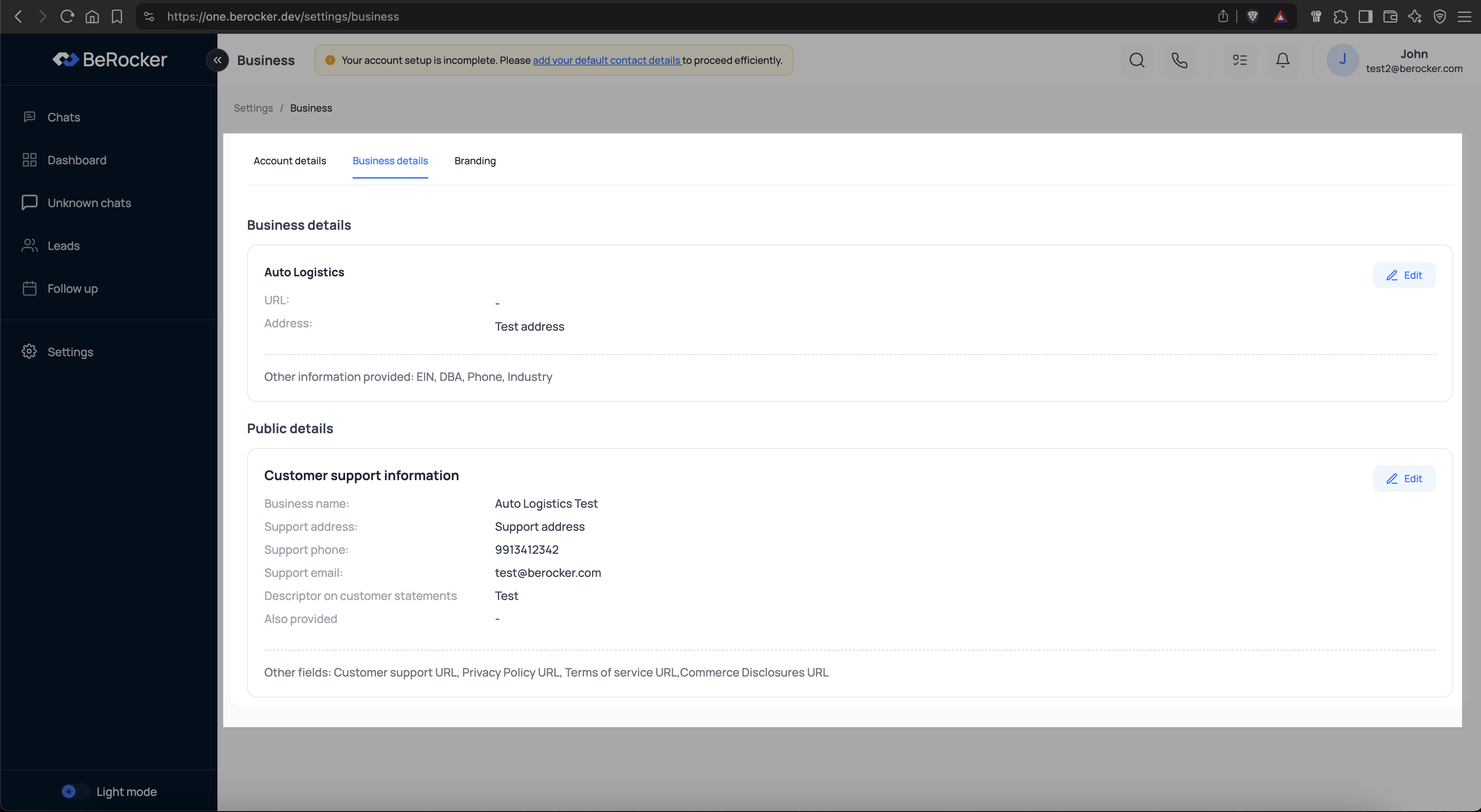
- Add links to your Terms of Service, Privacy Policy, or Refund Policy
- Specify your legal entity name, if different from your brand name
- Define your business email and support contact
These links are displayed on invoices, payment pages, and emails.
Step 4: Upload Branding Assets
Open the Branding tab: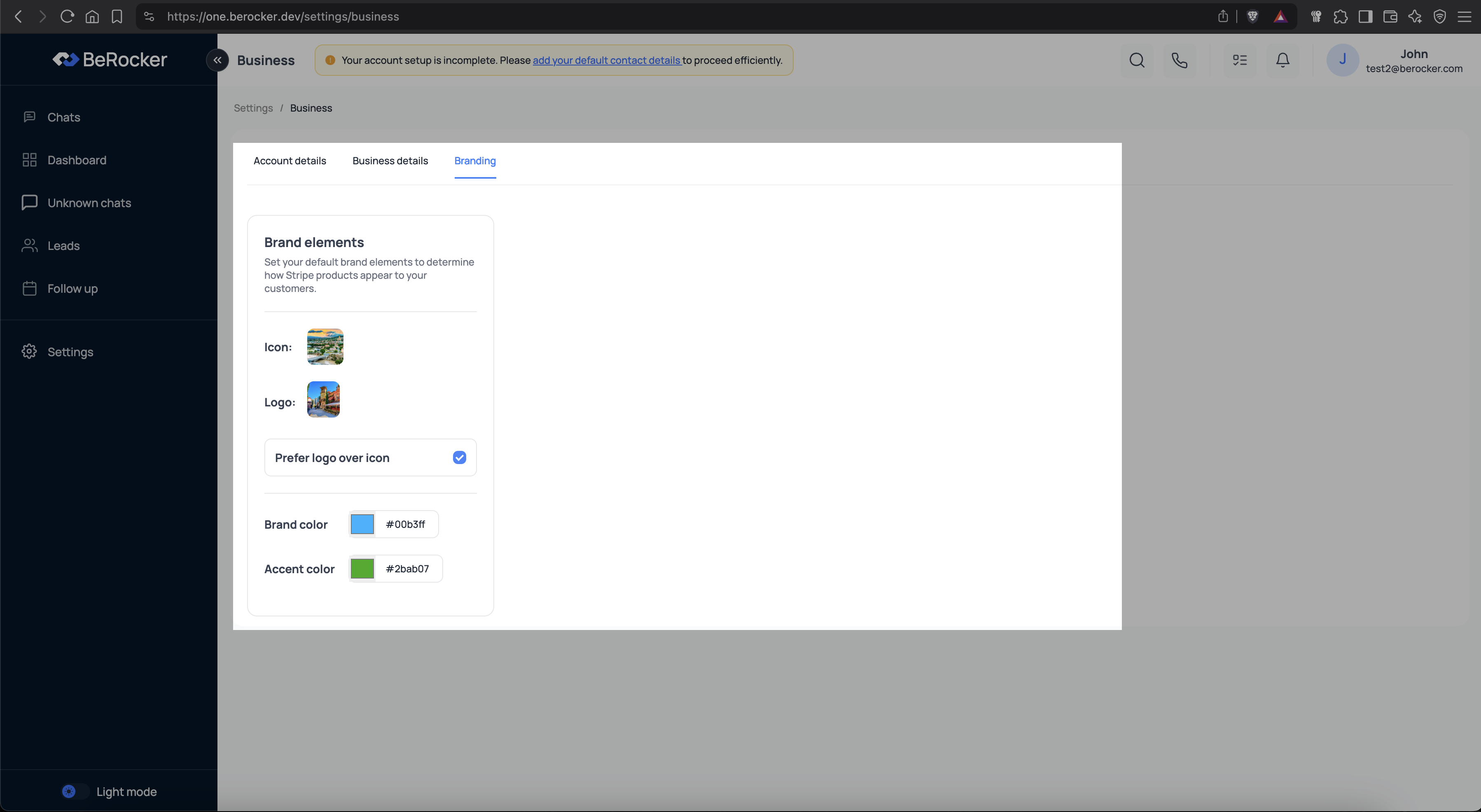
- Upload your logo (recommended for email templates and documents)
- Add an icon (used in compact views)
- Choose a brand color (e.g. your main blue or red)
- Set an accent color (for highlights and buttons)
Why This Matters
Your business settings are automatically used in:- Contracts and quotes sent to carriers and shippers
- Email templates, notifications, and task reminders
- Stripe and payment gateway interfaces
- Internal branding for your agents
Pro Tips
- Use a square icon for best visual results
- Brand color affects buttons and links in email templates
- Set the correct time zone to avoid task and follow-up misfires
Final Checklist
- Business name and address entered
- Time zone selected
- Logo and colors set
- Legal links added (if available)