> ## Documentation Index
> Fetch the complete documentation index at: https://help.berocker.com/llms.txt
> Use this file to discover all available pages before exploring further.
# Terminals
> The yards, ports and terminals you ship in and out of, with their contacts and order history.
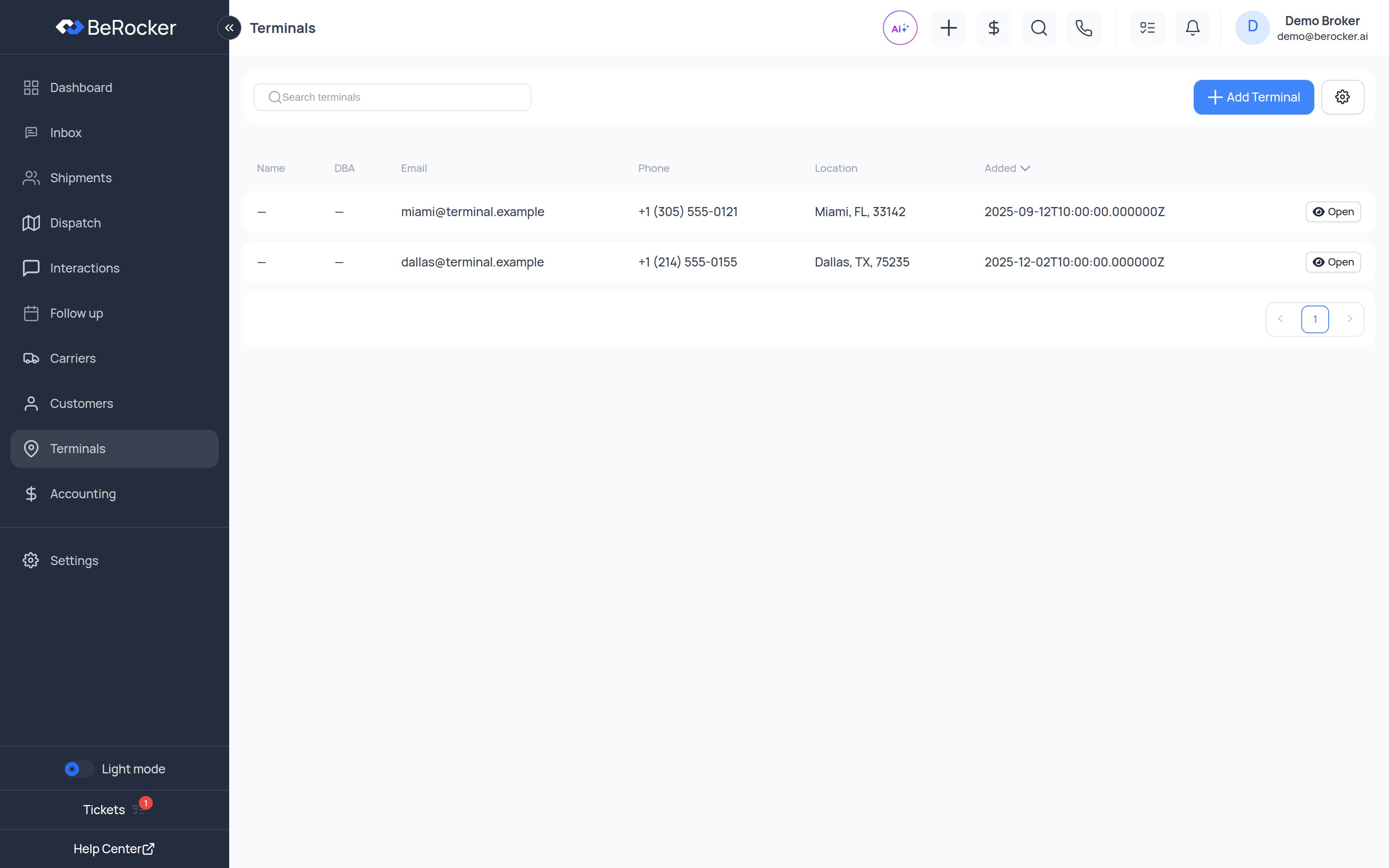
**Terminals** is your list of yards, storage lots, auctions, ports and any other fixed location you
ship in and out of — so an agent picking a terminal on a shipment is choosing from a list you
maintain instead of retyping an address.
 ***
## A terminal record
| Field | Notes |
| ------------------------------ | -------------------------------------------------------------------------- |
| **Name** and **DBA name** | The legal name and the name everyone actually uses. |
| **Address, city, state, ZIP** | Used on dispatch sheets and driver instructions. |
| **Contact name, phone, email** | The main contact. |
| **Comment** | Gate hours, where to check in, which door — the things drivers call about. |
***
## The terminal profile
Every shipment that has picked up from or delivered to this terminal.
All the people at this terminal, with one marked as the main contact.
***
## Ports and ocean shipping
If your organization does ocean shipping, **Settings → Business** also gains **Ports** and
**Port Route** tabs for port-to-port, port-to-door and door-to-port routing. Those are separate
from terminals — see [Business](/settings/business).
***
## Importing terminals
Bulk import is under **Settings → Lead Management → Import data**.
***
## Related
The other half of the address book.
Where terminals get used.
***
## A terminal record
| Field | Notes |
| ------------------------------ | -------------------------------------------------------------------------- |
| **Name** and **DBA name** | The legal name and the name everyone actually uses. |
| **Address, city, state, ZIP** | Used on dispatch sheets and driver instructions. |
| **Contact name, phone, email** | The main contact. |
| **Comment** | Gate hours, where to check in, which door — the things drivers call about. |
***
## The terminal profile
Every shipment that has picked up from or delivered to this terminal.
All the people at this terminal, with one marked as the main contact.
***
## Ports and ocean shipping
If your organization does ocean shipping, **Settings → Business** also gains **Ports** and
**Port Route** tabs for port-to-port, port-to-door and door-to-port routing. Those are separate
from terminals — see [Business](/settings/business).
***
## Importing terminals
Bulk import is under **Settings → Lead Management → Import data**.
***
## Related
The other half of the address book.
Where terminals get used.