> ## Documentation Index
> Fetch the complete documentation index at: https://help.berocker.com/llms.txt
> Use this file to discover all available pages before exploring further.
# Shipments
> The table of every lead and order in your pipeline, grouped into status tabs with live counts.
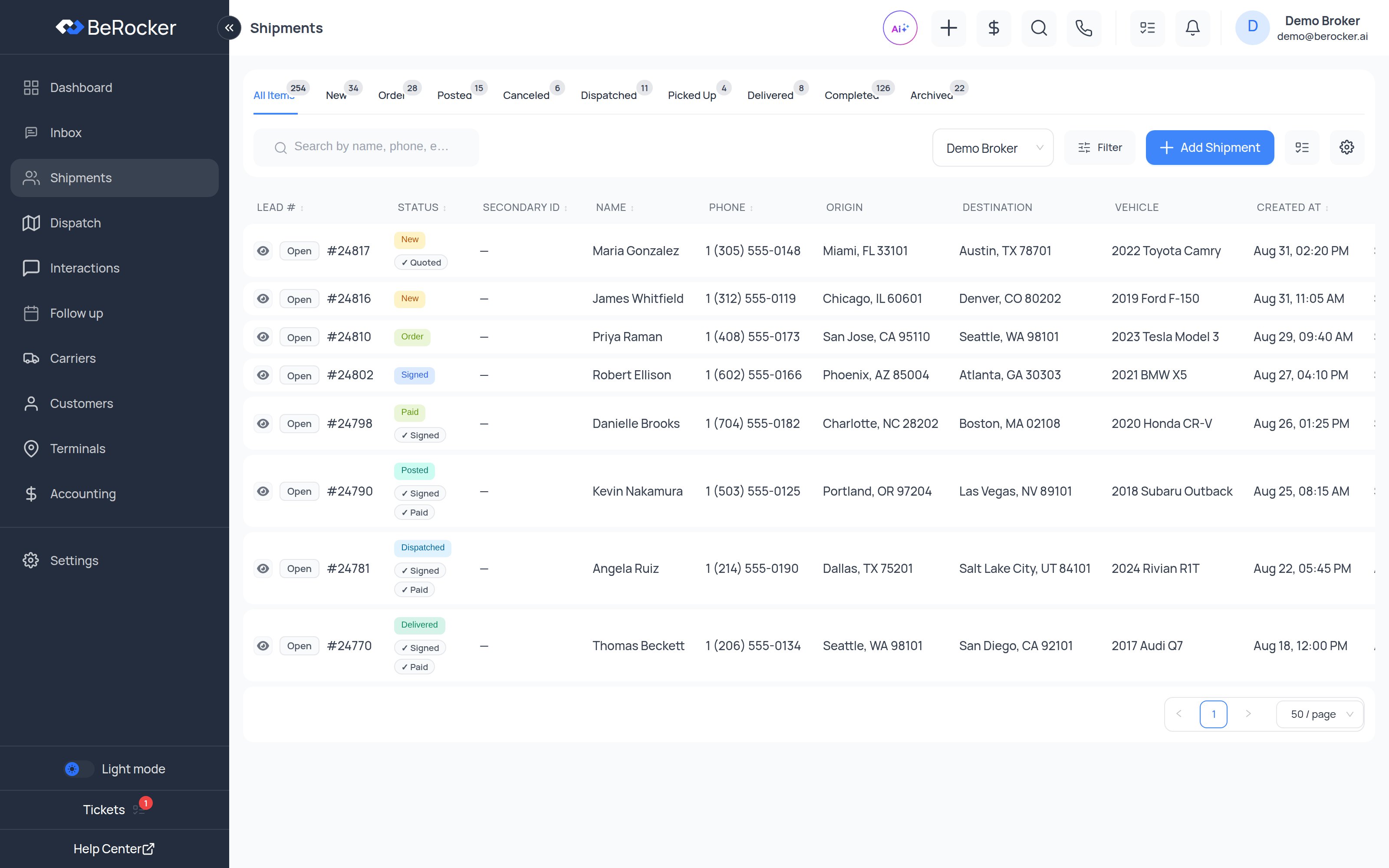
**Shipments** is the working table of every lead and order. If Inbox is where you talk,
Shipments is where you see the whole book at once.
 ***
## The status tabs
The tabs across the top are the pipeline, each with a live count:
**All Items · New · Order · Posted · Canceled · Dispatched · Picked Up · Delivered · Completed · Archived**
The **Order** tab is a grouping, not a status. It folds **Order**, **Signed** and **Paid** together
so the tab bar stays short. The individual statuses are still on each shipment — use the
sub-filters below the tabs to split them apart.
See [How a lead becomes a load](/get-started/lead-journey) for what each status means.
***
## Sub-filters
Three tabs show a second row of buttons that split the tab into buckets. The buckets partition the
tab — their counts add up to the tab total.
| Tab | Buckets |
| ---------- | ----------------------------------------------------------- |
| **New** | All New · Not Quoted · Quoted |
| **Order** | All Orders · Needs Contract · Contract Sent · Signed · Paid |
| **Posted** | All Posted · No Offers · Has Offers |
None of these are set by hand. They are worked out from things that already exist — the quote
message that went out, the contract, the payment, the carrier offers — so they cannot go stale.
***
## Finding what needs doing
The sub-filters are the fastest way to answer "what is waiting on me":
| Question | Where to click |
| ------------------------------------------- | --------------------------------------------------- |
| Which new leads has nobody priced? | **New → Not Quoted** |
| Which orders have no agreement out? | **Order → Needs Contract** |
| Who has signed but not paid? | **Order → Signed** |
| Which posted loads are getting no interest? | **Posted → No Offers** |
| What is paid but has no carrier? | **Order → Paid**, then check the **Carrier** column |
The tab bar is sticky — it stays put while the list scrolls, so you can switch status or search a
hundred rows down without scrolling back to the top.
***
## The toolbar
| Control | What it does |
| ----------------------- | ---------------------------------------------------------------------------- |
| **Search** | By name, phone, email, lead number or secondary ID. |
| **Owner** | Show only one agent's shipments — or everyone's. |
| **Filter** | Status, dates, lead source, origin/destination state, tags, offers and more. |
| **+ Add Shipment** | Create a shipment by hand. |
| **Columns** (list icon) | Choose which columns the table shows. Your choice is remembered. |
| **Settings** (gear) | Table preferences. |
***
## The table
Default columns include the lead number, status with milestone chips, secondary ID, customer name
and phone, origin, destination, vehicle and created date. **Open** takes you to the conversation;
the eye icon gives a quick preview without leaving the table.
The milestone chips — **✓ Quoted**, **✓ Signed**, **✓ Paid** — accumulate and never go backwards,
so a Dispatched shipment still shows all three.
You can add columns for VIN, trailer type, carrier, payment method, lead source, tags, distance,
price, deposit and carrier pay. Set the table up once for how your desk actually works.
***
## Adding a shipment by hand
**+ Add Shipment** opens the form: customer, origin and destination, vehicles, dates, trailer type
and price.
* Phone is required unless your organization allows phone-less leads.
* A half-filled form is saved as a draft on your machine so a reload does not lose it — and it is
cleared when you sign out, since brokerages share workstations.
***
## Exporting
Shipments can be exported from **Settings → Reports → Overview**, where you can filter first and
save the export configuration for next time. See [Reports](/settings/reports).
***
## Related
Open any shipment's conversation.
The live map of what is already on the road.
Where the quoted price comes from.
How posting and unposting behaves.
***
## The status tabs
The tabs across the top are the pipeline, each with a live count:
**All Items · New · Order · Posted · Canceled · Dispatched · Picked Up · Delivered · Completed · Archived**
The **Order** tab is a grouping, not a status. It folds **Order**, **Signed** and **Paid** together
so the tab bar stays short. The individual statuses are still on each shipment — use the
sub-filters below the tabs to split them apart.
See [How a lead becomes a load](/get-started/lead-journey) for what each status means.
***
## Sub-filters
Three tabs show a second row of buttons that split the tab into buckets. The buckets partition the
tab — their counts add up to the tab total.
| Tab | Buckets |
| ---------- | ----------------------------------------------------------- |
| **New** | All New · Not Quoted · Quoted |
| **Order** | All Orders · Needs Contract · Contract Sent · Signed · Paid |
| **Posted** | All Posted · No Offers · Has Offers |
None of these are set by hand. They are worked out from things that already exist — the quote
message that went out, the contract, the payment, the carrier offers — so they cannot go stale.
***
## Finding what needs doing
The sub-filters are the fastest way to answer "what is waiting on me":
| Question | Where to click |
| ------------------------------------------- | --------------------------------------------------- |
| Which new leads has nobody priced? | **New → Not Quoted** |
| Which orders have no agreement out? | **Order → Needs Contract** |
| Who has signed but not paid? | **Order → Signed** |
| Which posted loads are getting no interest? | **Posted → No Offers** |
| What is paid but has no carrier? | **Order → Paid**, then check the **Carrier** column |
The tab bar is sticky — it stays put while the list scrolls, so you can switch status or search a
hundred rows down without scrolling back to the top.
***
## The toolbar
| Control | What it does |
| ----------------------- | ---------------------------------------------------------------------------- |
| **Search** | By name, phone, email, lead number or secondary ID. |
| **Owner** | Show only one agent's shipments — or everyone's. |
| **Filter** | Status, dates, lead source, origin/destination state, tags, offers and more. |
| **+ Add Shipment** | Create a shipment by hand. |
| **Columns** (list icon) | Choose which columns the table shows. Your choice is remembered. |
| **Settings** (gear) | Table preferences. |
***
## The table
Default columns include the lead number, status with milestone chips, secondary ID, customer name
and phone, origin, destination, vehicle and created date. **Open** takes you to the conversation;
the eye icon gives a quick preview without leaving the table.
The milestone chips — **✓ Quoted**, **✓ Signed**, **✓ Paid** — accumulate and never go backwards,
so a Dispatched shipment still shows all three.
You can add columns for VIN, trailer type, carrier, payment method, lead source, tags, distance,
price, deposit and carrier pay. Set the table up once for how your desk actually works.
***
## Adding a shipment by hand
**+ Add Shipment** opens the form: customer, origin and destination, vehicles, dates, trailer type
and price.
* Phone is required unless your organization allows phone-less leads.
* A half-filled form is saved as a draft on your machine so a reload does not lose it — and it is
cleared when you sign out, since brokerages share workstations.
***
## Exporting
Shipments can be exported from **Settings → Reports → Overview**, where you can filter first and
save the export configuration for next time. See [Reports](/settings/reports).
***
## Related
Open any shipment's conversation.
The live map of what is already on the road.
Where the quoted price comes from.
How posting and unposting behaves.