> ## Documentation Index
> Fetch the complete documentation index at: https://help.berocker.com/llms.txt
> Use this file to discover all available pages before exploring further.
# Inbox
> Every conversation with every customer — SMS, email, WhatsApp and calls — in one thread.
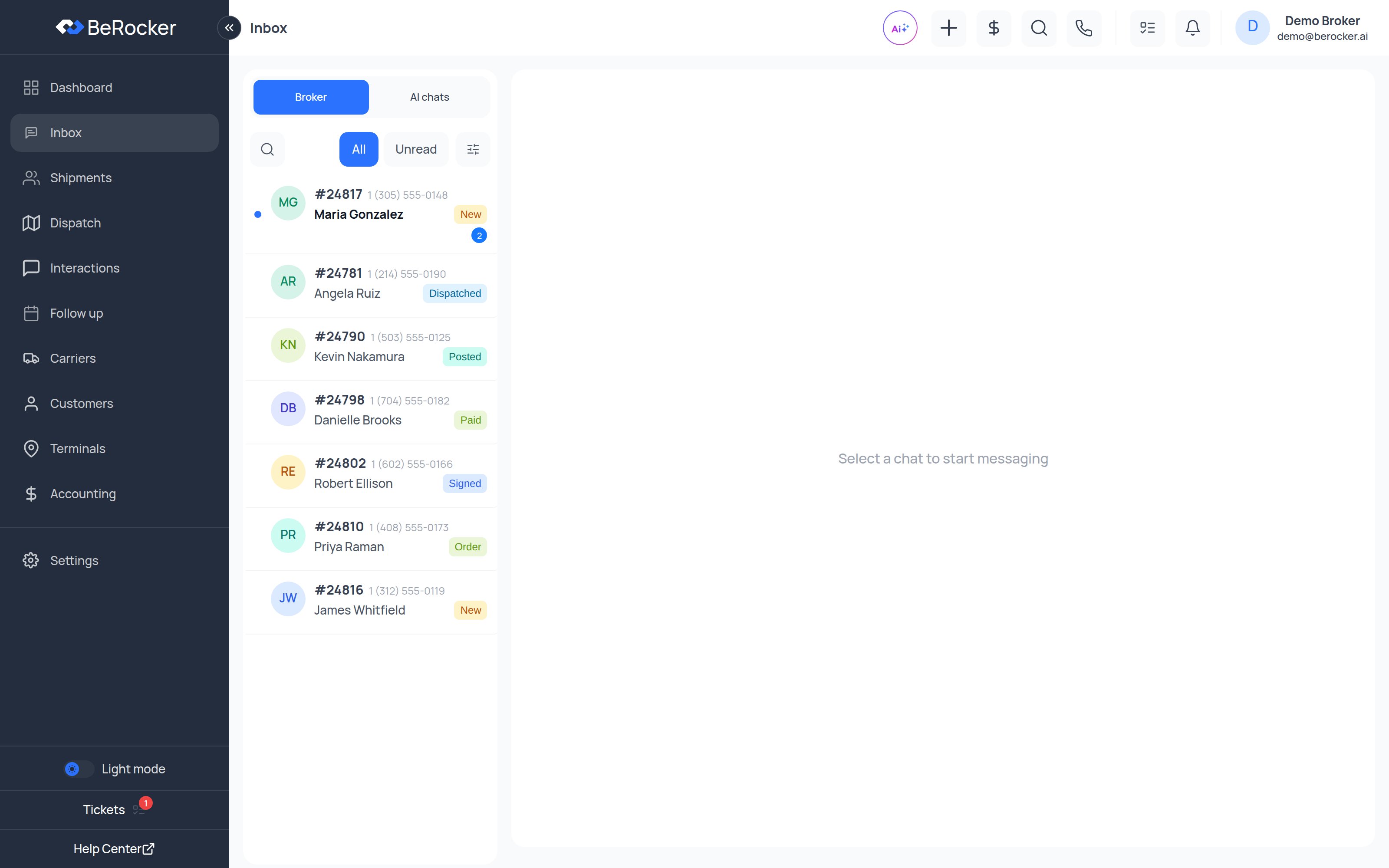
**Inbox** is where the work happens. Every lead has one conversation, and every SMS, email,
WhatsApp message, call and recording for that lead lives in it.
 ***
## The conversation list
***
## The conversation list
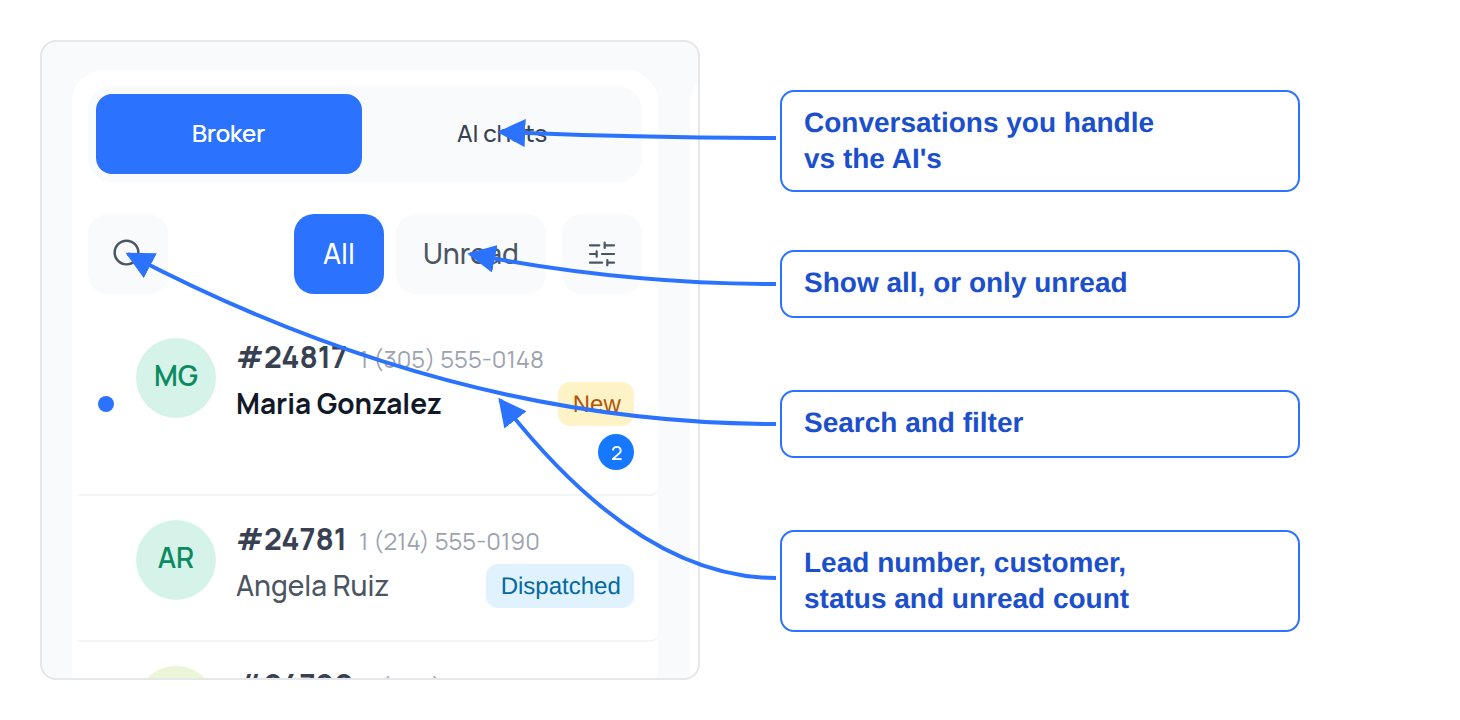 | Control | What it does |
| --------------------- | ----------------------------------------------------------------------------------------- |
| **Broker / AI chats** | Switches between conversations a person is handling and conversations the AI is handling. |
| **All / Unread** | Shows everything, or only threads with unread customer messages. |
| **Search** | Finds a conversation by name, phone, email or lead number. |
| **Filter** | Narrows by status, agent, channel and more. |
Each row shows the lead number, the customer's name and number, the last message, and a blue badge
with the count of unread messages.
***
## Who owns the conversation: you or the AI
Every conversation has a **responsible** party — either **AI** or **Worker** (you).
* While the AI is responsible it answers the customer using your templates and pricing.
* The moment you take over, the AI stops replying on that thread.
Use the **Broker / AI chats** switch at the top of the list to see each set. In
[Triage](/using/follow-up) the same handover is one click: **Take over**.
***
## The message thread
The middle column is the thread itself, newest at the bottom. It carries everything, not just texts:
* **SMS, email and WhatsApp** messages, inbound and outbound.
* **Calls** — inbound, outbound and AI calls — with the recording and, where available, a
**transcription** you can read instead of listening.
* **Files** — photos, PDFs, documents — with previews.
* **Quotes and templates** that were sent, and which template version went out.
Above the thread you get **Conversation summary** — an AI read of what is going on, what is
blocking, and a suggested reply — so you do not have to re-read forty messages before answering.
***
## The conversation header and composer
| Control | What it does |
| --------------------- | ----------------------------------------------------------------------------------------- |
| **Broker / AI chats** | Switches between conversations a person is handling and conversations the AI is handling. |
| **All / Unread** | Shows everything, or only threads with unread customer messages. |
| **Search** | Finds a conversation by name, phone, email or lead number. |
| **Filter** | Narrows by status, agent, channel and more. |
Each row shows the lead number, the customer's name and number, the last message, and a blue badge
with the count of unread messages.
***
## Who owns the conversation: you or the AI
Every conversation has a **responsible** party — either **AI** or **Worker** (you).
* While the AI is responsible it answers the customer using your templates and pricing.
* The moment you take over, the AI stops replying on that thread.
Use the **Broker / AI chats** switch at the top of the list to see each set. In
[Triage](/using/follow-up) the same handover is one click: **Take over**.
***
## The message thread
The middle column is the thread itself, newest at the bottom. It carries everything, not just texts:
* **SMS, email and WhatsApp** messages, inbound and outbound.
* **Calls** — inbound, outbound and AI calls — with the recording and, where available, a
**transcription** you can read instead of listening.
* **Files** — photos, PDFs, documents — with previews.
* **Quotes and templates** that were sent, and which template version went out.
Above the thread you get **Conversation summary** — an AI read of what is going on, what is
blocking, and a suggested reply — so you do not have to re-read forty messages before answering.
***
## The conversation header and composer
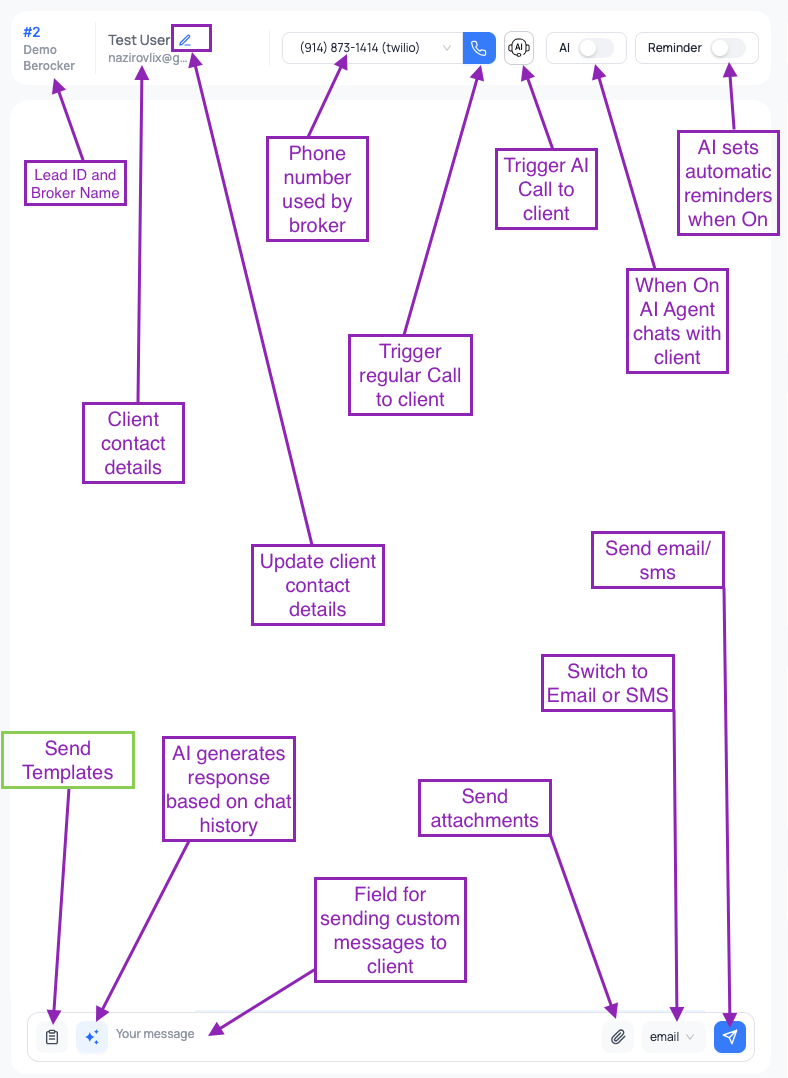 **Along the top:** the lead number and the broker's name, the customer's contact details (with a
pencil to edit them), the phone number you are calling from, a **call** button, an **AI call**
button, the **AI** toggle that hands the conversation to the AI agent, and the **Reminder** toggle
that lets the AI set automatic reminders.
**Along the bottom:** send a **template**, have **AI generate** a reply from the chat history, type
a custom message, attach a file, switch between **email** and **SMS**, and send.
You can also **Send quote**, which builds the quote from your [pricing](/settings/pricing) settings.
If you see **"No SMS / email sender available"**, you have not set a default contact yet.
Fix it in **Settings → Profile → User Contacts** — see [Profile](/settings/profile).
***
## The lead panel
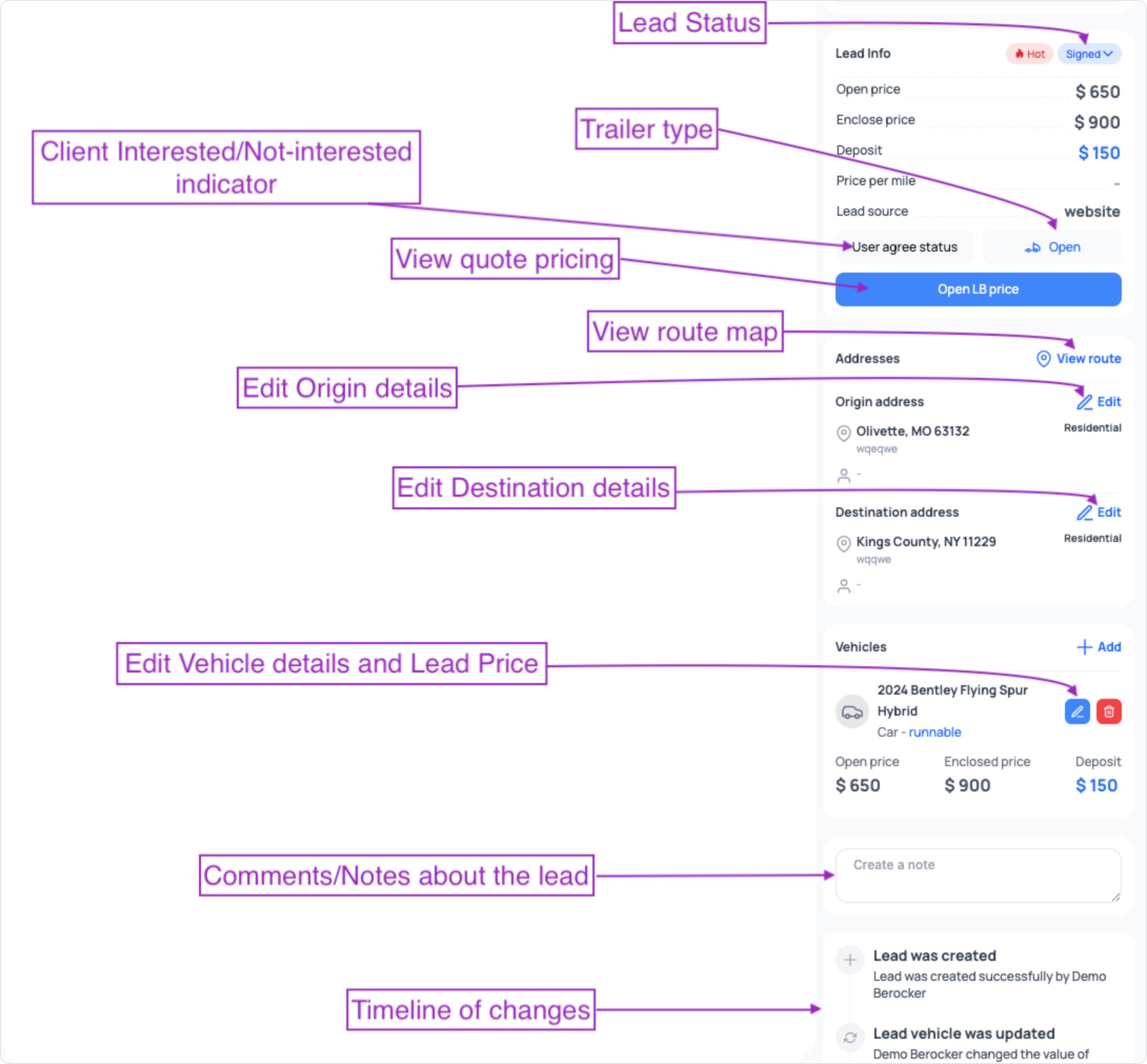
The right-hand panel is the shipment itself, with three tabs — **Details**, **Booking** and
**Carrier**.
Lead info (open price, enclosed price, deposit, price per mile, lead source, trailer type, hot
flag and the customer's agree status), origin and destination **addresses**, **tags**,
**vehicles**, the customer's comments, your internal **note**, and the **timeline** of every
change made to the shipment.
This is where you edit the shipment and change the price.
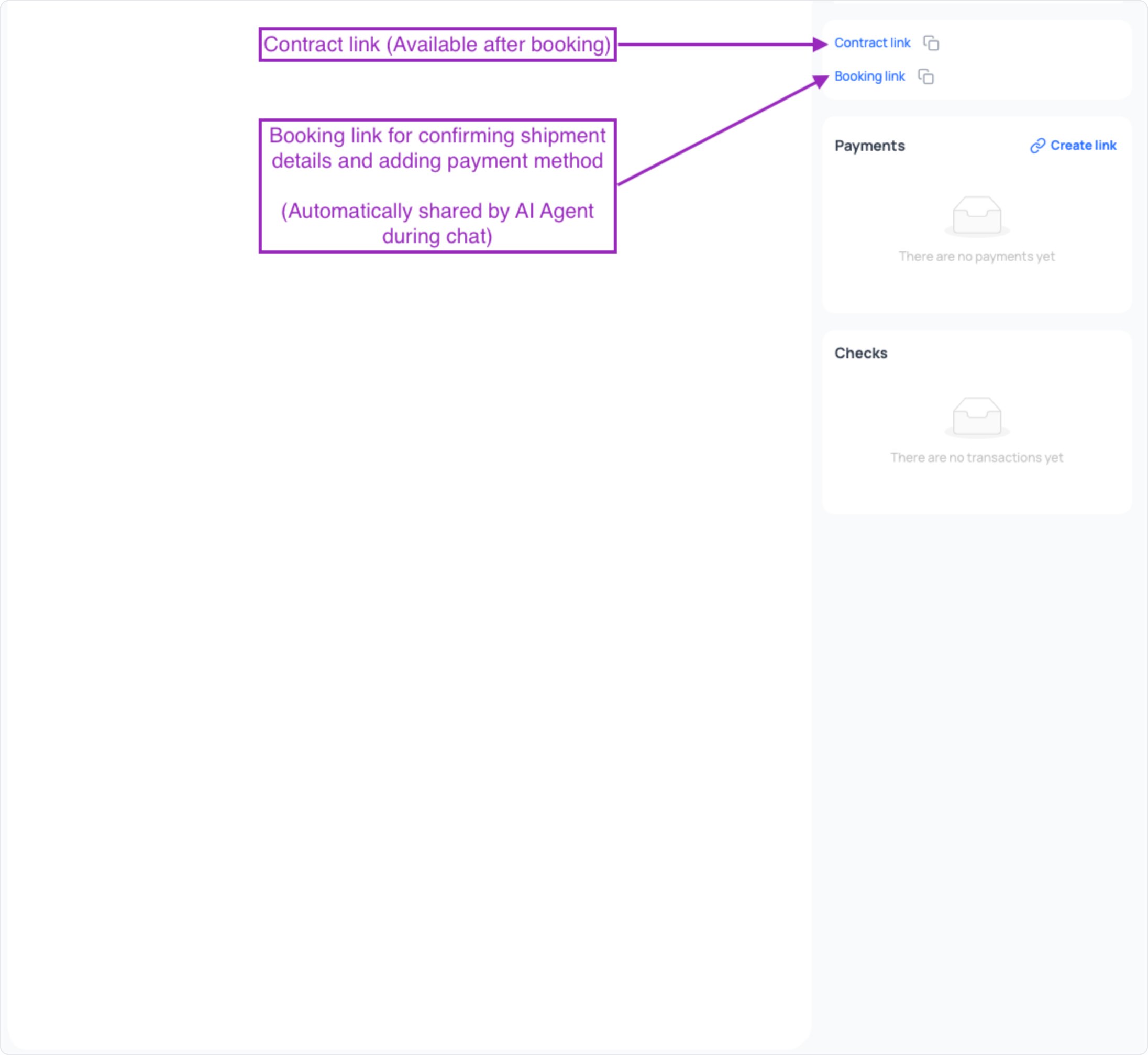
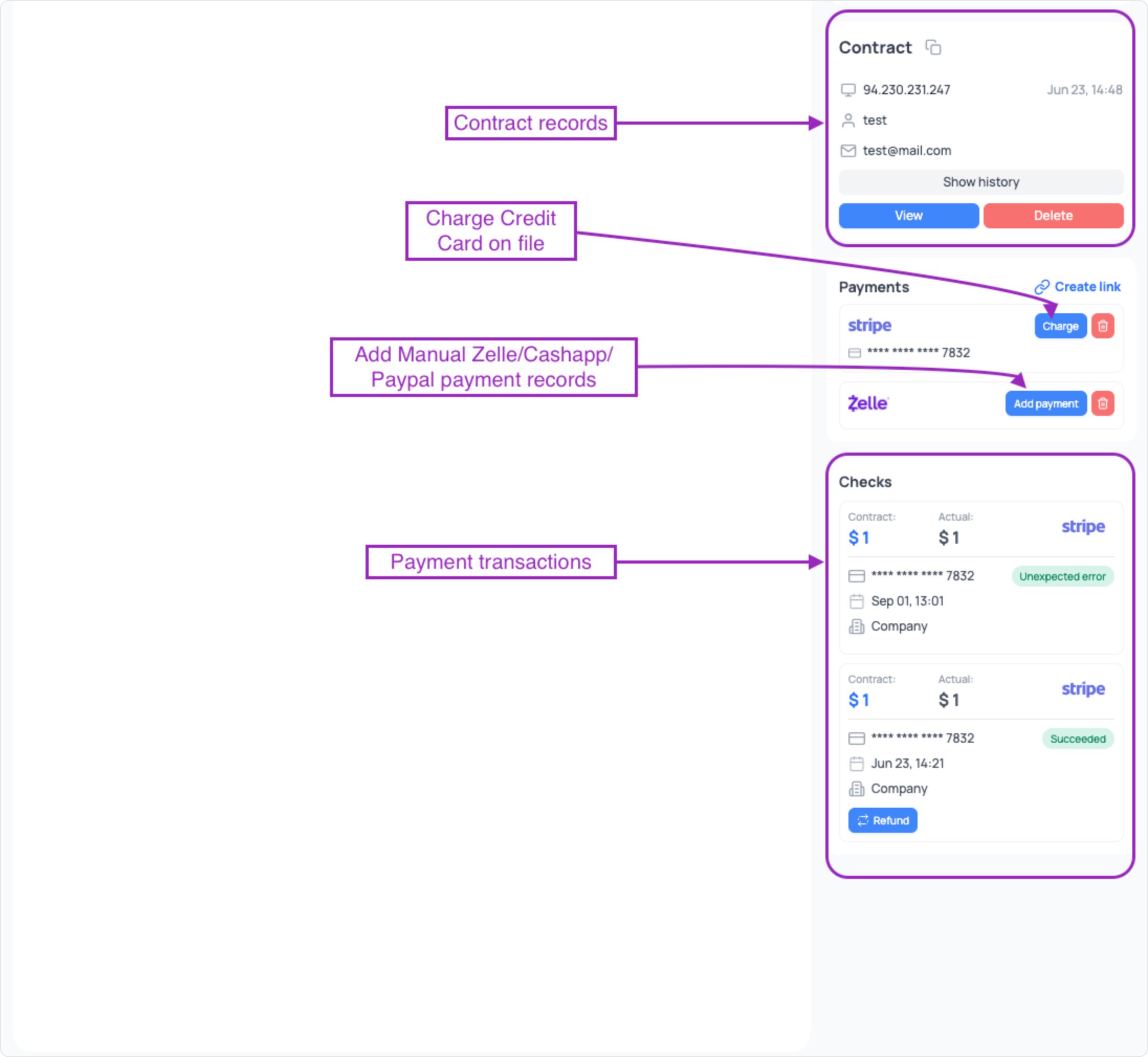
The order side: **contract records** (with history, view and delete), **payments** — charge the
card on file, create a payment link, or record a manual Zelle / Cash App / PayPal payment — and
**checks**, the list of every transaction with its status and a **Refund** action.
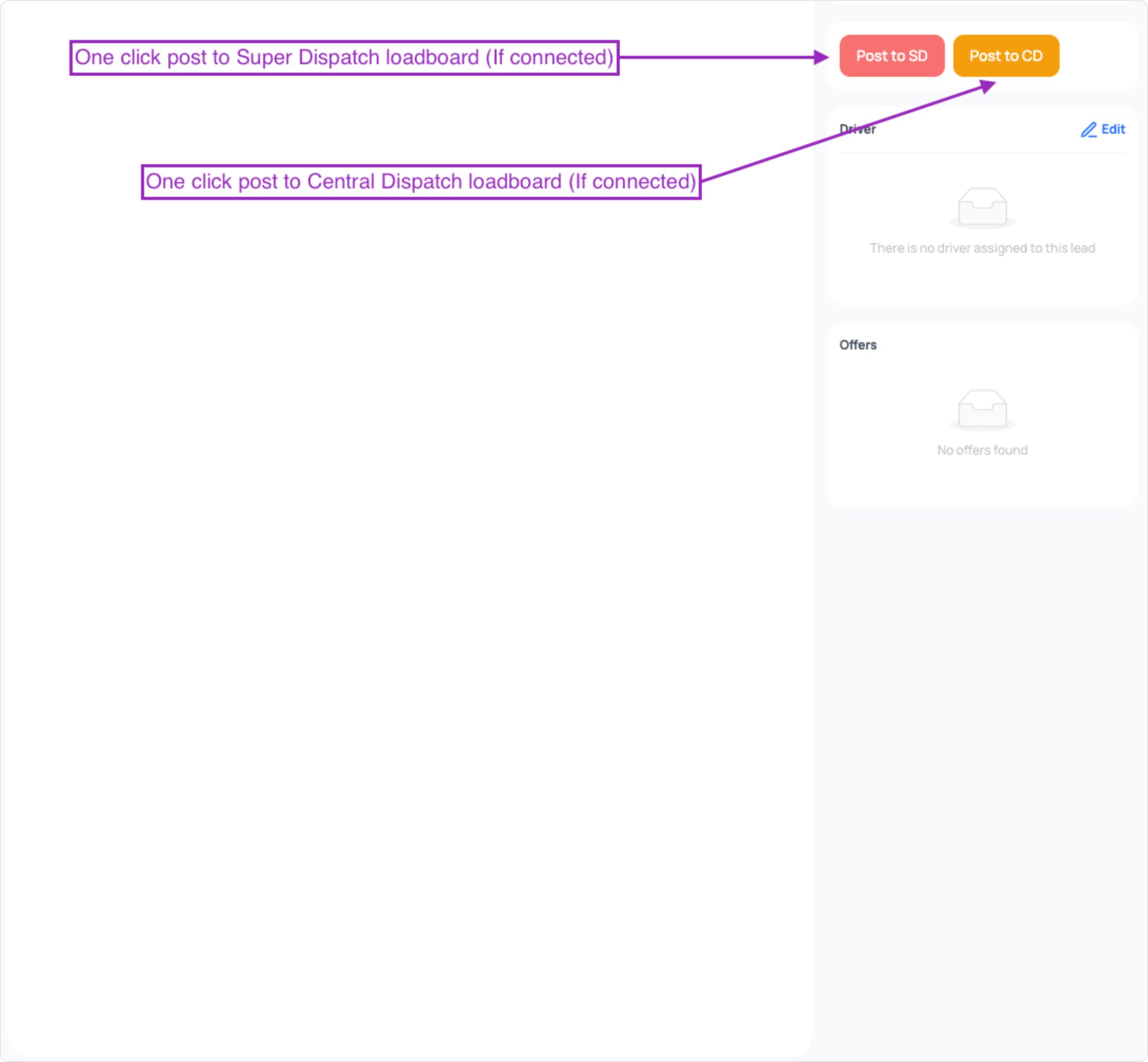
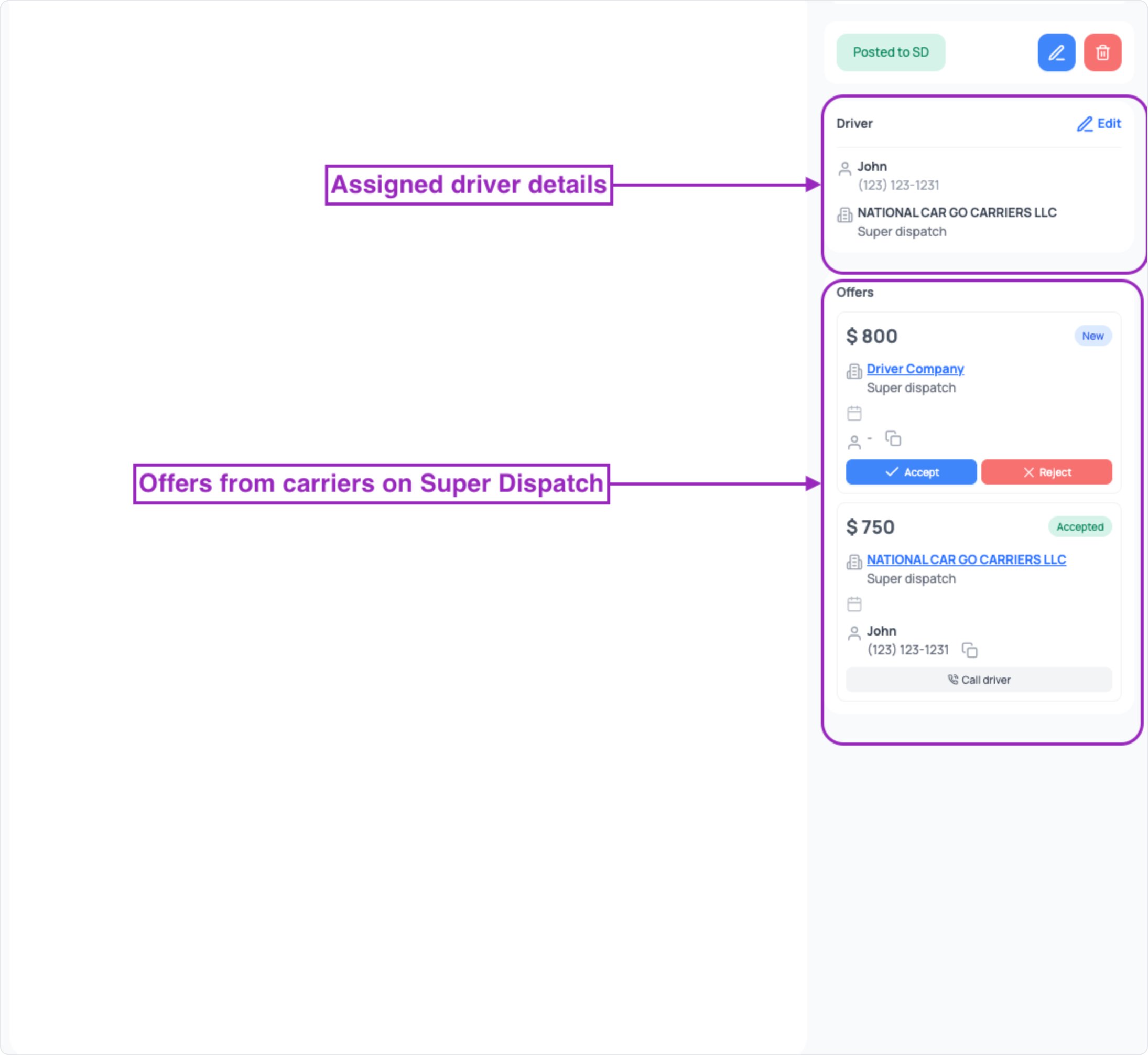
Post the load to Central Dispatch or Super Dispatch, see the **offers** coming back, **Accept**
or **Reject** each one, and dispatch the carrier. After dispatch it shows the assigned
**driver** — name, phone and carrier company — with a **Call driver** button.
**Along the top:** the lead number and the broker's name, the customer's contact details (with a
pencil to edit them), the phone number you are calling from, a **call** button, an **AI call**
button, the **AI** toggle that hands the conversation to the AI agent, and the **Reminder** toggle
that lets the AI set automatic reminders.
**Along the bottom:** send a **template**, have **AI generate** a reply from the chat history, type
a custom message, attach a file, switch between **email** and **SMS**, and send.
You can also **Send quote**, which builds the quote from your [pricing](/settings/pricing) settings.
If you see **"No SMS / email sender available"**, you have not set a default contact yet.
Fix it in **Settings → Profile → User Contacts** — see [Profile](/settings/profile).
***
## The lead panel
The right-hand panel is the shipment itself, with three tabs — **Details**, **Booking** and
**Carrier**.
Lead info (open price, enclosed price, deposit, price per mile, lead source, trailer type, hot
flag and the customer's agree status), origin and destination **addresses**, **tags**,
**vehicles**, the customer's comments, your internal **note**, and the **timeline** of every
change made to the shipment.
This is where you edit the shipment and change the price.
The order side: **contract records** (with history, view and delete), **payments** — charge the
card on file, create a payment link, or record a manual Zelle / Cash App / PayPal payment — and
**checks**, the list of every transaction with its status and a **Refund** action.
Post the load to Central Dispatch or Super Dispatch, see the **offers** coming back, **Accept**
or **Reject** each one, and dispatch the carrier. After dispatch it shows the assigned
**driver** — name, phone and carrier company — with a **Call driver** button.
 ***
## Calling from the Inbox
Click the phone icon on a conversation to call the customer with whichever provider you have
connected — Twilio, RingCentral, Telnyx, Vonage or Zoom Phone. The call is recorded against the
conversation, so the recording and transcript land in the thread when it ends.
Your call history and dialer are also always available from the phone icon in the top bar.
***
## Related
Which of these conversations actually need you today.
Calls and texts from numbers not yet matched to a lead.
The messages you send from here.
Why a text has not gone out yet.
***
## Calling from the Inbox
Click the phone icon on a conversation to call the customer with whichever provider you have
connected — Twilio, RingCentral, Telnyx, Vonage or Zoom Phone. The call is recorded against the
conversation, so the recording and transcript land in the thread when it ends.
Your call history and dialer are also always available from the phone icon in the top bar.
***
## Related
Which of these conversations actually need you today.
Calls and texts from numbers not yet matched to a lead.
The messages you send from here.
Why a text has not gone out yet.