> ## Documentation Index
> Fetch the complete documentation index at: https://help.berocker.com/llms.txt
> Use this file to discover all available pages before exploring further.
# Follow up and Triage
> Triage reads every live conversation and tells you who needs a human today, why, and what to say.
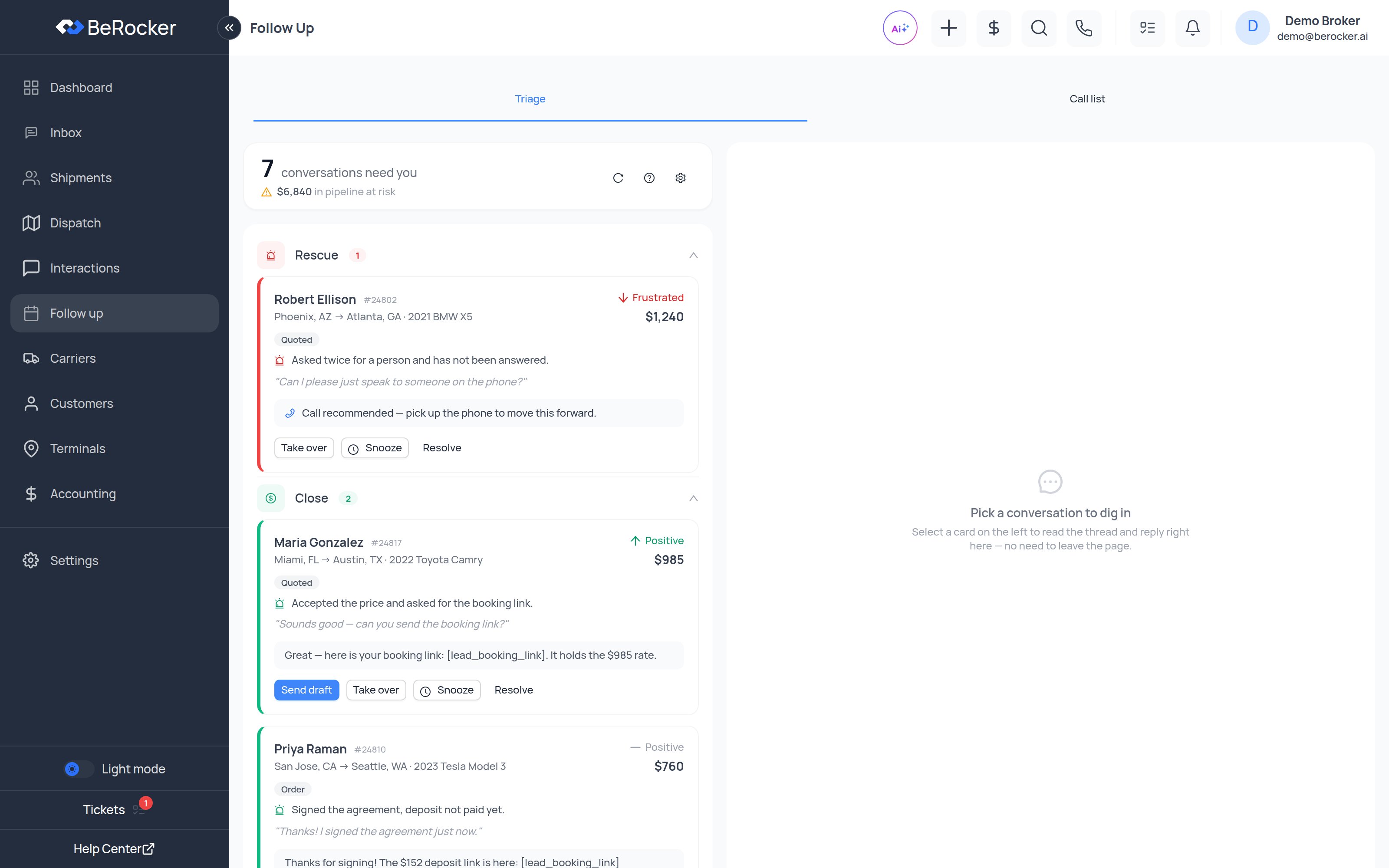
The **Follow up** screen has two tabs: **Triage** and **Call list**.
 ***
## Triage
Triage reads every active conversation with AI and sorts them into queues, so you always know
**who needs you right now, why, and what to do next** — without scrolling through dozens of threads.
The header shows how many conversations need you and the **dollar value of pipeline at risk**, so
you can prioritise by impact. It refreshes on its own every minute.
### The five queues
| Queue | What is in it |
| -------------- | --------------------------------------------------------------------------------------------------------------------------------- |
| 🔴 **Rescue** | Trust is breaking — anger, a scam worry, an explicit "let me talk to a human", or the AI is visibly looping. Jump on these first. |
| 🟢 **Close** | Warm and near a decision — accepted the price, asking how to pay, ready to book. A nudge here turns into revenue. |
| 🟠 **Waiting** | The ball is in your court — the customer asked something that has not been answered yet. |
| 🔵 **Cold** | Gone quiet. Worth a nudge before the lead goes stale. |
| ⚪ **Healthy** | Handled and on track — nothing for you to do. Collapsed by default so it stays out of the way. |
Cards are sorted by priority — deal value × how much a human can move it × recency — so the top of
each queue is always the best use of your time. Work each queue top-down.
### What each card tells you
Customer, lane and vehicle, quote amount, the deal **stage**, the customer's **sentiment** with a
trend arrow (improving / steady / slipping), a one-line reason it was flagged, and the latest
message — enough to act without opening the thread.
### Actions on a conversation
| Action | What it does |
| -------------- | ---------------------------------------------------------------------------------------------------------------- |
| **Take over** | You are handling this one personally. Records that you stepped in and clears the card from the queue. |
| **Send draft** | Sends the AI-suggested reply as-is, straight to the customer — the fastest way to clear a Waiting or Close card. |
| **Snooze** | Hides the conversation for a while and brings it back later, so the queue only shows what needs you now. |
| **Resolve** | Marks it handled and removes it from the queue. |
Selecting a card opens the live conversation on the right, so you can read the thread and reply
without leaving the page.
The **?** icon in the Triage header opens **How Triage works** inside the CRM — the same
explanation, always current.
### Triage settings
The gear icon opens Triage settings:
* **Sensitivity** — how eagerly conversations get pulled into the queues.
* **Visible queues** — hide queues your desk does not use.
* **Autopilot** — let the AI keep handling the conversations it is already on.
***
## Call list
The second tab is your scheduled calls: customers you or the system set a callback time for. Work
it top-down, and open the conversation straight from a row.
Calls get scheduled when a customer asks to be called, when you set a reminder on a conversation
in the [Inbox](/using/inbox), or from an automated follow-up step.
***
## Triage vs follow-up sequences
They solve different halves of the same problem, and you want both:
| | [Follow-up sequences](/settings/templates) | Triage |
| ----------- | ------------------------------------------ | ------------------------------------------ |
| **What** | Timed messages that go out on their own | A ranked list of conversations for a human |
| **When** | Fixed intervals after a quote | Continuously, as the conversation changes |
| **Best at** | Chasing people who never replied | Rescuing and closing people who did |
***
## Related
The full conversation, with everything attached.
Build the automated message ladder.
***
## Triage
Triage reads every active conversation with AI and sorts them into queues, so you always know
**who needs you right now, why, and what to do next** — without scrolling through dozens of threads.
The header shows how many conversations need you and the **dollar value of pipeline at risk**, so
you can prioritise by impact. It refreshes on its own every minute.
### The five queues
| Queue | What is in it |
| -------------- | --------------------------------------------------------------------------------------------------------------------------------- |
| 🔴 **Rescue** | Trust is breaking — anger, a scam worry, an explicit "let me talk to a human", or the AI is visibly looping. Jump on these first. |
| 🟢 **Close** | Warm and near a decision — accepted the price, asking how to pay, ready to book. A nudge here turns into revenue. |
| 🟠 **Waiting** | The ball is in your court — the customer asked something that has not been answered yet. |
| 🔵 **Cold** | Gone quiet. Worth a nudge before the lead goes stale. |
| ⚪ **Healthy** | Handled and on track — nothing for you to do. Collapsed by default so it stays out of the way. |
Cards are sorted by priority — deal value × how much a human can move it × recency — so the top of
each queue is always the best use of your time. Work each queue top-down.
### What each card tells you
Customer, lane and vehicle, quote amount, the deal **stage**, the customer's **sentiment** with a
trend arrow (improving / steady / slipping), a one-line reason it was flagged, and the latest
message — enough to act without opening the thread.
### Actions on a conversation
| Action | What it does |
| -------------- | ---------------------------------------------------------------------------------------------------------------- |
| **Take over** | You are handling this one personally. Records that you stepped in and clears the card from the queue. |
| **Send draft** | Sends the AI-suggested reply as-is, straight to the customer — the fastest way to clear a Waiting or Close card. |
| **Snooze** | Hides the conversation for a while and brings it back later, so the queue only shows what needs you now. |
| **Resolve** | Marks it handled and removes it from the queue. |
Selecting a card opens the live conversation on the right, so you can read the thread and reply
without leaving the page.
The **?** icon in the Triage header opens **How Triage works** inside the CRM — the same
explanation, always current.
### Triage settings
The gear icon opens Triage settings:
* **Sensitivity** — how eagerly conversations get pulled into the queues.
* **Visible queues** — hide queues your desk does not use.
* **Autopilot** — let the AI keep handling the conversations it is already on.
***
## Call list
The second tab is your scheduled calls: customers you or the system set a callback time for. Work
it top-down, and open the conversation straight from a row.
Calls get scheduled when a customer asks to be called, when you set a reminder on a conversation
in the [Inbox](/using/inbox), or from an automated follow-up step.
***
## Triage vs follow-up sequences
They solve different halves of the same problem, and you want both:
| | [Follow-up sequences](/settings/templates) | Triage |
| ----------- | ------------------------------------------ | ------------------------------------------ |
| **What** | Timed messages that go out on their own | A ranked list of conversations for a human |
| **When** | Fixed intervals after a quote | Continuously, as the conversation changes |
| **Best at** | Chasing people who never replied | Rescuing and closing people who did |
***
## Related
The full conversation, with everything attached.
Build the automated message ladder.