> ## Documentation Index
> Fetch the complete documentation index at: https://help.berocker.com/llms.txt
> Use this file to discover all available pages before exploring further.
# Dispatch
> A live map of every load on the road, plus the overdue, upcoming and offer queues that need a decision.
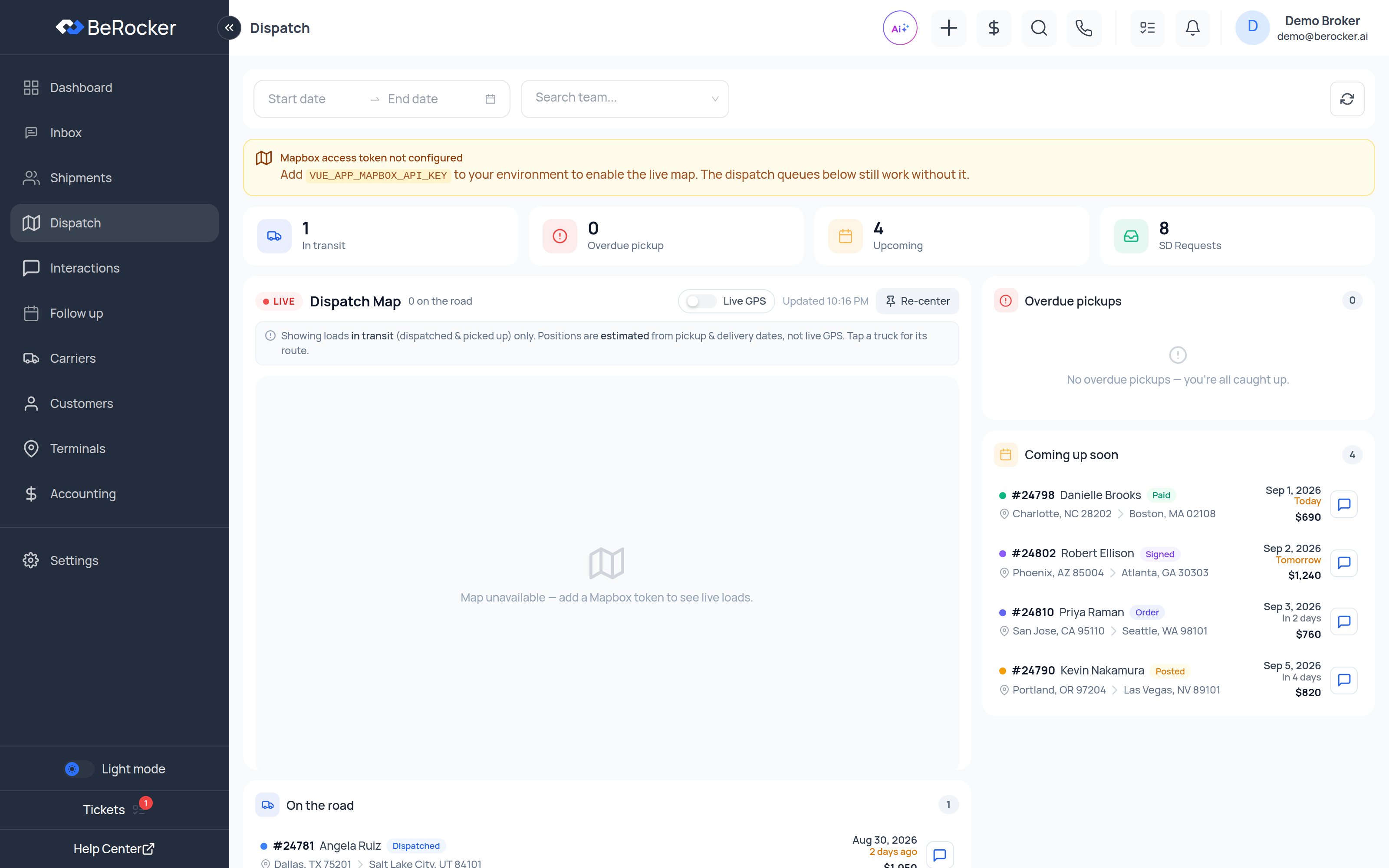
**Dispatch** is the operations view: one map of everything currently moving, with four queues around
it. It refreshes itself and shows the time of the last update.
 ***
## The map
Each pin is a load. Click one to see the lane, the carrier, the pickup and delivery, and to jump
into the conversation.
Positions come from two places, and the map tells you which:
| Badge | What it means |
| ------------- | --------------------------------------------------------------- |
| **Live GPS** | The driver's real position, reported by Super Dispatch. |
| **estimated** | Worked out from the pickup and delivery dates — *not* live GPS. |
**Re-center** puts the map back over your loads after you have panned away.
If you see **"Map unavailable — add a Mapbox token to see live loads"**, your organization has not
configured a Mapbox access token yet. The queues below still work. Contact your admin or
[BeRocker support](/support/contact).
***
## The queues
Every load currently in transit. Empty until carriers start picking up.
Loads whose pickup date has passed with no pickup reported. Work these first.
Pickups scheduled in the next two weeks.
Posted loads with open Super Dispatch offers waiting on a yes or no.
Clicking a load in **SD Requests** opens it straight on its **Drivers** tab, because that is where
you accept or decline the offer. Clicking a load in any other queue opens the conversation.
***
## Filters
The filter bar at the top is the same one the Dashboard uses: date range, agent, and email-leads-only.
Narrow it to one agent to see just their loads.
***
## Related
The same loads as a filterable table.
Auto-unposting, order import and price updates.
Connect the board that supplies live GPS.
Who is hauling for you.
***
## The map
Each pin is a load. Click one to see the lane, the carrier, the pickup and delivery, and to jump
into the conversation.
Positions come from two places, and the map tells you which:
| Badge | What it means |
| ------------- | --------------------------------------------------------------- |
| **Live GPS** | The driver's real position, reported by Super Dispatch. |
| **estimated** | Worked out from the pickup and delivery dates — *not* live GPS. |
**Re-center** puts the map back over your loads after you have panned away.
If you see **"Map unavailable — add a Mapbox token to see live loads"**, your organization has not
configured a Mapbox access token yet. The queues below still work. Contact your admin or
[BeRocker support](/support/contact).
***
## The queues
Every load currently in transit. Empty until carriers start picking up.
Loads whose pickup date has passed with no pickup reported. Work these first.
Pickups scheduled in the next two weeks.
Posted loads with open Super Dispatch offers waiting on a yes or no.
Clicking a load in **SD Requests** opens it straight on its **Drivers** tab, because that is where
you accept or decline the offer. Clicking a load in any other queue opens the conversation.
***
## Filters
The filter bar at the top is the same one the Dashboard uses: date range, agent, and email-leads-only.
Narrow it to one agent to see just their loads.
***
## Related
The same loads as a filterable table.
Auto-unposting, order import and price updates.
Connect the board that supplies live GPS.
Who is hauling for you.