> ## Documentation Index
> Fetch the complete documentation index at: https://help.berocker.com/llms.txt
> Use this file to discover all available pages before exploring further.
# Templates
> Every message BeRocker sends in your name — event messages, follow-up sequences, and the variables that personalise them.
**Settings → Templates** is where every automated and semi-automated message lives. Three tabs:
**Events**, **Follow-up** and [**Health**](/settings/messaging-health).
***
## Events
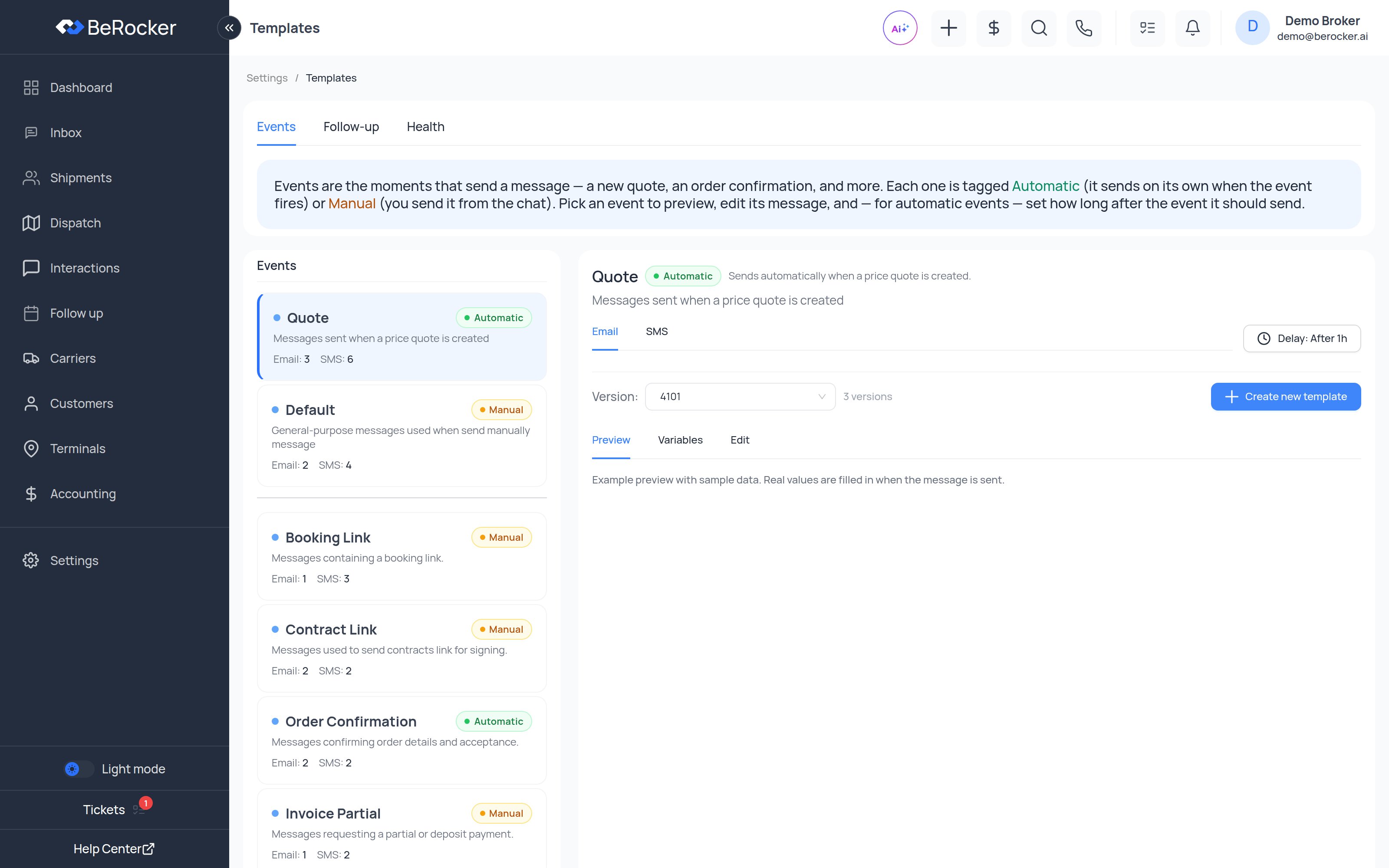
> Events are the moments that send a message — a new quote, an order confirmation, and more. Each
> one is tagged **Automatic** (it sends on its own when the event fires) or **Manual** (you send it
> from the chat). Pick an event to preview, edit its message, and — for automatic events — set how
> long after the event it should send.
The left column lists every event with its badge and how many **Email** and **SMS** templates it
holds. Pick one and the right side opens.
### The events
| Event | Sends | What it is for |
| ----------------------- | --------- | -------------------------------------------------------- |
| **Quote** | Automatic | Sent when a price quote is created. |
| **Default** | Manual | General-purpose messages you send by hand from the chat. |
| **Booking Link** | Manual | Messages containing a booking link. |
| **Contract Link** | Manual | Sending the contract for signing. |
| **Order Confirmation** | Automatic | Confirming order details and acceptance. |
| **Invoice Partial** | Manual | Requesting a deposit or partial payment. |
| **Invoice Full** | Manual | Requesting full payment or the final invoice. |
| **Dispatched** | Automatic | Sent when a carrier is dispatched. |
| **Driver Info** | Manual | Driver and carrier details. |
| **Picked Up** | Automatic | Sent when the load board reports pickup. |
| **Delivered** | Automatic | Sent when the load board reports delivery. |
| **Shipping Delayed** | Manual | Telling the customer about a delay. |
| **Delivered Follow Up** | Manual | Post-delivery follow-up. |
| **Reminder** | Automatic | Sent on schedule once reminders are on for the lead. |
| **Review Client** | Manual | Asking the customer for a review. |
| **Review Driver** | Manual | Asking the carrier for a review. |
| **Lead Assigned** | Manual | Telling the customer their agent changed. |
| **Follow Up** | Automatic | The follow-up sequence — it has its own tab. |
**Automatic** has to be earned by a real wired-up trigger. Everything else is Manual, because an
agent can always send any template by hand from the chat.
### Editing a template
Once you pick an event:
| Control | What it does |
| ------------------------- | -------------------------------------------------------------------------------------- |
| **Email / SMS** | Which channel you are editing. Each has its own templates. |
| **Delay** | For automatic events: how long after the event the message goes out (e.g. *After 1h*). |
| **Version** | Which version of the template you are looking at, with a count of how many exist. |
| **Preview** | The message rendered with sample data. |
| **Variables** | The placeholders you can drop in, grouped by subject. |
| **Edit** | The editor itself. |
| **+ Create new template** | Add another version. |
| **Status** | Active or Inactive. Inactive templates are never used. |
### Keep several versions of each
Write three or four versions of every message you send often. BeRocker picks one at random each
time, so a customer who gets quoted twice does not get word-for-word identical texts, and your
numbers do not start looking like a bot.
Example follow-ups:
* *"Just checking in about your transport — still interested?"*
* *"Quick follow-up on your quote. Want me to lock it in?"*
* *"Hi \[lead\_first\_name], did you want to move forward with booking?"*
### Version history
Every save creates a version. The version dropdown lets you look at any earlier one, compare it and
revert. Useful when a change to a quote message coincides with a drop in replies.
***
## Variables
Variables are placeholders in square brackets that get filled in when the message is sent. The
**Variables** tab lists every one available with a sample value, grouped by subject — the live list
in the app is always the authoritative one.
The most-used ones:
`[greeting]` · `[lead_first_name]` · `[lead_last_name]` · `[lead_full_name]` ·
`[lead_phone]` · `[lead_email]`
`[lead_id]` · `[lead_vehicles]` · `[lead_origin]` · `[lead_destination]` ·
`[lead_origin_city]` · `[lead_destination_city]` · `[lead_pickup_date]` ·
`[lead_drop_off_date]` · `[lead_delivery_days]` · `[lead_trailer_type]`
`[lead_price]` · `[lead_open_price]` · `[lead_enclosed_price]` · `[lead_deposit]` ·
`[carrier_pay]` · `[lead_discount]` · `[lead_discount_code]` · `[refund_amount]` ·
`[cancellation_fee]`
`[lead_booking_link]` · `[lead_contract_link]` · `[review_link]` · `[unsubscribe_link]`
`[carrier_name]` · `[carrier_phone]` · `[lead_driver_fullname]` · `[lead_driver_contact]`
`[company_name]` · `[company_phone]` · `[company_email]` · `[company_website]` ·
`[company_address]` · `[company_logo]` · `[company_mc_number]` · `[company_dot_number]` ·
`[company_terms_and_conditions]`
`[assistant_first_name]` · `[assistant_last_name]` · `[assistant_company_name]` ·
`[assistant_company_phone]` · `[assistant_company_email]` · `[assistant_company_website]`
`[pickup_address]` · `[dropoff_address]` · `[pickup_contact]` · `[dropoff_contact]` ·
`[pickup_phone]` · `[dropoff_phone]` · `[today_date]` · `[last_quote_date]`
Type variable names exactly as they appear in the **Variables** tab. A misspelt variable renders
as nothing, and the customer gets a message with a hole in it.
***
## Follow-up
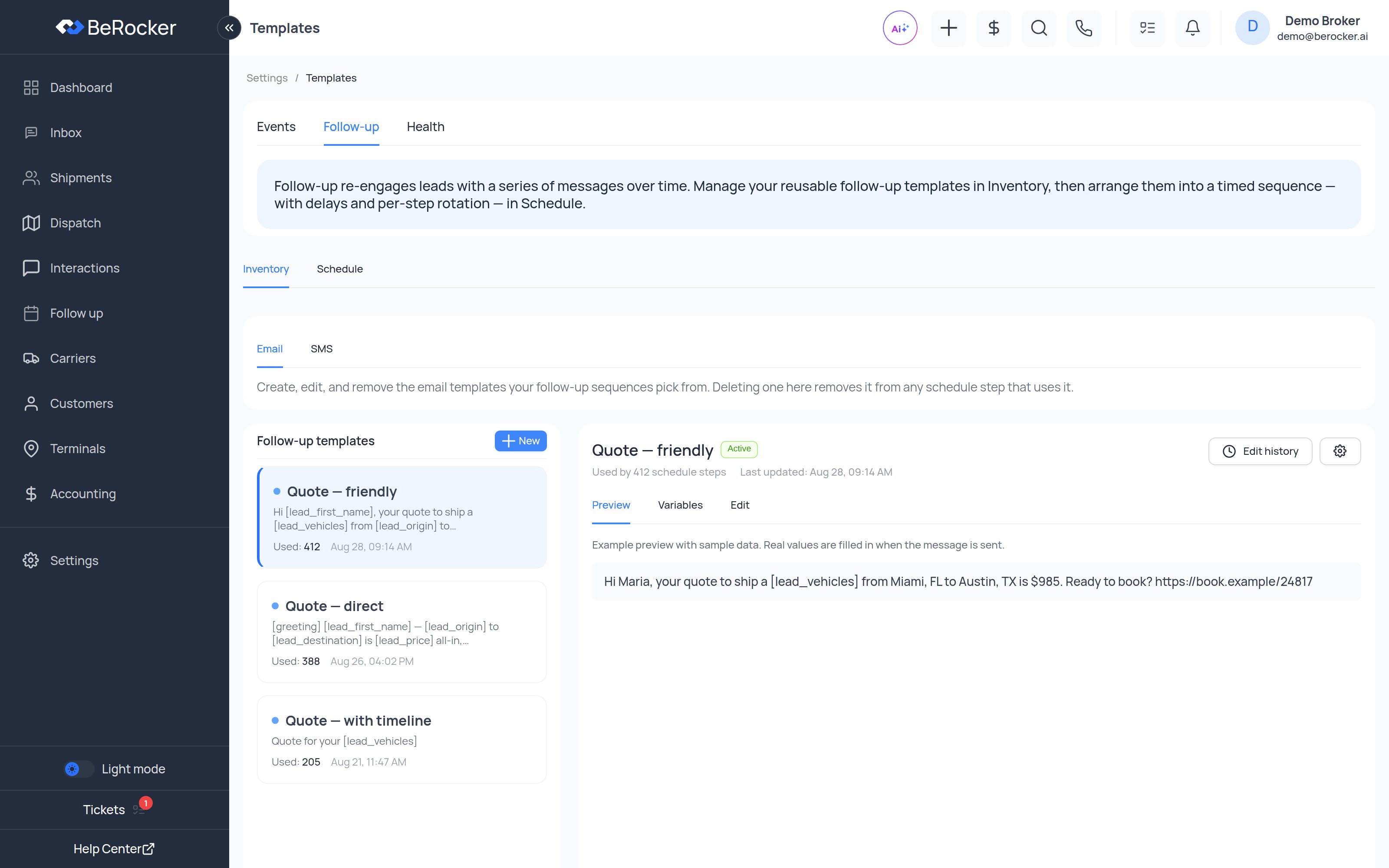
The **Follow-up** tab is a ladder of timed steps. Each step has a wait (days / hours / minutes) and
one or more templates, and the sequence runs after a quote goes out until the customer replies.
You can build a **General** sequence that applies to every lead, or scope a sequence to a single
**lead source** — leads from a paid provider often need a different cadence than leads from your
own website.
When you save a changed sequence, BeRocker tells you what it did to leads already part-way
through: how many were in progress, how many moved to a different step, and how many stopped
because the step they were waiting on no longer exists.
### Building one that works
* **First step within the hour.** Response time is the single biggest lever on conversion.
* **Spread the rest out.** Something like 1 hour, 1 day, 3 days, 7 days.
* **One ask per message.** "Click to book" or "reply YES" — never both.
* **Give SMS an opt-out.** The **Opt-out line** on the
[Health](/settings/messaging-health) tab is added to the first automated text of a conversation,
and again once a month.
* **Stop somewhere.** A sequence with no end is how numbers get flagged.
***
## Health
The third tab is [Messaging health](/settings/messaging-health) — what your automated messaging is
actually doing right now: sending numbers, delivery rates, the queue, quiet hours and opt-outs.
***
## Troubleshooting
| Symptom | Check |
| ---------------------------------- | ------------------------------------------------------------------------------------------------------ |
| Variables render empty | The exact spelling in the **Variables** tab, and that the lead has that field filled in. |
| Message never sent | The template's **Status** is Active, and the event is the one you think it is. |
| Every customer gets identical text | Add more versions of that template. |
| Automatic message did not fire | The event's badge — is it actually **Automatic**? |
| Texts queued but not going out | [Messaging health](/settings/messaging-health) — quiet hours, the per-minute pace, or a rested number. |
***
## Video walkthroughs
The videos show an earlier layout — the tabs were renamed to **Events**, **Follow-up** and
**Health** in a later redesign. The concepts are unchanged.
***
## Related
Why a message has not gone out yet.
The human half of following up.
Where the company variables get their values.
Internal alerts, not customer messages.
 ***
## Events
> Events are the moments that send a message — a new quote, an order confirmation, and more. Each
> one is tagged **Automatic** (it sends on its own when the event fires) or **Manual** (you send it
> from the chat). Pick an event to preview, edit its message, and — for automatic events — set how
> long after the event it should send.
The left column lists every event with its badge and how many **Email** and **SMS** templates it
holds. Pick one and the right side opens.
### The events
| Event | Sends | What it is for |
| ----------------------- | --------- | -------------------------------------------------------- |
| **Quote** | Automatic | Sent when a price quote is created. |
| **Default** | Manual | General-purpose messages you send by hand from the chat. |
| **Booking Link** | Manual | Messages containing a booking link. |
| **Contract Link** | Manual | Sending the contract for signing. |
| **Order Confirmation** | Automatic | Confirming order details and acceptance. |
| **Invoice Partial** | Manual | Requesting a deposit or partial payment. |
| **Invoice Full** | Manual | Requesting full payment or the final invoice. |
| **Dispatched** | Automatic | Sent when a carrier is dispatched. |
| **Driver Info** | Manual | Driver and carrier details. |
| **Picked Up** | Automatic | Sent when the load board reports pickup. |
| **Delivered** | Automatic | Sent when the load board reports delivery. |
| **Shipping Delayed** | Manual | Telling the customer about a delay. |
| **Delivered Follow Up** | Manual | Post-delivery follow-up. |
| **Reminder** | Automatic | Sent on schedule once reminders are on for the lead. |
| **Review Client** | Manual | Asking the customer for a review. |
| **Review Driver** | Manual | Asking the carrier for a review. |
| **Lead Assigned** | Manual | Telling the customer their agent changed. |
| **Follow Up** | Automatic | The follow-up sequence — it has its own tab. |
***
## Events
> Events are the moments that send a message — a new quote, an order confirmation, and more. Each
> one is tagged **Automatic** (it sends on its own when the event fires) or **Manual** (you send it
> from the chat). Pick an event to preview, edit its message, and — for automatic events — set how
> long after the event it should send.
The left column lists every event with its badge and how many **Email** and **SMS** templates it
holds. Pick one and the right side opens.
### The events
| Event | Sends | What it is for |
| ----------------------- | --------- | -------------------------------------------------------- |
| **Quote** | Automatic | Sent when a price quote is created. |
| **Default** | Manual | General-purpose messages you send by hand from the chat. |
| **Booking Link** | Manual | Messages containing a booking link. |
| **Contract Link** | Manual | Sending the contract for signing. |
| **Order Confirmation** | Automatic | Confirming order details and acceptance. |
| **Invoice Partial** | Manual | Requesting a deposit or partial payment. |
| **Invoice Full** | Manual | Requesting full payment or the final invoice. |
| **Dispatched** | Automatic | Sent when a carrier is dispatched. |
| **Driver Info** | Manual | Driver and carrier details. |
| **Picked Up** | Automatic | Sent when the load board reports pickup. |
| **Delivered** | Automatic | Sent when the load board reports delivery. |
| **Shipping Delayed** | Manual | Telling the customer about a delay. |
| **Delivered Follow Up** | Manual | Post-delivery follow-up. |
| **Reminder** | Automatic | Sent on schedule once reminders are on for the lead. |
| **Review Client** | Manual | Asking the customer for a review. |
| **Review Driver** | Manual | Asking the carrier for a review. |
| **Lead Assigned** | Manual | Telling the customer their agent changed. |
| **Follow Up** | Automatic | The follow-up sequence — it has its own tab. |
 The **Follow-up** tab is a ladder of timed steps. Each step has a wait (days / hours / minutes) and
one or more templates, and the sequence runs after a quote goes out until the customer replies.
You can build a **General** sequence that applies to every lead, or scope a sequence to a single
**lead source** — leads from a paid provider often need a different cadence than leads from your
own website.
The **Follow-up** tab is a ladder of timed steps. Each step has a wait (days / hours / minutes) and
one or more templates, and the sequence runs after a quote goes out until the customer replies.
You can build a **General** sequence that applies to every lead, or scope a sequence to a single
**lead source** — leads from a paid provider often need a different cadence than leads from your
own website.