> ## Documentation Index
> Fetch the complete documentation index at: https://help.berocker.com/llms.txt
> Use this file to discover all available pages before exploring further.
# Team and security
> Add and configure users, build teams, set roles and payouts, require two-factor authentication and review sign-in history.
**Settings → Team and security** is where you run your team.
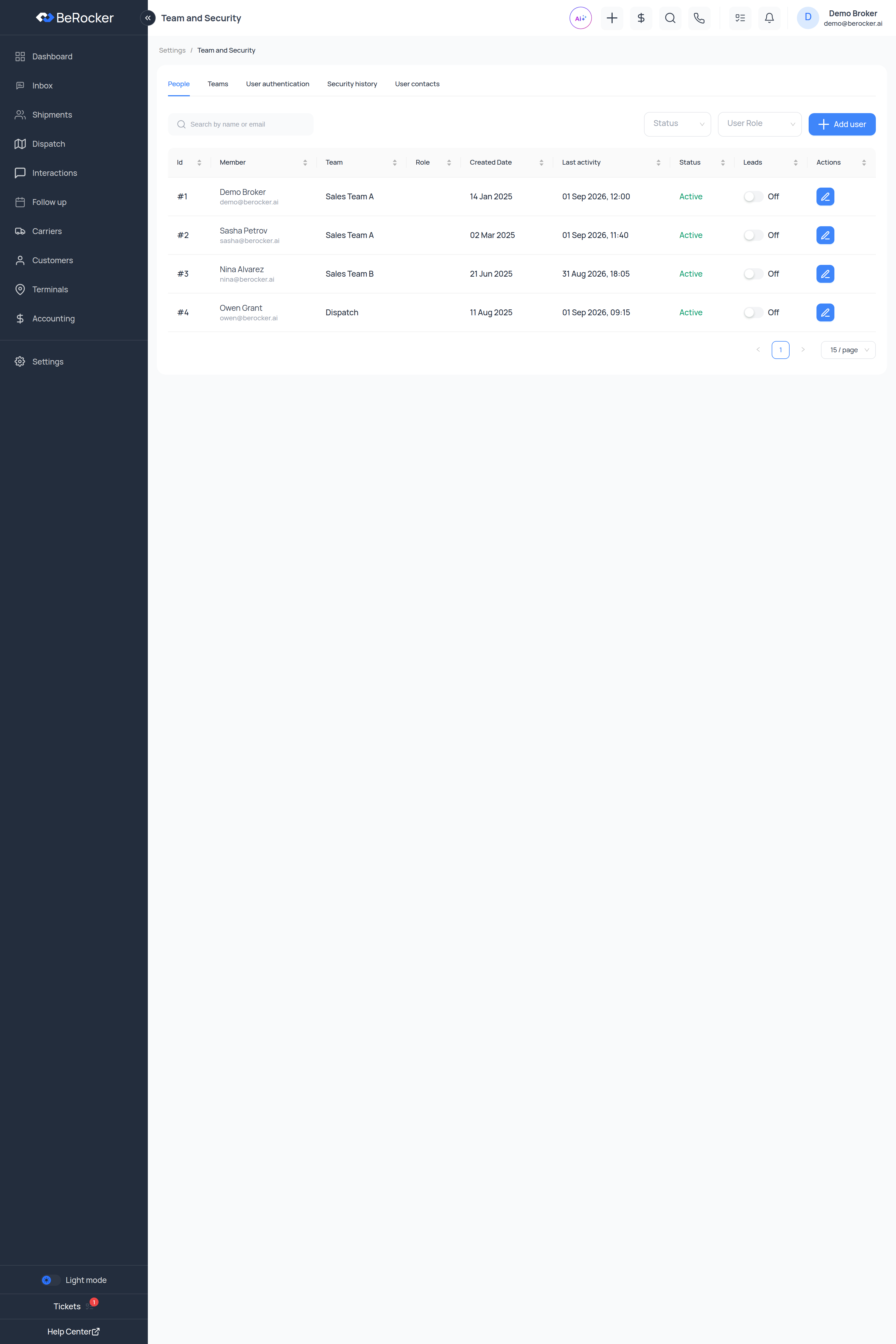 Five tabs: **People**, **Teams**, **User authentication**, **Security history** and
**User contacts**.
***
## People
Every user, with their team, role, created date, last activity and status. The **Leads** toggle on
each row turns lead assignment on or off for that person without deactivating their account — use
it when someone is on holiday.
Search by name or email, or filter by status and role.
***
## Adding a user
**Add user** walks through five steps. You cannot skip ahead; each one has to be valid first.
* **Email** — their login.
* **Name** and **Profile name** — the profile name is what customers see on messages.
* **Profile password** — their first password.
* **Team** — pick one or create one.
* **Role** — Admin, Manager, Team lead, Broker or Dispatcher.
* **Timezone**.
* **Is 2FA** — require two-factor for this person.
How this user gets paid:
* **Fixed amount** — a base salary or monthly fee. Leave it at 0 if they are commission-only.
* **Percent amount** — straight commission percentage.
* **Shareholding fee (%)**.
* **Ranged commission** — tiered payouts, entered as **Range from** / **Range to** rows.
> For example: up to \$2,000 → 20%, \$2,001–\$3,000 → 22.5%, above \$3,000 → 25%.
Add as many ranges as your commission plan needs.
The numbers and addresses this agent will work from — the same shape as
[Profile → User Contacts](/settings/profile):
**Channel** (Call, SMS, WhatsApp, Email), **Provider**, **Contact**, and
**Default for this channel**.
The same number used for calls *and* texts has to be added twice — once per channel.
A RingCentral number still has to be **registered** by the agent from their own Profile page
before it works.
**Leads per day** for this agent, Monday to Sunday. See
[Lead distribution](/settings/lead-distribution) for filtering by lead source.
Review and finish.
Then send the agent their login and ask them to open **Settings → Profile** and register their
number.
***
## Roles
| Role | Typically |
| -------------- | ----------------------------------------------- |
| **Admin** | Everything, including billing and integrations. |
| **Manager** | Runs the team — reports, accounting, all leads. |
| **Team lead** | A squad and its leads. |
| **Broker** | Their own leads and conversations. |
| **Dispatcher** | The dispatch and carrier side. |
Roles carry a set of permissions, and permissions are what actually hide or show menu items and
buttons. If someone cannot see a screen, that is why.
**Request a new role** sends a support ticket describing what the role should do and which
permissions it needs — the BeRocker team sets it up for you.
***
## Teams
Group users into squads. Create a team, **Assign people** to it, and **Edit Members** later.
Teams are what the Dashboard's team filter and per-team reporting run on.
***
## User authentication
**Require two-step authentication for your team** — an organization-wide switch that forces every
user to set up 2FA.
Turning this on affects everyone who signs in afterwards. Tell your team before you flip it, or
you will spend the morning on the phone.
***
## Security history
Sign-in sessions across the whole organization: who, from where, on what device, and when. Check it
after any suspicion of a shared or leaked password.
Individual users see their own sessions on their [Profile](/settings/profile) page.
***
## User contacts
Every contact channel for every user in one table, so you can see at a glance who has no default
SMS number and therefore cannot text anyone.
This is the fastest way to diagnose "my agent's messages are not sending". Nine times out of ten
there is no default contact for the channel.
***
## Related
Who gets which leads, and how many.
What each agent sets up themselves.
Seats are billed per user.
User charges per agent.
Five tabs: **People**, **Teams**, **User authentication**, **Security history** and
**User contacts**.
***
## People
Every user, with their team, role, created date, last activity and status. The **Leads** toggle on
each row turns lead assignment on or off for that person without deactivating their account — use
it when someone is on holiday.
Search by name or email, or filter by status and role.
***
## Adding a user
**Add user** walks through five steps. You cannot skip ahead; each one has to be valid first.
* **Email** — their login.
* **Name** and **Profile name** — the profile name is what customers see on messages.
* **Profile password** — their first password.
* **Team** — pick one or create one.
* **Role** — Admin, Manager, Team lead, Broker or Dispatcher.
* **Timezone**.
* **Is 2FA** — require two-factor for this person.
How this user gets paid:
* **Fixed amount** — a base salary or monthly fee. Leave it at 0 if they are commission-only.
* **Percent amount** — straight commission percentage.
* **Shareholding fee (%)**.
* **Ranged commission** — tiered payouts, entered as **Range from** / **Range to** rows.
> For example: up to \$2,000 → 20%, \$2,001–\$3,000 → 22.5%, above \$3,000 → 25%.
Add as many ranges as your commission plan needs.
The numbers and addresses this agent will work from — the same shape as
[Profile → User Contacts](/settings/profile):
**Channel** (Call, SMS, WhatsApp, Email), **Provider**, **Contact**, and
**Default for this channel**.
The same number used for calls *and* texts has to be added twice — once per channel.
A RingCentral number still has to be **registered** by the agent from their own Profile page
before it works.
**Leads per day** for this agent, Monday to Sunday. See
[Lead distribution](/settings/lead-distribution) for filtering by lead source.
Review and finish.
Then send the agent their login and ask them to open **Settings → Profile** and register their
number.
***
## Roles
| Role | Typically |
| -------------- | ----------------------------------------------- |
| **Admin** | Everything, including billing and integrations. |
| **Manager** | Runs the team — reports, accounting, all leads. |
| **Team lead** | A squad and its leads. |
| **Broker** | Their own leads and conversations. |
| **Dispatcher** | The dispatch and carrier side. |
Roles carry a set of permissions, and permissions are what actually hide or show menu items and
buttons. If someone cannot see a screen, that is why.
**Request a new role** sends a support ticket describing what the role should do and which
permissions it needs — the BeRocker team sets it up for you.
***
## Teams
Group users into squads. Create a team, **Assign people** to it, and **Edit Members** later.
Teams are what the Dashboard's team filter and per-team reporting run on.
***
## User authentication
**Require two-step authentication for your team** — an organization-wide switch that forces every
user to set up 2FA.
Turning this on affects everyone who signs in afterwards. Tell your team before you flip it, or
you will spend the morning on the phone.
***
## Security history
Sign-in sessions across the whole organization: who, from where, on what device, and when. Check it
after any suspicion of a shared or leaked password.
Individual users see their own sessions on their [Profile](/settings/profile) page.
***
## User contacts
Every contact channel for every user in one table, so you can see at a glance who has no default
SMS number and therefore cannot text anyone.
This is the fastest way to diagnose "my agent's messages are not sending". Nine times out of ten
there is no default contact for the channel.
***
## Related
Who gets which leads, and how many.
What each agent sets up themselves.
Seats are billed per user.
User charges per agent.