> ## Documentation Index
> Fetch the complete documentation index at: https://help.berocker.com/llms.txt
> Use this file to discover all available pages before exploring further.
# Reports
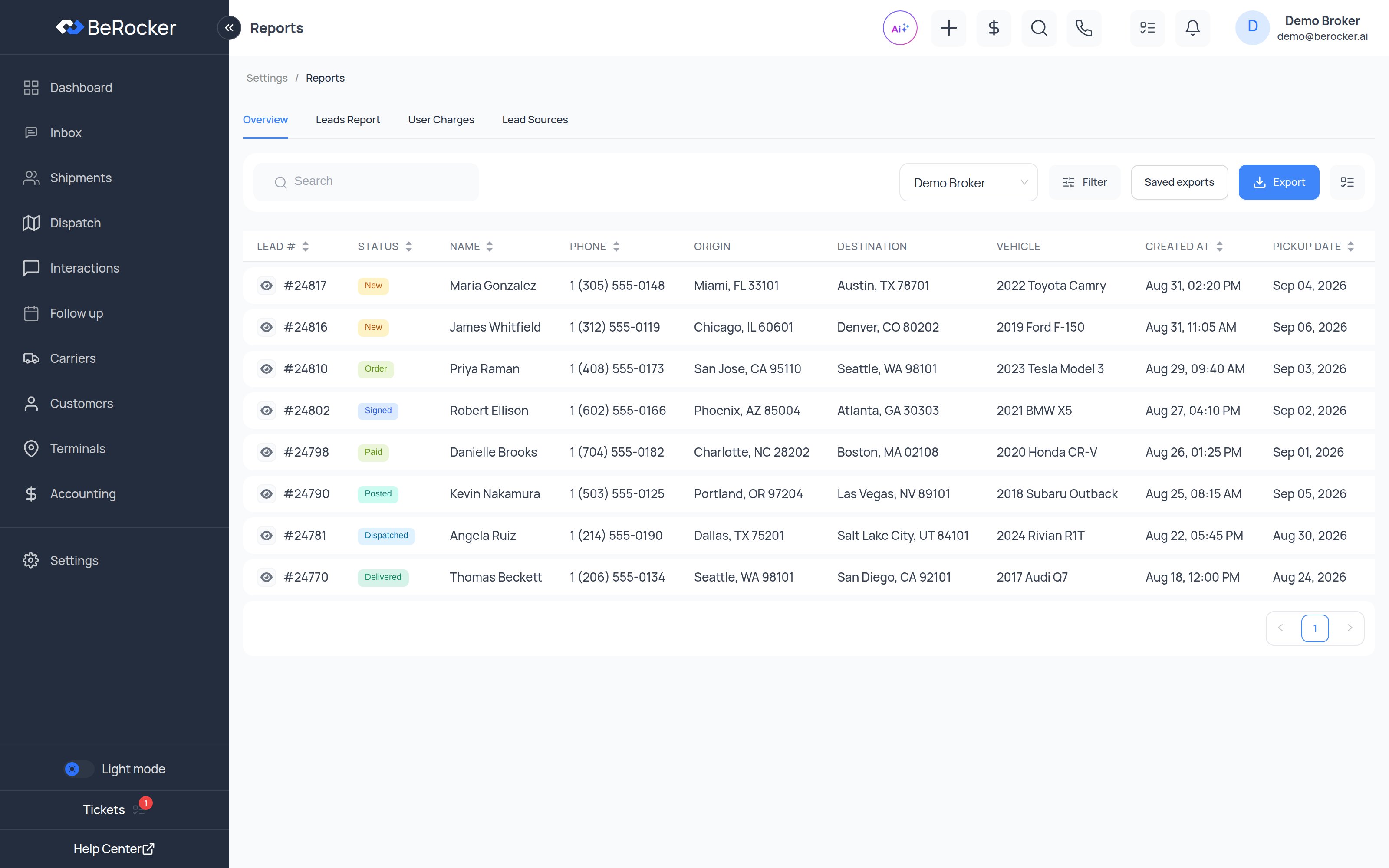
> The exportable leads table plus the leads-status, user-charges and lead-sources reports, all in one tabbed view.
**Settings → Reports** is the export and analysis view. Four tabs:
**Overview**, **Leads Report**, **User Charges** and **Lead Sources**.
 ***
## Overview
The full leads table, built for exporting rather than working. Search, filter, pick an agent, choose
your columns, and export.
| Control | What it does |
| ----------------- | -------------------------------------------------------------- |
| **Search** | Name, phone, email, lead number. |
| **Agent picker** | One agent, or everyone. |
| **Filter** | Status, dates, source, lanes, tags and more. |
| **Columns** | Choose which columns appear — and therefore which ones export. |
| **Saved exports** | Your saved export configurations. |
| **Export** | Download what you are looking at. |
### Saved export configurations
If you build the same export every month, save it:
Filter and choose columns until the table shows exactly what you want.
Give the file a name.
Give the configuration a name.
Open **Saved exports** and run it again.
The export dialog also lets you choose between **Current view** and **All matching** — the page you
are looking at, or every row your filter matches.
***
## Leads Report
Leads broken down by status over your chosen period. The quick answer to "how much is sitting in
each stage right now" and "how did last month compare".
***
## User Charges
What each agent earned, using the payout settings on their user record:
* **Fixed amount**
* **Percentage fee**
* **Shareholding fee**
* **Total amount** and **Total count**
Set the payout rules in
[Team and security → the Salary step](/settings/team-and-security).
***
## Lead Sources
Per-provider performance:
| Column | What it is |
| ----------------- | ------------------------------ |
| **Name** | The lead source. |
| **Leads** | How many arrived. |
| **Transactions** | How many turned into money. |
| **Total Charges** | What you spent on that source. |
| **AVG Charges** | Average cost per lead. |
| **ROI (%)** | Return on that spend. |
This is the table to open before renewing a provider contract. A source with the most leads and
the worst ROI is the one quietly costing you money.
***
## Reports vs Dashboard
| | Reports | [Dashboard](/using/dashboard) |
| ------------ | ------------------------------------- | -------------------------------- |
| **Shape** | Tables you export | Tiles and charts |
| **Best for** | Payroll, accounting, provider reviews | Watching the business day to day |
***
## Related
The same data as charts.
Transaction-level detail.
Where the cost figures come from.
Where payout rules are set.
***
## Overview
The full leads table, built for exporting rather than working. Search, filter, pick an agent, choose
your columns, and export.
| Control | What it does |
| ----------------- | -------------------------------------------------------------- |
| **Search** | Name, phone, email, lead number. |
| **Agent picker** | One agent, or everyone. |
| **Filter** | Status, dates, source, lanes, tags and more. |
| **Columns** | Choose which columns appear — and therefore which ones export. |
| **Saved exports** | Your saved export configurations. |
| **Export** | Download what you are looking at. |
### Saved export configurations
If you build the same export every month, save it:
Filter and choose columns until the table shows exactly what you want.
Give the file a name.
Give the configuration a name.
Open **Saved exports** and run it again.
The export dialog also lets you choose between **Current view** and **All matching** — the page you
are looking at, or every row your filter matches.
***
## Leads Report
Leads broken down by status over your chosen period. The quick answer to "how much is sitting in
each stage right now" and "how did last month compare".
***
## User Charges
What each agent earned, using the payout settings on their user record:
* **Fixed amount**
* **Percentage fee**
* **Shareholding fee**
* **Total amount** and **Total count**
Set the payout rules in
[Team and security → the Salary step](/settings/team-and-security).
***
## Lead Sources
Per-provider performance:
| Column | What it is |
| ----------------- | ------------------------------ |
| **Name** | The lead source. |
| **Leads** | How many arrived. |
| **Transactions** | How many turned into money. |
| **Total Charges** | What you spent on that source. |
| **AVG Charges** | Average cost per lead. |
| **ROI (%)** | Return on that spend. |
This is the table to open before renewing a provider contract. A source with the most leads and
the worst ROI is the one quietly costing you money.
***
## Reports vs Dashboard
| | Reports | [Dashboard](/using/dashboard) |
| ------------ | ------------------------------------- | -------------------------------- |
| **Shape** | Tables you export | Tiles and charts |
| **Best for** | Payroll, accounting, provider reviews | Watching the business day to day |
***
## Related
The same data as charts.
Transaction-level detail.
Where the cost figures come from.
Where payout rules are set.