> ## Documentation Index
> Fetch the complete documentation index at: https://help.berocker.com/llms.txt
> Use this file to discover all available pages before exploring further.
# Profile
> Your personal settings: name and password, two-factor authentication, the numbers and addresses you talk to customers from, Gmail, and your active sessions.
**Settings → Profile** is your own account. Everything on this page affects only you, not the rest
of the team.
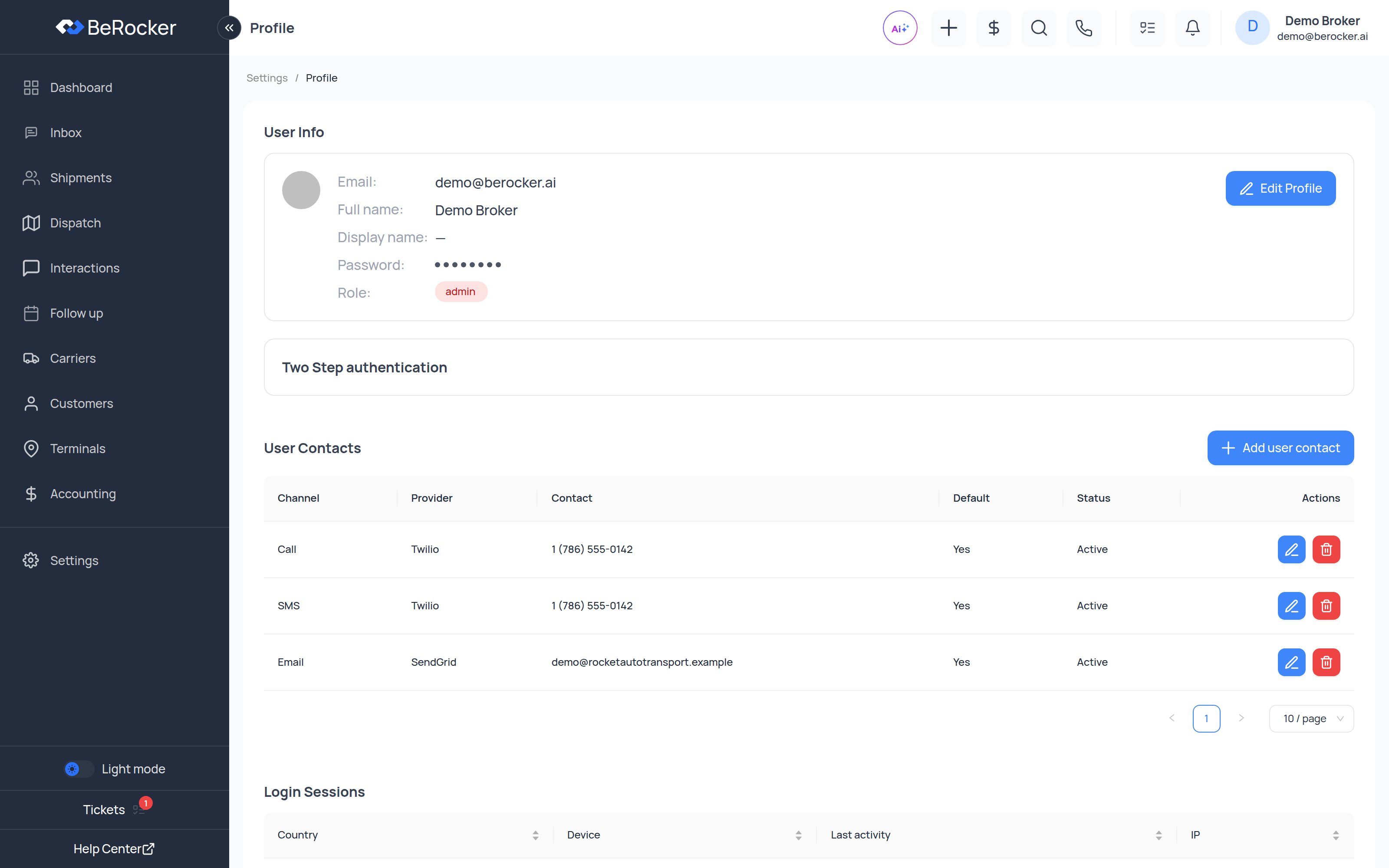 The page has five blocks: **User Info**, **Two Step authentication**, **Gmail connection**,
**User Contacts** and **Login Sessions**.
***
## User Info
Your full name, display name, email, password and role.
**Display name** is what customers see when a message goes out under your name — use the name you
actually introduce yourself with, not your legal name.
Click **Edit Profile** to change any of it, including your password.
***
## Two Step authentication
Adds a second step to your sign-in.
* Click **Enable**, then confirm.
* Use **Add authentication method** to register how you receive the code.
Strongly recommended for admins and anyone who can see customer payment data. Your company can
also require it for everyone — see [Team and security](/settings/team-and-security).
***
## User Contacts — the numbers you work from
This is the block that makes messaging work at all. Each contact is one **channel** on one
**provider**.
A dialog opens.
* **Channel** — SMS, Call, WhatsApp or Email.
* **Provider** — Twilio, RingCentral, Telnyx, Vonage, Quo, Zoom Phone, SendGrid, Mailgun…
* **Contact** — the phone number or email address.
* **Status**.
* **Is Default?** — tick it to make this your main line for that channel.
Save it.
### The rules that trip people up
**One number used for both calls and SMS must be added twice** — once with Channel = Call and once
with Channel = SMS. One entry only covers one channel.
* You can have **one default per channel**: one default call number, one default SMS number, one
default email.
* You can mix providers freely — RingCentral for calls, Twilio for SMS, SendGrid for email.
* Without a default SMS or email contact you will see
**"No SMS / email sender available"** in the [Inbox](/using/inbox) and cannot message anyone.
### RingCentral needs registering
If the contact's provider is RingCentral, a **Register** button appears next to the number.
The page has five blocks: **User Info**, **Two Step authentication**, **Gmail connection**,
**User Contacts** and **Login Sessions**.
***
## User Info
Your full name, display name, email, password and role.
**Display name** is what customers see when a message goes out under your name — use the name you
actually introduce yourself with, not your legal name.
Click **Edit Profile** to change any of it, including your password.
***
## Two Step authentication
Adds a second step to your sign-in.
* Click **Enable**, then confirm.
* Use **Add authentication method** to register how you receive the code.
Strongly recommended for admins and anyone who can see customer payment data. Your company can
also require it for everyone — see [Team and security](/settings/team-and-security).
***
## User Contacts — the numbers you work from
This is the block that makes messaging work at all. Each contact is one **channel** on one
**provider**.
A dialog opens.
* **Channel** — SMS, Call, WhatsApp or Email.
* **Provider** — Twilio, RingCentral, Telnyx, Vonage, Quo, Zoom Phone, SendGrid, Mailgun…
* **Contact** — the phone number or email address.
* **Status**.
* **Is Default?** — tick it to make this your main line for that channel.
Save it.
### The rules that trip people up
**One number used for both calls and SMS must be added twice** — once with Channel = Call and once
with Channel = SMS. One entry only covers one channel.
* You can have **one default per channel**: one default call number, one default SMS number, one
default email.
* You can mix providers freely — RingCentral for calls, Twilio for SMS, SendGrid for email.
* Without a default SMS or email contact you will see
**"No SMS / email sender available"** in the [Inbox](/using/inbox) and cannot message anyone.
### RingCentral needs registering
If the contact's provider is RingCentral, a **Register** button appears next to the number.
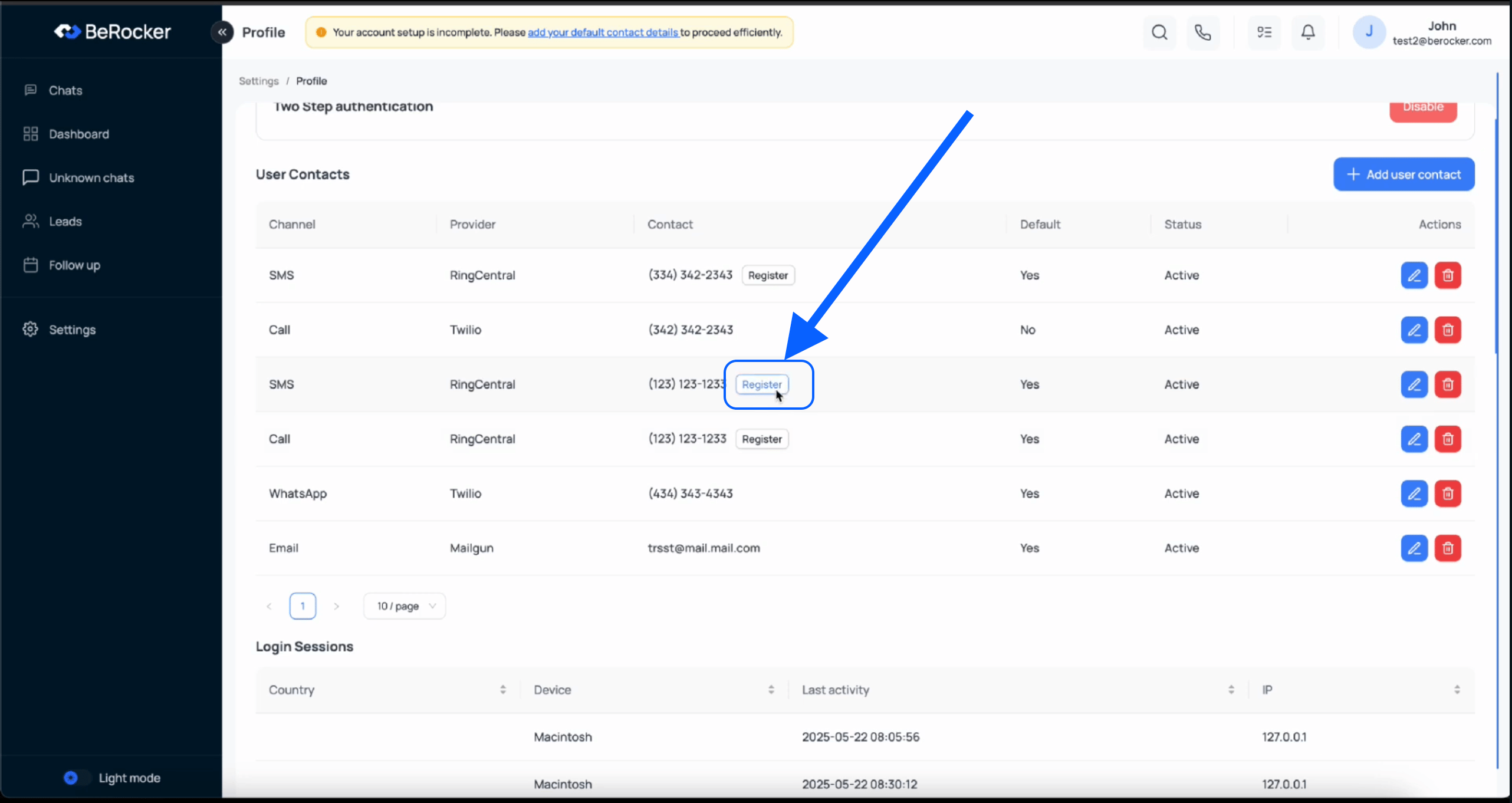 Click it, complete the RingCentral sign-in in the popup, and the number is authorised. Until you do,
calls and texts through RingCentral will fail.
***
## Gmail connection
Connect your own Gmail mailbox so BeRocker can read incoming email for
[email parsing](/settings/email-parsing). **Test connection** checks it is still working, and
**Disconnect** revokes it.
On Google's consent screen, **leave the permission checkbox enabled**. Google does not offer a
narrower scope that still lets BeRocker read the mailbox — untick it and the connection completes
but nothing is ever read. See [Email parsing](/settings/email-parsing).
***
## Login Sessions
Every device signed in as you: country, device, IP address and last activity. Check it if you
suspect someone else has your password, and change your password immediately if anything looks
wrong.
Organization-wide session history for admins lives in
[Team and security → Security history](/settings/team-and-security).
***
## Checklist
| Task | Required? | Notes |
| -------------------- | ---------------------- | ------------------------------------------------------ |
| Add a call number | Yes, to call | From any connected voice provider |
| Add an SMS number | Yes, to text | Add the same number again if it is also your call line |
| Add an email | Yes, to email | From SendGrid, Mailgun or Gmail |
| Tick **Is Default?** | Yes | One per channel |
| Register RingCentral | If you use RingCentral | Otherwise calls and texts fail |
| Enable 2FA | Recommended | Required if your company enforces it |
***
## Related
Where *your* alerts go — use different contact details than these.
Roles, teams and organization-wide security.
Click it, complete the RingCentral sign-in in the popup, and the number is authorised. Until you do,
calls and texts through RingCentral will fail.
***
## Gmail connection
Connect your own Gmail mailbox so BeRocker can read incoming email for
[email parsing](/settings/email-parsing). **Test connection** checks it is still working, and
**Disconnect** revokes it.
On Google's consent screen, **leave the permission checkbox enabled**. Google does not offer a
narrower scope that still lets BeRocker read the mailbox — untick it and the connection completes
but nothing is ever read. See [Email parsing](/settings/email-parsing).
***
## Login Sessions
Every device signed in as you: country, device, IP address and last activity. Check it if you
suspect someone else has your password, and change your password immediately if anything looks
wrong.
Organization-wide session history for admins lives in
[Team and security → Security history](/settings/team-and-security).
***
## Checklist
| Task | Required? | Notes |
| -------------------- | ---------------------- | ------------------------------------------------------ |
| Add a call number | Yes, to call | From any connected voice provider |
| Add an SMS number | Yes, to text | Add the same number again if it is also your call line |
| Add an email | Yes, to email | From SendGrid, Mailgun or Gmail |
| Tick **Is Default?** | Yes | One per channel |
| Register RingCentral | If you use RingCentral | Otherwise calls and texts fail |
| Enable 2FA | Recommended | Required if your company enforces it |
***
## Related
Where *your* alerts go — use different contact details than these.
Roles, teams and organization-wide security.