> ## Documentation Index
> Fetch the complete documentation index at: https://help.berocker.com/llms.txt
> Use this file to discover all available pages before exploring further.
# Pricing
> Where your quoted price comes from: the carrier pricing engine, the deposit you collect, and optional three-tier pricing.
**Settings → Pricing** decides what a customer is quoted. Three tabs:
**Carrier pricing engine**, **Deposit price** and **Price tiers**.
 ***
## Carrier pricing engine
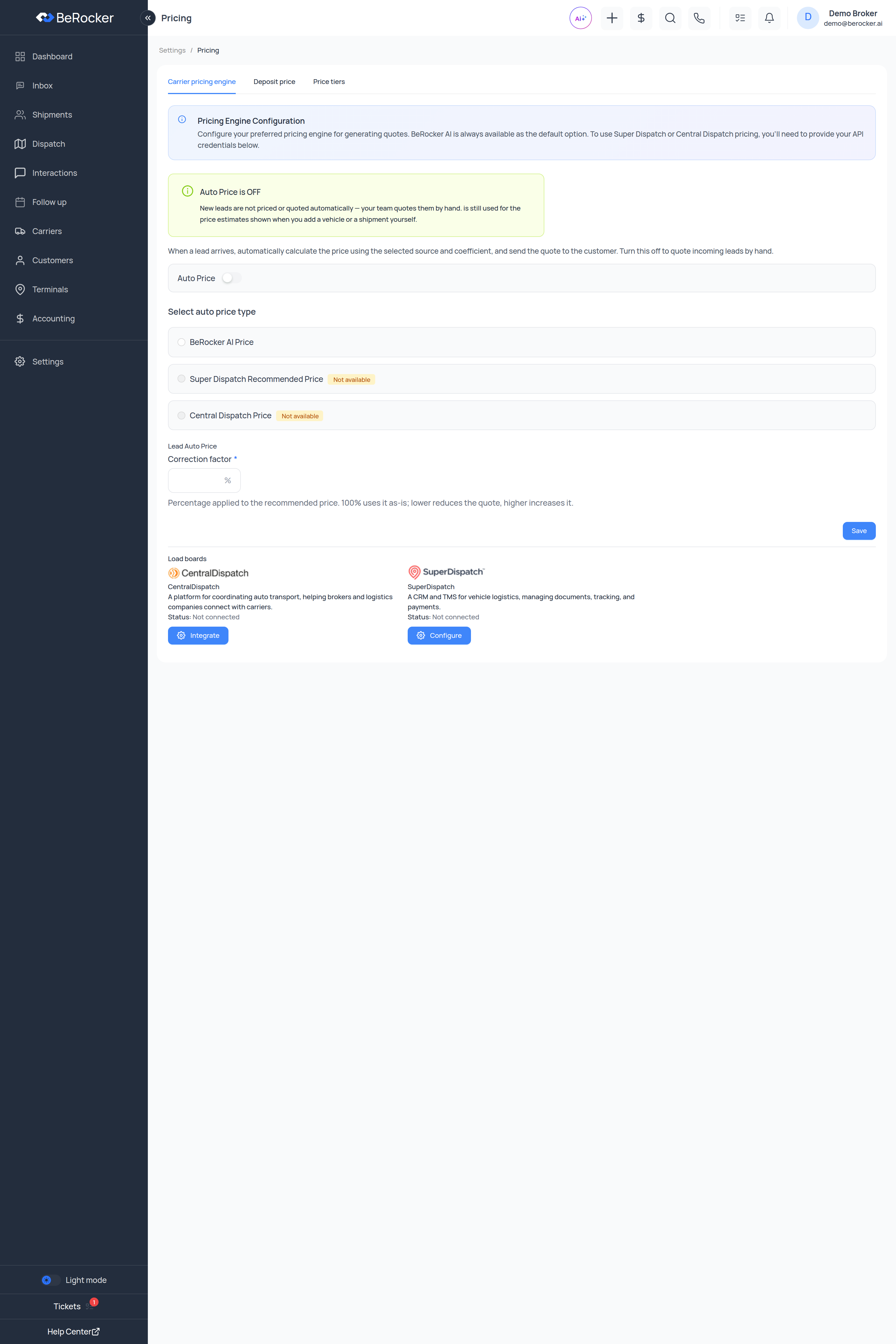
> Configure your preferred pricing engine for generating quotes. BeRocker AI is always available as
> the default option. To use Super Dispatch or Central Dispatch pricing, you'll need to provide your
> API credentials.
### Auto Price
> When a lead arrives, automatically calculate the price using the selected source and coefficient,
> and send the quote to the customer. Turn this off to quote incoming leads by hand.
The page tells you plainly which mode you are in:
* **Auto Price is ON** — new leads are priced and quoted automatically.
* **Auto Price is OFF** — *"New leads are not priced or quoted automatically — your team quotes them
by hand."* The engine is still used for the price estimates shown when you add a vehicle or a
shipment yourself.
### Choosing an engine
| Engine | Notes |
| ------------------------------------ | --------------------------------------------------------------------- |
| **BeRocker AI Price** | Always available. The default. |
| **Super Dispatch Recommended Price** | Needs Super Dispatch connected, otherwise it shows **Not available**. |
| **Central Dispatch Price** | Needs Central Dispatch connected. |
Connect them in [Integrations](/settings/integrations).
### Correction factor
> Percentage applied to the recommended price. 100% uses it as-is; lower reduces the quote, higher
> increases it.
At 100% nothing changes. Set 110% and the app spells out the effect for you with a worked example
— a \$1,000 recommendation becomes \$1,100.
Change the correction factor in small steps and watch your booking rate on the
[Dashboard](/using/dashboard). It is the single fastest lever on both volume and margin, in both
directions.
### Enclosed transport multiplier
Shown when Super Dispatch is your engine. Super Dispatch returns one **open**-trailer price, and the
enclosed quote is derived by multiplying it by this coefficient (between 0.1 and 10). There is a
sample-price box so you can see what any multiplier does before saving.
This setting is saved independently of Auto Price.
The bottom of this tab also shows the **Load boards** cards, so you can connect Super Dispatch or
Central Dispatch without leaving the page if their price is showing as **Not available**.
***
## Deposit price
***
## Carrier pricing engine
> Configure your preferred pricing engine for generating quotes. BeRocker AI is always available as
> the default option. To use Super Dispatch or Central Dispatch pricing, you'll need to provide your
> API credentials.
### Auto Price
> When a lead arrives, automatically calculate the price using the selected source and coefficient,
> and send the quote to the customer. Turn this off to quote incoming leads by hand.
The page tells you plainly which mode you are in:
* **Auto Price is ON** — new leads are priced and quoted automatically.
* **Auto Price is OFF** — *"New leads are not priced or quoted automatically — your team quotes them
by hand."* The engine is still used for the price estimates shown when you add a vehicle or a
shipment yourself.
### Choosing an engine
| Engine | Notes |
| ------------------------------------ | --------------------------------------------------------------------- |
| **BeRocker AI Price** | Always available. The default. |
| **Super Dispatch Recommended Price** | Needs Super Dispatch connected, otherwise it shows **Not available**. |
| **Central Dispatch Price** | Needs Central Dispatch connected. |
Connect them in [Integrations](/settings/integrations).
### Correction factor
> Percentage applied to the recommended price. 100% uses it as-is; lower reduces the quote, higher
> increases it.
At 100% nothing changes. Set 110% and the app spells out the effect for you with a worked example
— a \$1,000 recommendation becomes \$1,100.
Change the correction factor in small steps and watch your booking rate on the
[Dashboard](/using/dashboard). It is the single fastest lever on both volume and margin, in both
directions.
### Enclosed transport multiplier
Shown when Super Dispatch is your engine. Super Dispatch returns one **open**-trailer price, and the
enclosed quote is derived by multiplying it by this coefficient (between 0.1 and 10). There is a
sample-price box so you can see what any multiplier does before saving.
This setting is saved independently of Auto Price.
The bottom of this tab also shows the **Load boards** cards, so you can connect Super Dispatch or
Central Dispatch without leaving the page if their price is showing as **Not available**.
***
## Deposit price
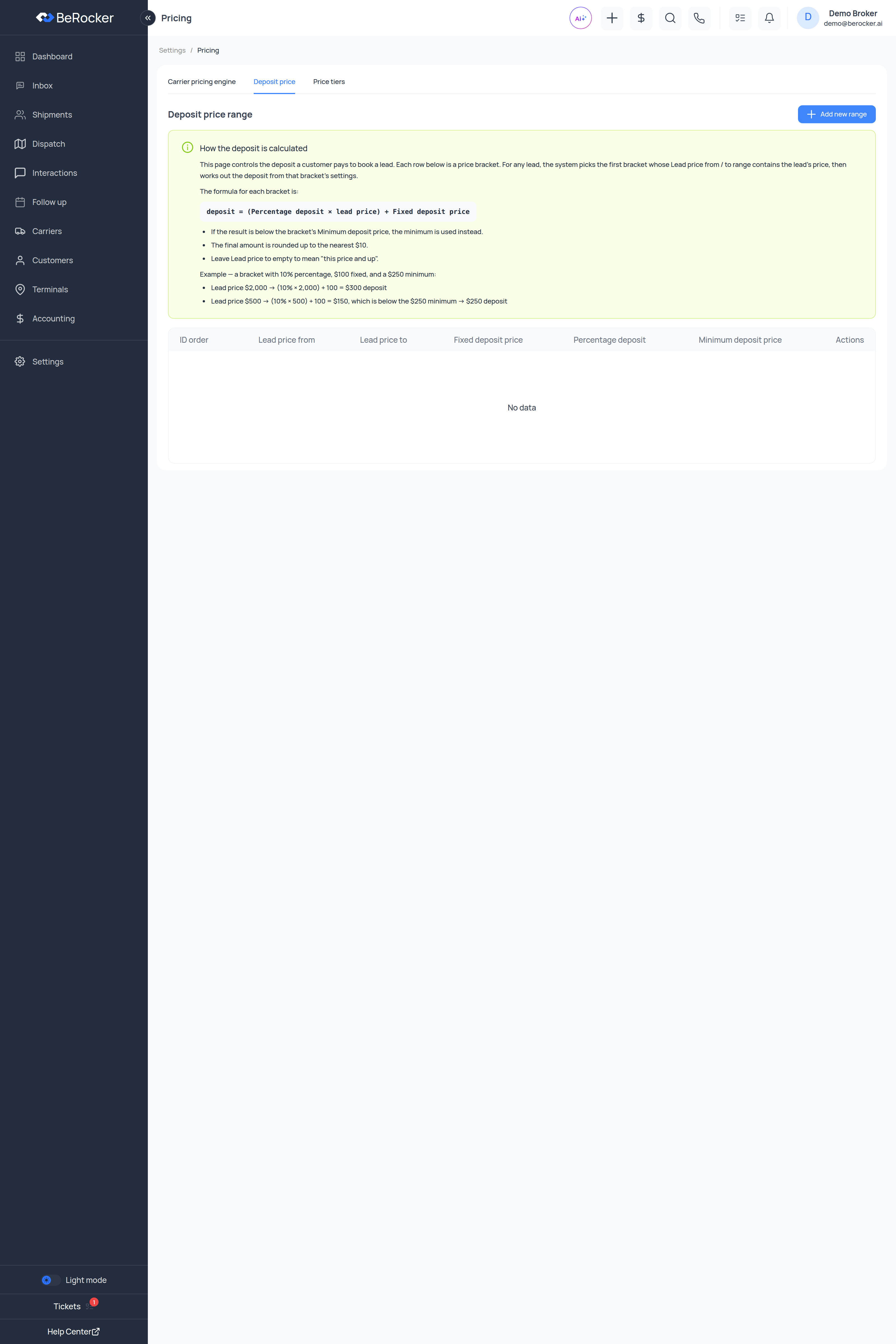 The deposit is what the customer pays you at booking. It is set with **brackets** by lead price.
> This page controls the deposit a customer pays to book a lead. Each row is a price bracket. For any
> lead, the system picks the **first** bracket whose *Lead price from / to* range contains the lead's
> price, then works out the deposit from that bracket's settings.
The formula for each bracket is:
```text theme={null}
deposit = (Percentage deposit × lead price) + Fixed deposit price
```
The table columns are **ID order · Lead price from · Lead price to · Fixed deposit price ·
Percentage deposit · Minimum deposit price · Actions**.
Each bracket has:
| Field | What it does |
| ------------------------- | ------------------------------------------------------------------------------------ |
| **Lead price from / to** | The price range this bracket covers. Leave **to** empty to mean "this price and up". |
| **Percentage deposit** | A percentage of the lead price. |
| **Fixed deposit price** | A flat amount added on top. |
| **Minimum deposit price** | The floor. If the calculated result is below it, the minimum is used instead. |
**Add new range** creates another bracket.
### Worked example
A bracket with 10% percentage, \$100 fixed and a \$250 minimum:
| Lead price | Calculation | Deposit |
| ---------- | -------------------------------------------------- | --------- |
| \$2,000 | (10% × 2,000) + 100 | **\$300** |
| \$500 | (10% × 500) + 100 = \$150, below the \$250 minimum | **\$250** |
The final amount is rounded up to the nearest \$10.
***
## Price tiers
> Offer your customers three price options instead of one — for example Standard, Rush and
> Expedited.
When enabled:
* The **booking page** shows all three options.
* The lead view gets a **tier switcher**.
* The **Update Price** form lets you edit all three tier prices independently.
### How the tiers get their numbers
A new lead's Tier 1 gets the automatically calculated price — auto price + correction factor +
deposit.
Using the **price markup** percentages you set here.
You can edit each tier's price and deposit on the lead without affecting the others.
On the booking page. The lead then keeps exactly one effective price — the selected tier's.
Each tier has a **name**, **description**, **subtext**, **price markup %**, and its own **deposit
mode and value**. A live preview shows how the three tiers will look on the booking page.
New leads always start on Tier 1, and **changing markups here does not reprice existing leads.**
Every tier needs a name before you can save.
***
## Related
Where tiers and deposits are presented.
The quote message that carries the price.
Needed for its recommended price.
Needed for its price.
The deposit is what the customer pays you at booking. It is set with **brackets** by lead price.
> This page controls the deposit a customer pays to book a lead. Each row is a price bracket. For any
> lead, the system picks the **first** bracket whose *Lead price from / to* range contains the lead's
> price, then works out the deposit from that bracket's settings.
The formula for each bracket is:
```text theme={null}
deposit = (Percentage deposit × lead price) + Fixed deposit price
```
The table columns are **ID order · Lead price from · Lead price to · Fixed deposit price ·
Percentage deposit · Minimum deposit price · Actions**.
Each bracket has:
| Field | What it does |
| ------------------------- | ------------------------------------------------------------------------------------ |
| **Lead price from / to** | The price range this bracket covers. Leave **to** empty to mean "this price and up". |
| **Percentage deposit** | A percentage of the lead price. |
| **Fixed deposit price** | A flat amount added on top. |
| **Minimum deposit price** | The floor. If the calculated result is below it, the minimum is used instead. |
**Add new range** creates another bracket.
### Worked example
A bracket with 10% percentage, \$100 fixed and a \$250 minimum:
| Lead price | Calculation | Deposit |
| ---------- | -------------------------------------------------- | --------- |
| \$2,000 | (10% × 2,000) + 100 | **\$300** |
| \$500 | (10% × 500) + 100 = \$150, below the \$250 minimum | **\$250** |
The final amount is rounded up to the nearest \$10.
***
## Price tiers
> Offer your customers three price options instead of one — for example Standard, Rush and
> Expedited.
When enabled:
* The **booking page** shows all three options.
* The lead view gets a **tier switcher**.
* The **Update Price** form lets you edit all three tier prices independently.
### How the tiers get their numbers
A new lead's Tier 1 gets the automatically calculated price — auto price + correction factor +
deposit.
Using the **price markup** percentages you set here.
You can edit each tier's price and deposit on the lead without affecting the others.
On the booking page. The lead then keeps exactly one effective price — the selected tier's.
Each tier has a **name**, **description**, **subtext**, **price markup %**, and its own **deposit
mode and value**. A live preview shows how the three tiers will look on the booking page.
New leads always start on Tier 1, and **changing markups here does not reprice existing leads.**
Every tier needs a name before you can save.
***
## Related
Where tiers and deposits are presented.
The quote message that carries the price.
Needed for its recommended price.
Needed for its price.