> ## Documentation Index
> Fetch the complete documentation index at: https://help.berocker.com/llms.txt
> Use this file to discover all available pages before exploring further.
# Notifications
> Choose which events ping you, and where — by email, SMS and Slack, per user.
**Settings → Notifications** controls what BeRocker tells *you* about. It is per-user: your settings
do not affect anyone else on your team.
Notifications only fire for **leads assigned to you**. No assigned leads, no notifications.
***
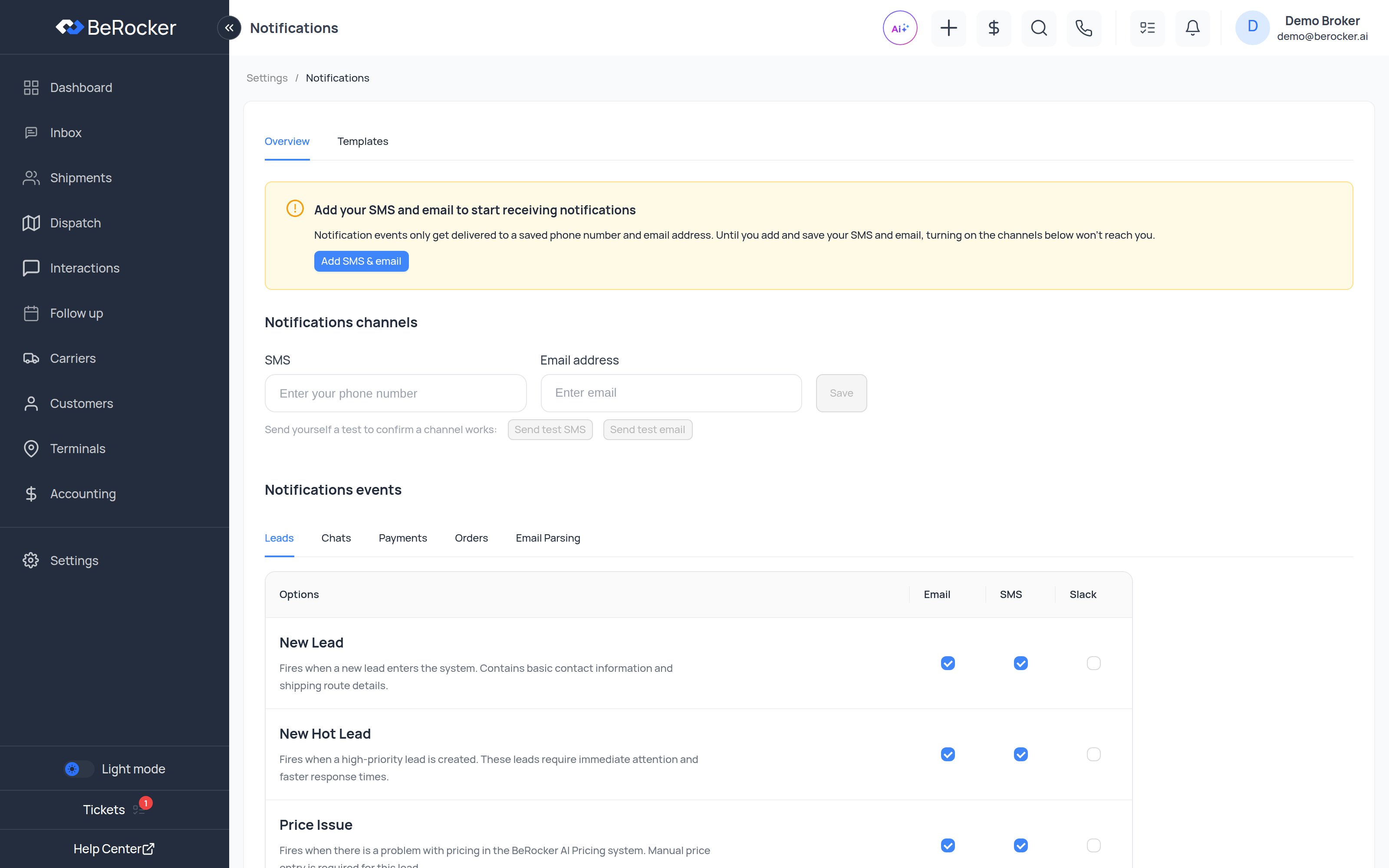
The page has two views: **Overview** (the settings below) and **Templates** (the wording of the
alerts themselves).
***
## Step 1 — where they go
Under **Notifications channels** there are two fields: an **SMS** number and an **Email address**.
Fill them in and click **Save**.
Then use **Send test SMS** and **Send test email** to confirm the destination actually receives
something.
Until you save both, a yellow banner sits at the top of the page:
> **Add your SMS and email to start receiving notifications.** Notification events only get
> delivered to a saved phone number and email address. Until you add and save your SMS and email,
> turning on the channels below won't reach you.
Ticking event boxes before saving your contact details does nothing.
Do **not** use the same number or email you already use as a customer-facing contact in
[Profile → User Contacts](/settings/profile).
If you do, your own notifications arrive as messages from an unrecognised number and pile up in
[Interactions](/using/interactions).
SMS notifications are sent through **your own** phone number, so they count toward usage and
charges on your VoIP provider account.
***
## Step 2 — which events
Below that is **Notifications events**, split into five tabs: **Leads**, **Chats**, **Payments**,
**Orders** and **Email Parsing**.
Each row is one event, and each has a tick box per channel — **Email**, **SMS** and **Slack**. Tick
the combinations you want.
| Event | Fires when |
| ----------------------- | ---------------------------------------------------------------------------------------------------------------- |
| **New Lead** | A new lead enters the system. Contains basic contact information and shipping route details. |
| **New Hot Lead** | A high-priority lead is created. These require immediate attention and faster response times. |
| **Price Issue** | There is a problem with pricing in the BeRocker AI Pricing system. Manual price entry is required for this lead. |
| **Lead Status Trigger** | A lead's status changes — for example from *New* to *Order* to *Signed*. |
| Event | Fires when |
| -------------------------- | --------------------------------------------------------------------------------------------- |
| **New Message** | A lead sends a new message through the chat system. |
| **User Agree** | A client confirms agreement to proceed with the service or accepts terms. |
| **User Opt Out** | A client opts out of the conversation — declines the service or asks to stop being contacted. |
| **Reminder** | A scheduled time arrives to remind staff to follow up with a specific lead. |
| **User Wants Call** | A customer requests a phone call. |
| **Empty AI Response** | The AI chat assistant cannot generate an appropriate response and needs manual intervention. |
| **AI Final Price Request** | The AI needs manual approval to give a customer a final price. |
| Event | Fires when |
| ------------------------ | ----------------------------------------------------------------------- |
| **Payment Success** | A payment is successfully processed and funds are received. |
| **Payment Failed** | A payment attempt fails — insufficient funds, card issues or otherwise. |
| **Payment Refund** | A refund is processed and funds are returned to the customer. |
| **Payment Dispute** | A customer opens a dispute or chargeback on a payment. |
| **Payment Dispute Won** | A dispute is resolved and the company receives the funds back. |
| **Payment Dispute Lost** | A dispute is resolved and the customer receives their money back. |
| Event | Fires when |
| ---------------------- | ------------------------------------------------------------------------------------------------------------------------------------------ |
| **New Order** | A customer completes the booking process and creates a confirmed order. |
| **New Offer** | A carrier sends a new offer on a Super Dispatch / Central Dispatch load. |
| **Offer Accepted** | A carrier accepts your Super Dispatch offer — the load is now covered. |
| **Offer Declined** | A carrier declines your Super Dispatch offer. Declining a carrier's request yourself does not fire it — that is your own action, not news. |
| **Offer Cancelled** | A carrier cancels their offer or withdraws the request it sent you. |
| **LB Order Cancelled** | An order posted to a load board is cancelled, affecting carrier assignments. |
| **Contract Cancelled** | A signed contract is cancelled on the load board. |
| **Picked Up** | The vehicle has been picked up from the origin location by the carrier. |
| **Delivered** | The vehicle has been successfully delivered to the destination. |
| Event | Fires when |
| ----------------------------- | ---------------------------------------------------------------------------------- |
| **Email Parsed Successfully** | An inbound email matches a filter and is successfully parsed into a lead. |
| **Email Parsing Failed** | An inbound email matched a filter but parsing failed and no lead could be created. |
Only useful if you have [email parsing](/settings/email-parsing) switched on.
Changes apply as soon as you save.
***
## What to turn on
Start narrow and add rather than starting wide and drowning:
| If you are | Turn on |
| ---------------------- | ---------------------------------------------------------------- |
| A broker working leads | New Lead, New Hot Lead, New Message, User Wants Call, User Agree |
| Handling money | Payment Failed, Payment Dispute, Payment Refund |
| Doing dispatch | New Offer, Offer Accepted, Picked Up, Delivered |
| Watching the AI | Empty AI Response, AI Final Price Request, Price Issue |
If you find yourself ignoring notifications, that is the signal to turn some off — not to try
harder. An alert you ignore is worse than no alert.
***
## Troubleshooting
| Symptom | Fix |
| -------------------------------------- | ---------------------------------------------------------------------------------------------------------------------------------------- |
| Nothing arrives | Did you **Save** your SMS number and email address? Ticking events alone does nothing. Then use **Send test SMS** / **Send test email**. |
| Notifications land in **Interactions** | Your notification contact details match your customer-facing ones. Change them. |
| Too many | Untick event types. Payments and Orders are usually the noisy ones for a broker. |
| Only some events arrive | Those events are unticked on that channel, or the lead is not assigned to you. |
| Slack column does nothing | Slack has to be connected for your organization first. |
***
## Video walkthrough
***
## Related
Your customer-facing contacts — keep them separate from these.
Messages to customers, not alerts to you.