> ## Documentation Index
> Fetch the complete documentation index at: https://help.berocker.com/llms.txt
> Use this file to discover all available pages before exploring further.
# Lead sources
> Create a source for each website or lead provider, get its endpoint URL, track what it costs, and import data.
A **lead source** is one place leads come from: your website, a paid provider, a referral programme.
Creating one gives you a unique endpoint URL to hand to that provider, and lets BeRocker attribute
leads and cost correctly.
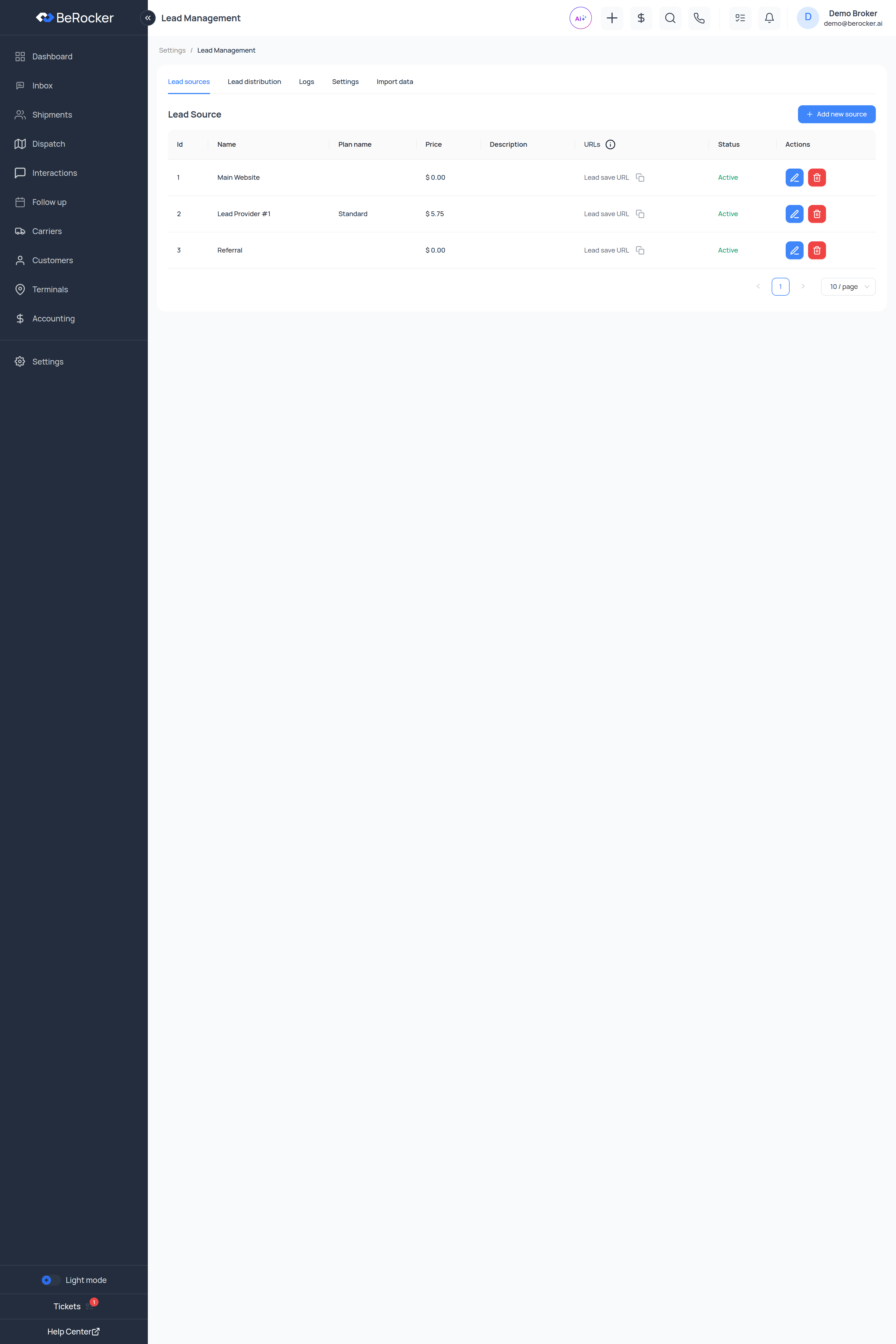
**Settings → Lead Management** has five tabs: **Lead sources**, **Lead distribution**, **Logs**,
**Settings** and **Import data**.
 ***
## Adding a source
On the **Lead sources** tab.
| Field | Required | Notes |
| ---------------------------------- | -------- | ----------------------------------------- |
| **Lead source name** | Yes | e.g. `Main Website`. |
| **Plan name** | No | If your provider sells by plan. |
| **Per Lead Price (\$)** | No | What one lead from this source costs you. |
| **Description** | No | Anything your team should know. |
| **Organization name**, **Website** | No | The provider's details. |
| **Upload logo** | No | Shown next to the source. |
| **Status** | Yes | Active, Inactive or Blocked. |
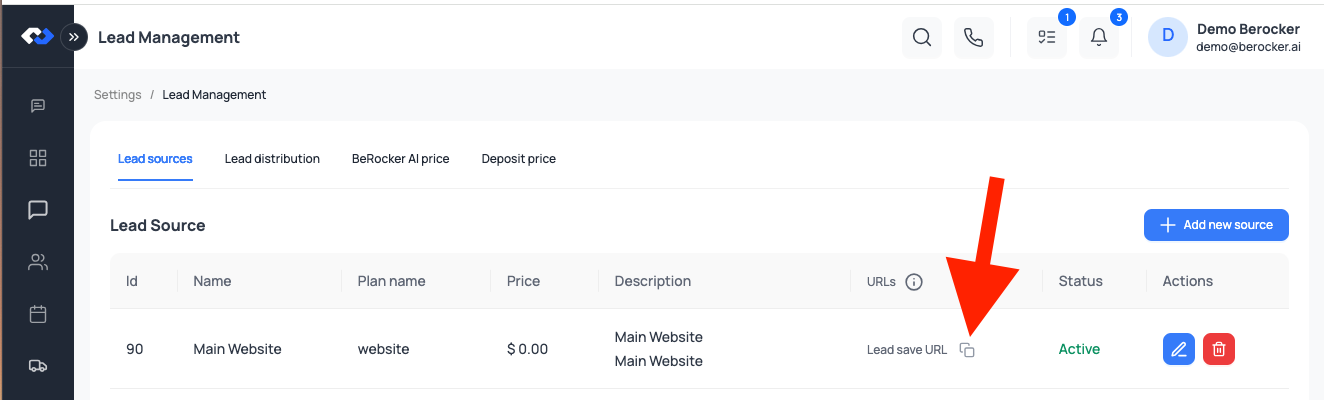
The **URLs** column has a **Lead save URL** with a copy icon. That URL is what receives leads.
***
## Adding a source
On the **Lead sources** tab.
| Field | Required | Notes |
| ---------------------------------- | -------- | ----------------------------------------- |
| **Lead source name** | Yes | e.g. `Main Website`. |
| **Plan name** | No | If your provider sells by plan. |
| **Per Lead Price (\$)** | No | What one lead from this source costs you. |
| **Description** | No | Anything your team should know. |
| **Organization name**, **Website** | No | The provider's details. |
| **Upload logo** | No | Shown next to the source. |
| **Status** | Yes | Active, Inactive or Blocked. |
The **URLs** column has a **Lead save URL** with a copy icon. That URL is what receives leads.
 Each source has its own unique URL, so authentication is built in — there is no separate API key
to send. Some sources also expose a separate **hot lead** URL for providers that flag urgent
leads.
Treat the endpoint URL like a password. Anyone who has it can create leads in your account.
Give the URL to your provider, or POST your own website form to it. The exact payload format is
documented in [Lead source API](/integrations/lead-source-api).
***
## Why per-lead price matters
The **Per Lead Price** feeds every cost figure in the product:
* **Lead Cost** and **Return on Lead Spend** on the [Dashboard](/using/dashboard)
* **Cost / Booked Load**
* The **Lead Sources** [report](/settings/reports) — total charges, average charge and ROI
Leave it at 0 for free sources like your own website; that is correct, not lazy.
***
## Status
| Status | Effect |
| ------------ | ------------------- |
| **Active** | Leads are accepted. |
| **Inactive** | Paused. |
| **Blocked** | Rejected. |
Use **Inactive** while you are between contracts rather than deleting the source — deleting loses
the history behind your reports.
***
## Logs
The **Logs** tab shows raw incoming lead payloads with source, customer, broker, events and the last
replay. When a provider says "we sent it", this is where you check.
***
## Settings
**Lead numbering** — the highest lead number used so far, so you can continue an existing numbering
scheme when migrating from another CRM.
**Status mapping** and **Trailer type mapping** translate a provider's own values into BeRocker's,
so a provider that says `enclosed_trailer` lands as Enclosed rather than as nothing.
***
## Import data
Bulk import from a **CSV file**. Choose what you are importing — **leads**, **customers** or
**terminals** — upload, and import another file when it finishes.
Import a handful of rows first and check the result before running the whole file.
***
## Video walkthrough
***
## Related
The payload format to POST.
Who gets these leads.
For providers that email instead of POST.
ROI per source.
Each source has its own unique URL, so authentication is built in — there is no separate API key
to send. Some sources also expose a separate **hot lead** URL for providers that flag urgent
leads.
Treat the endpoint URL like a password. Anyone who has it can create leads in your account.
Give the URL to your provider, or POST your own website form to it. The exact payload format is
documented in [Lead source API](/integrations/lead-source-api).
***
## Why per-lead price matters
The **Per Lead Price** feeds every cost figure in the product:
* **Lead Cost** and **Return on Lead Spend** on the [Dashboard](/using/dashboard)
* **Cost / Booked Load**
* The **Lead Sources** [report](/settings/reports) — total charges, average charge and ROI
Leave it at 0 for free sources like your own website; that is correct, not lazy.
***
## Status
| Status | Effect |
| ------------ | ------------------- |
| **Active** | Leads are accepted. |
| **Inactive** | Paused. |
| **Blocked** | Rejected. |
Use **Inactive** while you are between contracts rather than deleting the source — deleting loses
the history behind your reports.
***
## Logs
The **Logs** tab shows raw incoming lead payloads with source, customer, broker, events and the last
replay. When a provider says "we sent it", this is where you check.
***
## Settings
**Lead numbering** — the highest lead number used so far, so you can continue an existing numbering
scheme when migrating from another CRM.
**Status mapping** and **Trailer type mapping** translate a provider's own values into BeRocker's,
so a provider that says `enclosed_trailer` lands as Enclosed rather than as nothing.
***
## Import data
Bulk import from a **CSV file**. Choose what you are importing — **leads**, **customers** or
**terminals** — upload, and import another file when it finishes.
Import a handful of rows first and check the result before running the whole file.
***
## Video walkthrough
***
## Related
The payload format to POST.
Who gets these leads.
For providers that email instead of POST.
ROI per source.