> ## Documentation Index
> Fetch the complete documentation index at: https://help.berocker.com/llms.txt
> Use this file to discover all available pages before exploring further.
# Lead distribution
> Decide who gets which leads, how many a day, during which hours, and where leads go when nobody is on shift.
**Settings → Lead Management → Lead distribution** is the rota for incoming leads. Every lead that
arrives is assigned to an agent according to what you set here.
***
## The table
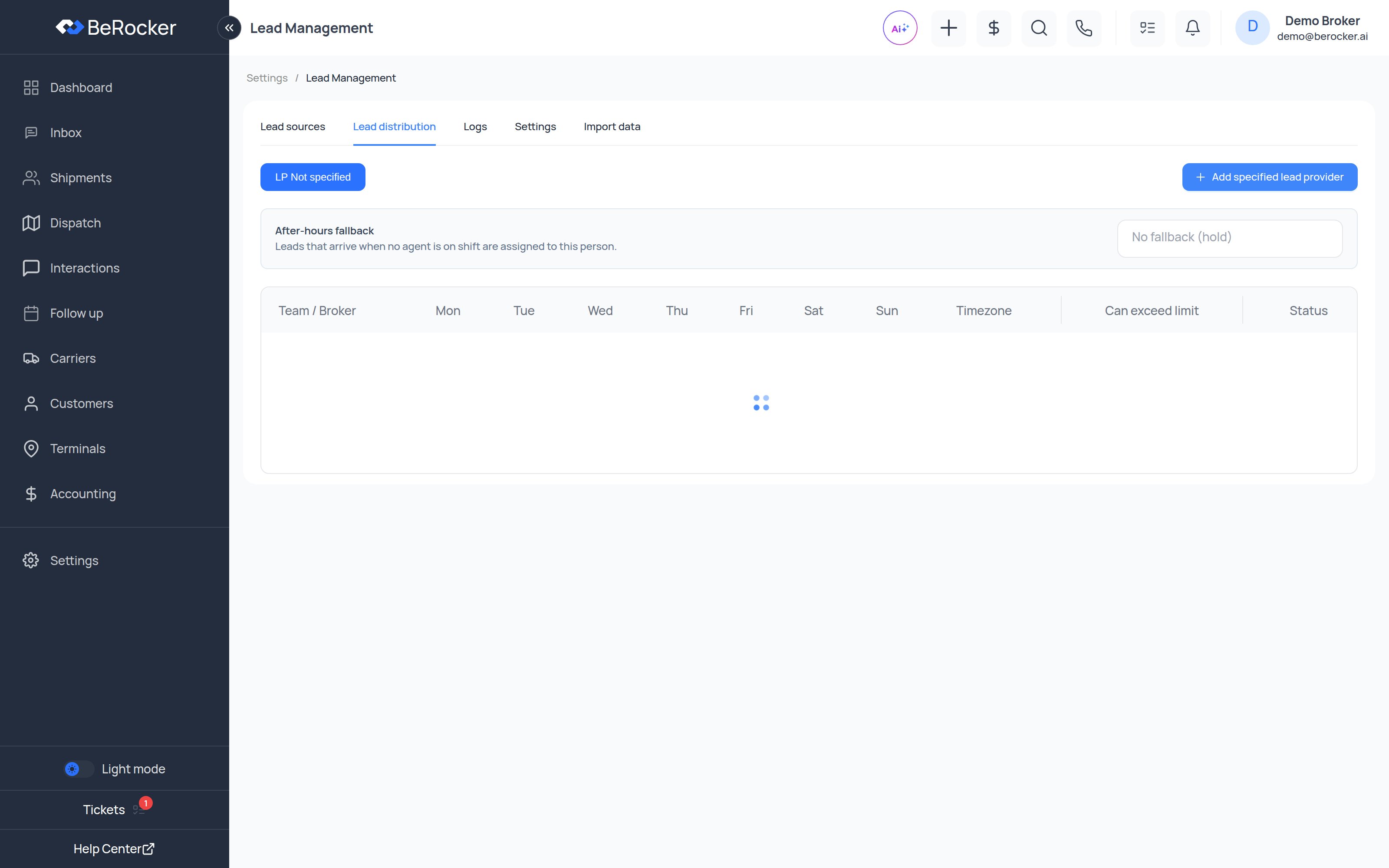
One row per **Team / Broker**, one column per day:
**Mon · Tue · Wed · Thu · Fri · Sat · Sun · Timezone · Can exceed limit · Total leads · Status**
Each day cell is that agent's **leads per day** quota.
A quota of **0** means that agent gets no leads that day. That is how you exclude someone without
deactivating them.
***
## Working hours per day
Click a day cell and you get a small panel with:
| Control | What it does |
| ---------------------- | ----------------------------------------------------------- |
| **Available 24 hours** | On by default. Leads can arrive for this agent at any hour. |
| **Start / End** | Turn the switch off to set a shift window instead. |
| **Apply M-F** | Copy this cell to Monday–Friday. |
| **Apply to all** | Copy this cell to every day of the week. |
Under each cell you will see either `24h` or the window you set, so the rota is readable at a
glance.
**Timezone** is per agent — someone working from another state gets leads during *their* hours.
Leave it blank to use the organization default.
***
## Can exceed limit
Ticked, an agent can be given leads beyond their daily quota when volume spikes and nobody else is
available. Unticked, the quota is a hard ceiling.
Give it to your strongest closers and leave it off for new agents. Nothing burns a good lead like
giving it to someone with fifteen already open.
***
## After-hours fallback
> Leads that arrive when no agent is on shift are assigned to this person.
Pick a user, or leave it as **No fallback (hold)** and leads wait until someone comes on shift.
If you set shift windows but no fallback, a lead arriving at 2am sits unassigned until morning. If
you sell on speed of response, name a fallback.
***
## Filtering by lead source
If you buy leads from several providers and want them to go to different people:
Use the **Lead source** filter above the table to switch to one provider.
Set 0 for the agents who should never get that provider's leads, and a real quota for the ones
who should.
Each source keeps its own rota.
This is how you keep expensive provider leads on your best agents while your website leads spread
across the team.
***
## Status
The per-row status switch turns distribution on or off for that agent without touching their
quotas — useful for holidays.
The **Leads** toggle on the People list in
[Team and security](/settings/team-and-security) does the same thing from the other screen.
***
## Setting it up for a new agent
Distribution is step 4 of the **Add user** flow, so a new agent gets a rota at the moment you create
them. See [Team and security](/settings/team-and-security).
***
## Video: users, teams and lead distribution
***
## Related
Where the leads come from.
The agents being assigned to.
 ***
## The table
One row per **Team / Broker**, one column per day:
**Mon · Tue · Wed · Thu · Fri · Sat · Sun · Timezone · Can exceed limit · Total leads · Status**
Each day cell is that agent's **leads per day** quota.
***
## The table
One row per **Team / Broker**, one column per day:
**Mon · Tue · Wed · Thu · Fri · Sat · Sun · Timezone · Can exceed limit · Total leads · Status**
Each day cell is that agent's **leads per day** quota.