> ## Documentation Index
> Fetch the complete documentation index at: https://help.berocker.com/llms.txt
> Use this file to discover all available pages before exploring further.
# Email parsing
> Connect Gmail, filter incoming emails, and let AI turn lead emails into shipments automatically.
Some lead providers do not POST to an endpoint — they email you. **Settings → Email Parsing**
connects a Gmail mailbox, filters what comes in, and has AI read the matching emails and create
leads from them.
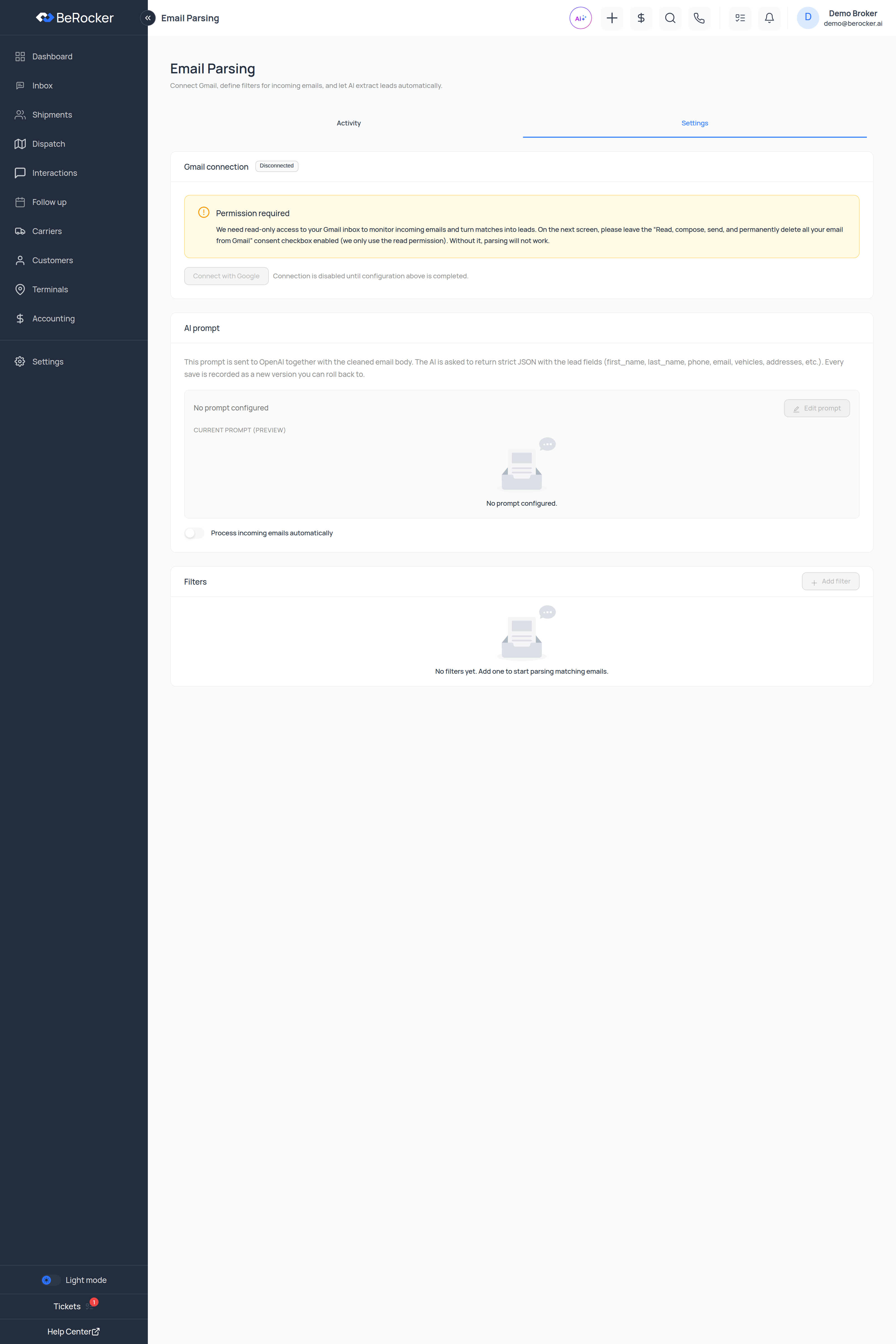 Two tabs: **Activity** (what has been processed) and **Settings** (the connection, the filters and
the prompt).
***
## 1. Connect Gmail
On the **Settings** tab, under **Gmail connection**, click **Connect with Google** and choose the
mailbox that receives the lead emails.
**Leave the broad consent checkbox enabled.** The page says it plainly:
> We need read-only access to your Gmail inbox to monitor incoming emails and turn matches into
> leads. On the next screen, please leave the **"Read, compose, send, and permanently delete all
> your email from Gmail"** consent checkbox **enabled** (we only use the read permission). Without
> it, parsing will not work.
Google does not offer a narrower scope that still lets BeRocker read the mailbox. Untick it and
the connection completes but nothing is ever parsed — you will see **Permission required**.
Once connected, **Connected as** shows which account is linked, **Test connection** checks it still
works, and **Disconnect** revokes access.
Use a dedicated mailbox such as `leads@yourdomain.com` and forward provider emails to it. Pointing
this at a personal inbox means the parser sifts through everything you receive.
***
## 2. Set up filters
A **filter** decides which emails get parsed. Until you add one you will see
*"No filters yet. Add one to start parsing matching emails."*
Click **Add filter**. Each filter has:
| Field | What it does |
| ----------- | --------------------------------------------------- |
| **Name** | For you, e.g. *"New leads from main forwarder"*. |
| **Match** | **All rules must match** or **Any rule can match**. |
| **Rules** | One or more conditions. |
| **Enabled** | Turn it off without deleting it. |
Each rule is a **field**, an **operator** and a **value**:
| Field | Operators |
| --------------------------------------- | ----------------------------------------------------------------- |
| **From**, **To**, **Subject**, **Body** | Contains · Does not contain · Equals · Not equals · Matches regex |
| **Has attachment** | Is true · Is false |
An email that matches no filter is recorded as **No filter matched** and nothing is created. That
is on purpose — it is how you keep the rest of your mail out.
### A filter that works
Start narrow:
* **From** contains `@leadprovider.com`
* **AND Subject** contains `New Lead`
then widen only if you find real leads being missed.
***
## 3. Set the AI prompt
> This prompt is sent to OpenAI together with the cleaned email body. The AI is asked to return
> strict JSON with the lead fields (`first_name`, `last_name`, `phone`, `email`, `vehicles`,
> `addresses`, etc.). Every save is recorded as a new version you can roll back to.
**Current prompt (preview)** shows what is in use. If it says **No prompt configured**, nothing will
be extracted yet — click **Edit prompt**.
The editor keeps a **version history**, with a **What changed (AI)** summary for each version and a
**Revert to current** action, so a change that makes parsing worse can be undone.
***
## 4. Turn on automatic processing
**Process incoming emails automatically** is the master switch. Leave it off while you tune your
filters, then turn it on.
Change the prompt in small steps and watch the **Activity** tab afterwards. A prompt that reads
well can still extract the wrong ZIP code.
***
## The Activity tab
Every email the parser has seen, with:
**Received · Subject · Filter · Status · Failure reason · Lead**
Search by subject, sender or body, filter by status, and narrow by date.
### Statuses
| Status | Meaning |
| ----------------------- | --------------------------------------------------------- |
| **Received** | Arrived, not processed yet. |
| **Processing** | Being read now. |
| **Parsed** | Data extracted. |
| **Lead created** | A shipment was created — the **Lead** column links to it. |
| **Filtered out** | No filter matched, so it was ignored. |
| **Skipped (duplicate)** | The same lead already exists. |
| **Skipped (reply)** | It was a reply or inquiry, not a new lead. |
| **Failed** | Something went wrong; **Failure reason** says what. |
Open a row and the detail drawer shows the **forwarded email**, the **prompt used**, the **OpenAI
response**, the **parsed JSON** and any attachments — so when a lead comes out wrong you can see
exactly which step went wrong.
***
## Troubleshooting
| Symptom | Check |
| ----------------------------------------------------------------- | ----------------------------------------------------------------------------------------------------------- |
| Nothing is processed | Is **Process incoming emails automatically** on? Is Gmail still connected — click **Test connection**. |
| Everything is **Filtered out** | Your rules are too strict, or the sender address is not what you assumed. Open one and read the real email. |
| Leads are created with wrong fields | Look at the **Parsed JSON** on that row, then adjust the prompt. |
| Real leads marked **Skipped (reply)** | The email looks like a reply. Provider changed their subject format — widen the filter. |
| **Permission required** | The broad consent checkbox was unticked, or Gmail access was revoked. Reconnect and leave it enabled. |
| **Connection is disabled until configuration above is completed** | Finish the Gmail connection before turning processing on. |
***
## Related
The API way of receiving leads.
Your personal Gmail connection.
Alerts for parse successes and failures.
Where the created leads land.
Two tabs: **Activity** (what has been processed) and **Settings** (the connection, the filters and
the prompt).
***
## 1. Connect Gmail
On the **Settings** tab, under **Gmail connection**, click **Connect with Google** and choose the
mailbox that receives the lead emails.
**Leave the broad consent checkbox enabled.** The page says it plainly:
> We need read-only access to your Gmail inbox to monitor incoming emails and turn matches into
> leads. On the next screen, please leave the **"Read, compose, send, and permanently delete all
> your email from Gmail"** consent checkbox **enabled** (we only use the read permission). Without
> it, parsing will not work.
Google does not offer a narrower scope that still lets BeRocker read the mailbox. Untick it and
the connection completes but nothing is ever parsed — you will see **Permission required**.
Once connected, **Connected as** shows which account is linked, **Test connection** checks it still
works, and **Disconnect** revokes access.
Use a dedicated mailbox such as `leads@yourdomain.com` and forward provider emails to it. Pointing
this at a personal inbox means the parser sifts through everything you receive.
***
## 2. Set up filters
A **filter** decides which emails get parsed. Until you add one you will see
*"No filters yet. Add one to start parsing matching emails."*
Click **Add filter**. Each filter has:
| Field | What it does |
| ----------- | --------------------------------------------------- |
| **Name** | For you, e.g. *"New leads from main forwarder"*. |
| **Match** | **All rules must match** or **Any rule can match**. |
| **Rules** | One or more conditions. |
| **Enabled** | Turn it off without deleting it. |
Each rule is a **field**, an **operator** and a **value**:
| Field | Operators |
| --------------------------------------- | ----------------------------------------------------------------- |
| **From**, **To**, **Subject**, **Body** | Contains · Does not contain · Equals · Not equals · Matches regex |
| **Has attachment** | Is true · Is false |
An email that matches no filter is recorded as **No filter matched** and nothing is created. That
is on purpose — it is how you keep the rest of your mail out.
### A filter that works
Start narrow:
* **From** contains `@leadprovider.com`
* **AND Subject** contains `New Lead`
then widen only if you find real leads being missed.
***
## 3. Set the AI prompt
> This prompt is sent to OpenAI together with the cleaned email body. The AI is asked to return
> strict JSON with the lead fields (`first_name`, `last_name`, `phone`, `email`, `vehicles`,
> `addresses`, etc.). Every save is recorded as a new version you can roll back to.
**Current prompt (preview)** shows what is in use. If it says **No prompt configured**, nothing will
be extracted yet — click **Edit prompt**.
The editor keeps a **version history**, with a **What changed (AI)** summary for each version and a
**Revert to current** action, so a change that makes parsing worse can be undone.
***
## 4. Turn on automatic processing
**Process incoming emails automatically** is the master switch. Leave it off while you tune your
filters, then turn it on.
Change the prompt in small steps and watch the **Activity** tab afterwards. A prompt that reads
well can still extract the wrong ZIP code.
***
## The Activity tab
Every email the parser has seen, with:
**Received · Subject · Filter · Status · Failure reason · Lead**
Search by subject, sender or body, filter by status, and narrow by date.
### Statuses
| Status | Meaning |
| ----------------------- | --------------------------------------------------------- |
| **Received** | Arrived, not processed yet. |
| **Processing** | Being read now. |
| **Parsed** | Data extracted. |
| **Lead created** | A shipment was created — the **Lead** column links to it. |
| **Filtered out** | No filter matched, so it was ignored. |
| **Skipped (duplicate)** | The same lead already exists. |
| **Skipped (reply)** | It was a reply or inquiry, not a new lead. |
| **Failed** | Something went wrong; **Failure reason** says what. |
Open a row and the detail drawer shows the **forwarded email**, the **prompt used**, the **OpenAI
response**, the **parsed JSON** and any attachments — so when a lead comes out wrong you can see
exactly which step went wrong.
***
## Troubleshooting
| Symptom | Check |
| ----------------------------------------------------------------- | ----------------------------------------------------------------------------------------------------------- |
| Nothing is processed | Is **Process incoming emails automatically** on? Is Gmail still connected — click **Test connection**. |
| Everything is **Filtered out** | Your rules are too strict, or the sender address is not what you assumed. Open one and read the real email. |
| Leads are created with wrong fields | Look at the **Parsed JSON** on that row, then adjust the prompt. |
| Real leads marked **Skipped (reply)** | The email looks like a reply. Provider changed their subject format — widen the filter. |
| **Permission required** | The broad consent checkbox was unticked, or Gmail access was revoked. Reconnect and leave it enabled. |
| **Connection is disabled until configuration above is completed** | Finish the Gmail connection before turning processing on. |
***
## Related
The API way of receiving leads.
Your personal Gmail connection.
Alerts for parse successes and failures.
Where the created leads land.