> ## Documentation Index
> Fetch the complete documentation index at: https://help.berocker.com/llms.txt
> Use this file to discover all available pages before exploring further.
# Business
> Your company's details, branding, terms and conditions and website widget — everything that appears on documents you send.
**Settings → Business** is your company as customers and carriers see it. Fill it in before you send
a single quote, because every one of these fields shows up on documents that go out under your name.
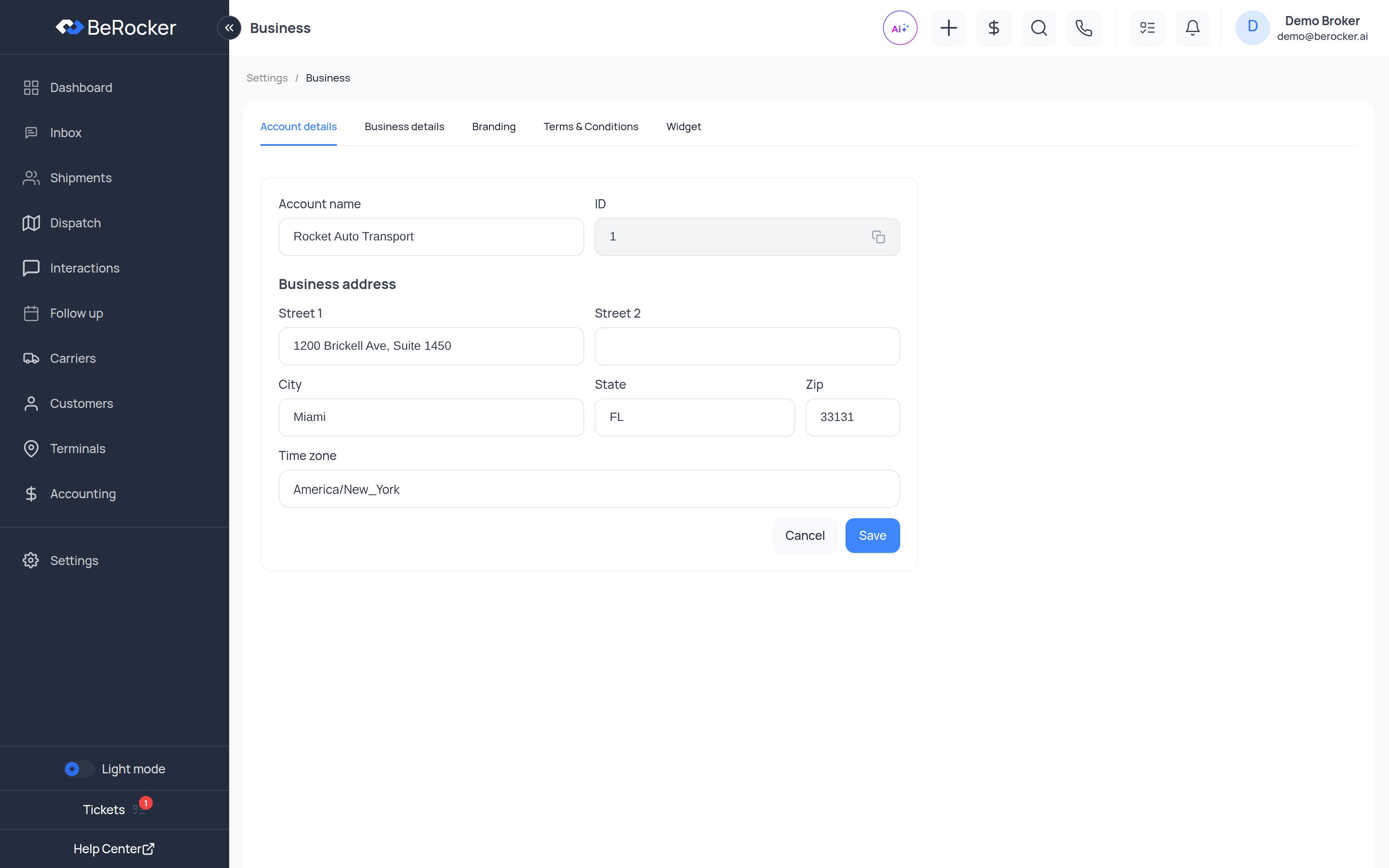 The tabs are **Account details**, **Business details**, **Branding**, **Terms & Conditions** and
**Widget**. Organizations with ocean shipping enabled also get **Ports** and **Port Route**.
***
## Account details
| Field | Notes |
| -------------------- | ------------------------------------------------------------------------------ |
| **Account name** | Your business or brand name. |
| **ID** | Your organization ID — read-only, with a copy button. Support will ask for it. |
| **Business address** | Street 1, Street 2, City, State, ZIP. |
| **Time zone** | The one your office works in. |
Get the **time zone** right before you build any follow-up sequences. Quiet hours, scheduled
messages and reminders are all worked out from it, so a wrong time zone means texts going out at
the wrong hour.
***
## Business details
Two groups: what the business *is*, and what the public sees.
**Business**
* Legal name
* Website
* Address
* Privacy policy URL
**Public info**
| Field | Where it shows up |
| --------------------------------------------------------- | ---------------------------------------------- |
| **Business name** | Customer-facing documents and emails. |
| **Support address**, **support phone**, **support email** | Invoices, payment pages, message footers. |
| **Descriptor on customer statements** | What appears on the customer's card statement. |
| **Also provided** | A short description of what you do. |
| **MC number** and **DOT number** | Contracts and load board posts. |
The **statement descriptor** is worth getting right. A charge that shows an unrecognisable name on
a card statement is a chargeback waiting to happen.
***
## Branding
The tabs are **Account details**, **Business details**, **Branding**, **Terms & Conditions** and
**Widget**. Organizations with ocean shipping enabled also get **Ports** and **Port Route**.
***
## Account details
| Field | Notes |
| -------------------- | ------------------------------------------------------------------------------ |
| **Account name** | Your business or brand name. |
| **ID** | Your organization ID — read-only, with a copy button. Support will ask for it. |
| **Business address** | Street 1, Street 2, City, State, ZIP. |
| **Time zone** | The one your office works in. |
Get the **time zone** right before you build any follow-up sequences. Quiet hours, scheduled
messages and reminders are all worked out from it, so a wrong time zone means texts going out at
the wrong hour.
***
## Business details
Two groups: what the business *is*, and what the public sees.
**Business**
* Legal name
* Website
* Address
* Privacy policy URL
**Public info**
| Field | Where it shows up |
| --------------------------------------------------------- | ---------------------------------------------- |
| **Business name** | Customer-facing documents and emails. |
| **Support address**, **support phone**, **support email** | Invoices, payment pages, message footers. |
| **Descriptor on customer statements** | What appears on the customer's card statement. |
| **Also provided** | A short description of what you do. |
| **MC number** and **DOT number** | Contracts and load board posts. |
The **statement descriptor** is worth getting right. A charge that shows an unrecognisable name on
a card statement is a chargeback waiting to happen.
***
## Branding
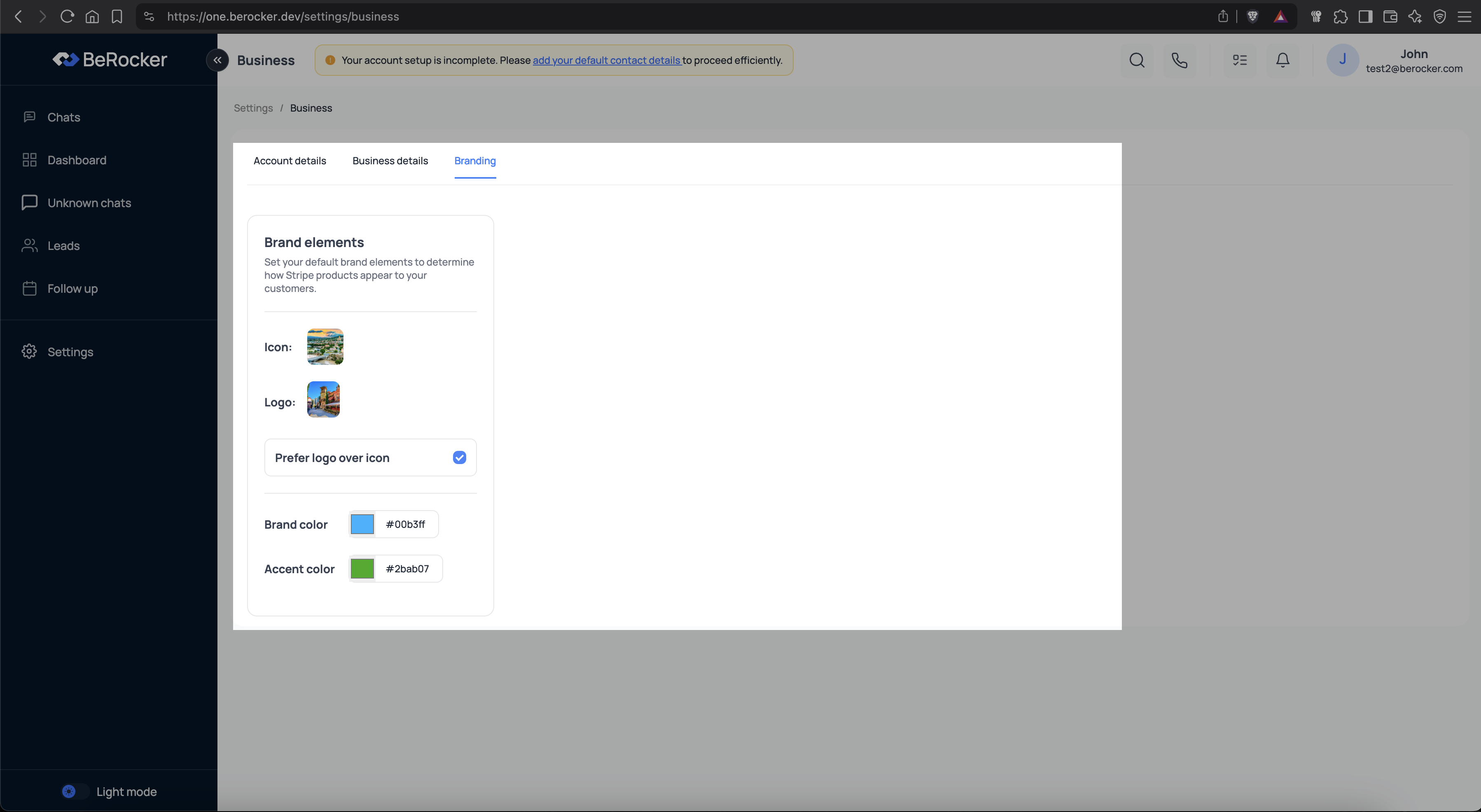 * **Logo** — used on documents and email templates.
* **Icon** — used in compact places. A square image works best.
* **Brand colour** and **accent colour** — buttons and links in emails and on the booking page.
* **Prefer logo over icon** — turn this on if your logo already contains your business name.
***
## Terms & Conditions
The document templates that go to shippers and carriers. Edit the text here, and it is what gets
generated when a contract goes out for signature.
Message templates are a different thing and live in [Templates](/settings/templates).
***
## Widget
The quote widget you embed on your own website. Configure it here, then copy the embed snippet onto
your site.
Leads from the widget arrive through a [lead source](/settings/lead-sources) like any other, so
they get distributed, quoted and followed up the same way.
***
## Ports and Port Route
Only shown when ocean shipping is enabled for your organization. Define the ports you use and how
routes combine them — port-to-port, port-to-door and door-to-port.
***
## Why this matters
Your business settings are used automatically in:
* Contracts and quotes sent to carriers and shippers
* Email templates, notifications and reminders
* Payment pages and card statements
* Your [booking page](/settings/booking-page)
Skipping it means documents go out with gaps in them.
***
## Related
The page customers actually book on.
The messages that carry these details.
* **Logo** — used on documents and email templates.
* **Icon** — used in compact places. A square image works best.
* **Brand colour** and **accent colour** — buttons and links in emails and on the booking page.
* **Prefer logo over icon** — turn this on if your logo already contains your business name.
***
## Terms & Conditions
The document templates that go to shippers and carriers. Edit the text here, and it is what gets
generated when a contract goes out for signature.
Message templates are a different thing and live in [Templates](/settings/templates).
***
## Widget
The quote widget you embed on your own website. Configure it here, then copy the embed snippet onto
your site.
Leads from the widget arrive through a [lead source](/settings/lead-sources) like any other, so
they get distributed, quoted and followed up the same way.
***
## Ports and Port Route
Only shown when ocean shipping is enabled for your organization. Define the ports you use and how
routes combine them — port-to-port, port-to-door and door-to-port.
***
## Why this matters
Your business settings are used automatically in:
* Contracts and quotes sent to carriers and shippers
* Email templates, notifications and reminders
* Payment pages and card statements
* Your [booking page](/settings/booking-page)
Skipping it means documents go out with gaps in them.
***
## Related
The page customers actually book on.
The messages that carry these details.