> ## Documentation Index
> Fetch the complete documentation index at: https://help.berocker.com/llms.txt
> Use this file to discover all available pages before exploring further.
# Booking page
> Customise the page your customers book on — wording, colours, fonts, what is visible, and whether the card is charged automatically.
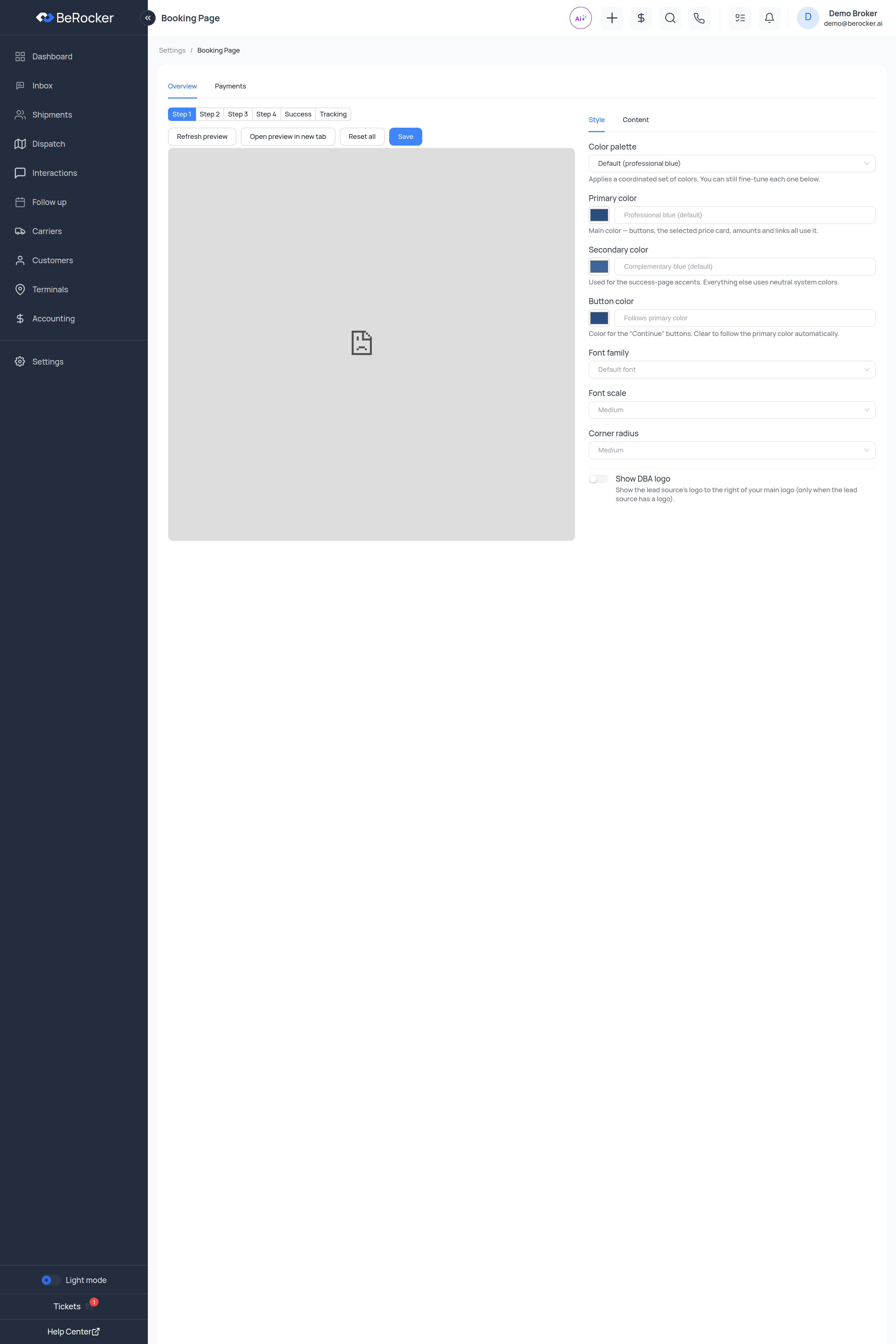
The **booking page** is where a customer confirms their shipment, signs and pays. It is your page,
under your branding, and **Settings → Booking Page** is where you shape it — with a live preview
next to the controls.
The page has two tabs: **Overview** (look, feel and wording) and **Payments**.
 ***
## The preview
The right-hand side is the real booking page rendering as you change things. Use the step picker to
check each screen:
**Step 1 · Step 2 · Step 3 · Step 4 · Success · Tracking**
**Refresh preview** reloads it, **Open preview in new tab** gives you the full-size page, **Reset
all** puts the defaults back, and **Save** commits your changes.
The controls themselves are split into two panels: **Style** and **Content**.
Always check **Success** and **Tracking**. They are the screens people forget, and they are the
ones the customer stares at after paying you money.
***
## Content — the wording
Every piece of text on the page is editable, grouped by where it appears:
**Header · Step 1 · Buttons · Step 2 · Step 3 · Step 4 · Details · Success · Tracking**
Some slots support **rich text**, so you can bold a line or add a link.
Keep it short. This page is mostly read on a phone, halfway through a decision.
***
## Style — look and feel
| Control | What it does |
| ------------------- | ----------------------------------------------------------------------------------------------------------------------------------------------------- |
| **Color palette** | Default (professional blue), Ocean, Forest, Graphite, Royal, Burgundy. *Applies a coordinated set of colors. You can still fine-tune each one below.* |
| **Primary color** | *Main color — buttons, the selected price card, amounts and links all use it.* |
| **Secondary color** | *Used for the success-page accents. Everything else uses neutral system colors.* |
| **Button color** | *Color for the "Continue" buttons. Clear to follow the primary color automatically.* |
| **Font family** | Inter, Roboto, Open Sans, Lato, Poppins, or the system default. |
| **Font scale** | Small, Medium, Large. |
| **Corner radius** | Small, Medium, Large, Full. |
| **Show DBA logo** | *Show the lead source's logo to the right of your main logo* — only when that lead source has a logo. |
The palettes are pre-matched sets — if colour is not your thing, pick one and move on.
***
## Payments
On the **Payments** tab: **Automatic payments** — *Charge the card automatically on booking.*
* **On**: the customer's card is charged as soon as they book. The shipment goes straight to
**Paid**.
* **Off**: the card is collected and an agent takes the payment later.
Which processor is used comes from
[Settings → Integrations → Payment Gateways](/settings/integrations).
Turning automatic payments on changes what happens to real customers' cards at the moment they
book. Confirm with whoever owns the money side before you flip it.
***
## Tracking page
The same editor covers the tracking page customers land on after booking, so the wording there
matches the rest of your brand instead of reading like a system message.
***
## Related
Logo, colours and legal details the page inherits.
Which processor takes the money.
The message that sends the booking link.
Where those payments land.
***
## The preview
The right-hand side is the real booking page rendering as you change things. Use the step picker to
check each screen:
**Step 1 · Step 2 · Step 3 · Step 4 · Success · Tracking**
**Refresh preview** reloads it, **Open preview in new tab** gives you the full-size page, **Reset
all** puts the defaults back, and **Save** commits your changes.
The controls themselves are split into two panels: **Style** and **Content**.
Always check **Success** and **Tracking**. They are the screens people forget, and they are the
ones the customer stares at after paying you money.
***
## Content — the wording
Every piece of text on the page is editable, grouped by where it appears:
**Header · Step 1 · Buttons · Step 2 · Step 3 · Step 4 · Details · Success · Tracking**
Some slots support **rich text**, so you can bold a line or add a link.
Keep it short. This page is mostly read on a phone, halfway through a decision.
***
## Style — look and feel
| Control | What it does |
| ------------------- | ----------------------------------------------------------------------------------------------------------------------------------------------------- |
| **Color palette** | Default (professional blue), Ocean, Forest, Graphite, Royal, Burgundy. *Applies a coordinated set of colors. You can still fine-tune each one below.* |
| **Primary color** | *Main color — buttons, the selected price card, amounts and links all use it.* |
| **Secondary color** | *Used for the success-page accents. Everything else uses neutral system colors.* |
| **Button color** | *Color for the "Continue" buttons. Clear to follow the primary color automatically.* |
| **Font family** | Inter, Roboto, Open Sans, Lato, Poppins, or the system default. |
| **Font scale** | Small, Medium, Large. |
| **Corner radius** | Small, Medium, Large, Full. |
| **Show DBA logo** | *Show the lead source's logo to the right of your main logo* — only when that lead source has a logo. |
The palettes are pre-matched sets — if colour is not your thing, pick one and move on.
***
## Payments
On the **Payments** tab: **Automatic payments** — *Charge the card automatically on booking.*
* **On**: the customer's card is charged as soon as they book. The shipment goes straight to
**Paid**.
* **Off**: the card is collected and an agent takes the payment later.
Which processor is used comes from
[Settings → Integrations → Payment Gateways](/settings/integrations).
Turning automatic payments on changes what happens to real customers' cards at the moment they
book. Confirm with whoever owns the money side before you flip it.
***
## Tracking page
The same editor covers the tracking page customers land on after booking, so the wording there
matches the rest of your brand instead of reading like a system message.
***
## Related
Logo, colours and legal details the page inherits.
Which processor takes the money.
The message that sends the booking link.
Where those payments land.