> ## Documentation Index
> Fetch the complete documentation index at: https://help.berocker.com/llms.txt
> Use this file to discover all available pages before exploring further.
# Tour the CRM
> What every screen in BeRocker is for, and where to find it.
Five minutes here will save you a lot of clicking. Every screenshot on this page is the real CRM.
***
## The sidebar
Everything in BeRocker hangs off the left sidebar. The order is deliberate: the things you touch
every hour are at the top, records in the middle, money and settings at the bottom.
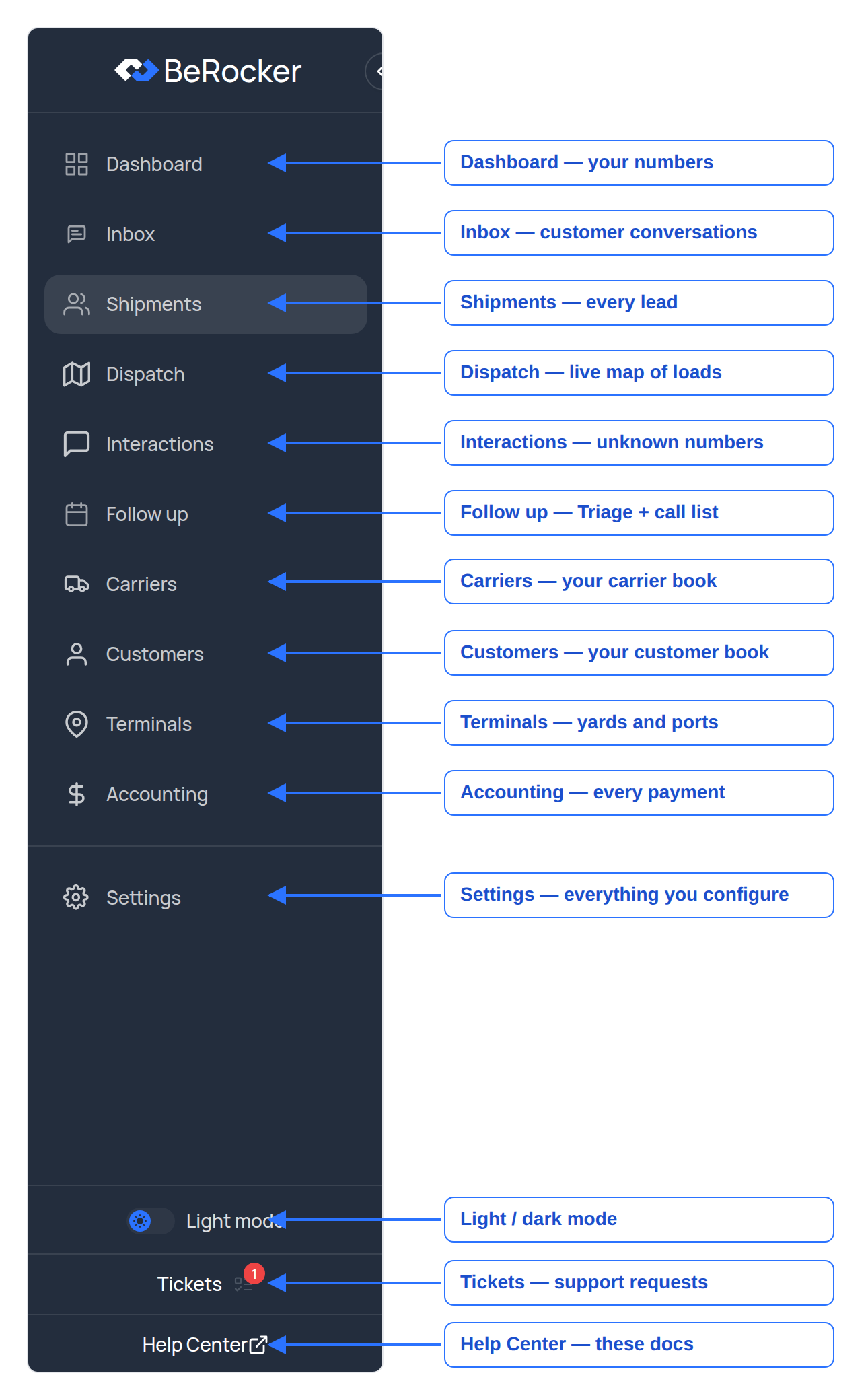 | Item | What it is |
| ---------------- | ----------------------------------------------------------------------- |
| **Dashboard** | Your numbers — leads, revenue, margin, conversion, response times. |
| **Inbox** | Every conversation with every customer: SMS, email, WhatsApp and calls. |
| **Shipments** | The table of every lead and order, grouped into status tabs. |
| **Dispatch** | A live map of loads on the road, plus overdue and upcoming pickups. |
| **Interactions** | Calls and texts from numbers the CRM does not recognise yet. |
| **Follow up** | Triage — which conversations need a human today — and your call list. |
| **Carriers** | Your carrier book: MC/DOT, terms, load history, documents. |
| **Customers** | Your customer book: contact details, orders, payment methods. |
| **Terminals** | Terminals and yards you ship in and out of. |
| **Accounting** | Every payment, refund, dispute and fee. |
| **Settings** | Everything you configure. |
Below the divider you will also find **Tickets** (support requests to the BeRocker team), the
**Help Center** link that brought you here, and the light/dark mode switch. The **«** button
collapses the sidebar to icons.
If a menu item is missing for you, it is your role, not a bug. Ask an admin — see
[Team and security](/settings/team-and-security).
***
## The top bar
| Item | What it is |
| ---------------- | ----------------------------------------------------------------------- |
| **Dashboard** | Your numbers — leads, revenue, margin, conversion, response times. |
| **Inbox** | Every conversation with every customer: SMS, email, WhatsApp and calls. |
| **Shipments** | The table of every lead and order, grouped into status tabs. |
| **Dispatch** | A live map of loads on the road, plus overdue and upcoming pickups. |
| **Interactions** | Calls and texts from numbers the CRM does not recognise yet. |
| **Follow up** | Triage — which conversations need a human today — and your call list. |
| **Carriers** | Your carrier book: MC/DOT, terms, load history, documents. |
| **Customers** | Your customer book: contact details, orders, payment methods. |
| **Terminals** | Terminals and yards you ship in and out of. |
| **Accounting** | Every payment, refund, dispute and fee. |
| **Settings** | Everything you configure. |
Below the divider you will also find **Tickets** (support requests to the BeRocker team), the
**Help Center** link that brought you here, and the light/dark mode switch. The **«** button
collapses the sidebar to icons.
If a menu item is missing for you, it is your role, not a bug. Ask an admin — see
[Team and security](/settings/team-and-security).
***
## The top bar
 | # | Button | What it does |
| - | ------------- | ----------------------------------------------------------------------------------------- |
| 1 | **Ai** | Opens the [AI Assistant](/using/ai-assistant) — ask about your own data in plain English. |
| 2 | **+** | Add a shipment, customer, carrier or terminal from anywhere. |
| 3 | **\$** | Take a payment. |
| 4 | **Search** | Global search across leads, customers, carriers and messages. |
| 5 | **Phone** | The dialer and your call history. |
| 6 | **Tasks** | Things assigned to you that need doing. |
| 7 | **Bell** | Notifications — see [Notifications](/settings/notifications) to choose which ones. |
| 8 | **Your name** | Profile, theme and sign out. |
***
## Inbox — where you talk to customers
| # | Button | What it does |
| - | ------------- | ----------------------------------------------------------------------------------------- |
| 1 | **Ai** | Opens the [AI Assistant](/using/ai-assistant) — ask about your own data in plain English. |
| 2 | **+** | Add a shipment, customer, carrier or terminal from anywhere. |
| 3 | **\$** | Take a payment. |
| 4 | **Search** | Global search across leads, customers, carriers and messages. |
| 5 | **Phone** | The dialer and your call history. |
| 6 | **Tasks** | Things assigned to you that need doing. |
| 7 | **Bell** | Notifications — see [Notifications](/settings/notifications) to choose which ones. |
| 8 | **Your name** | Profile, theme and sign out. |
***
## Inbox — where you talk to customers
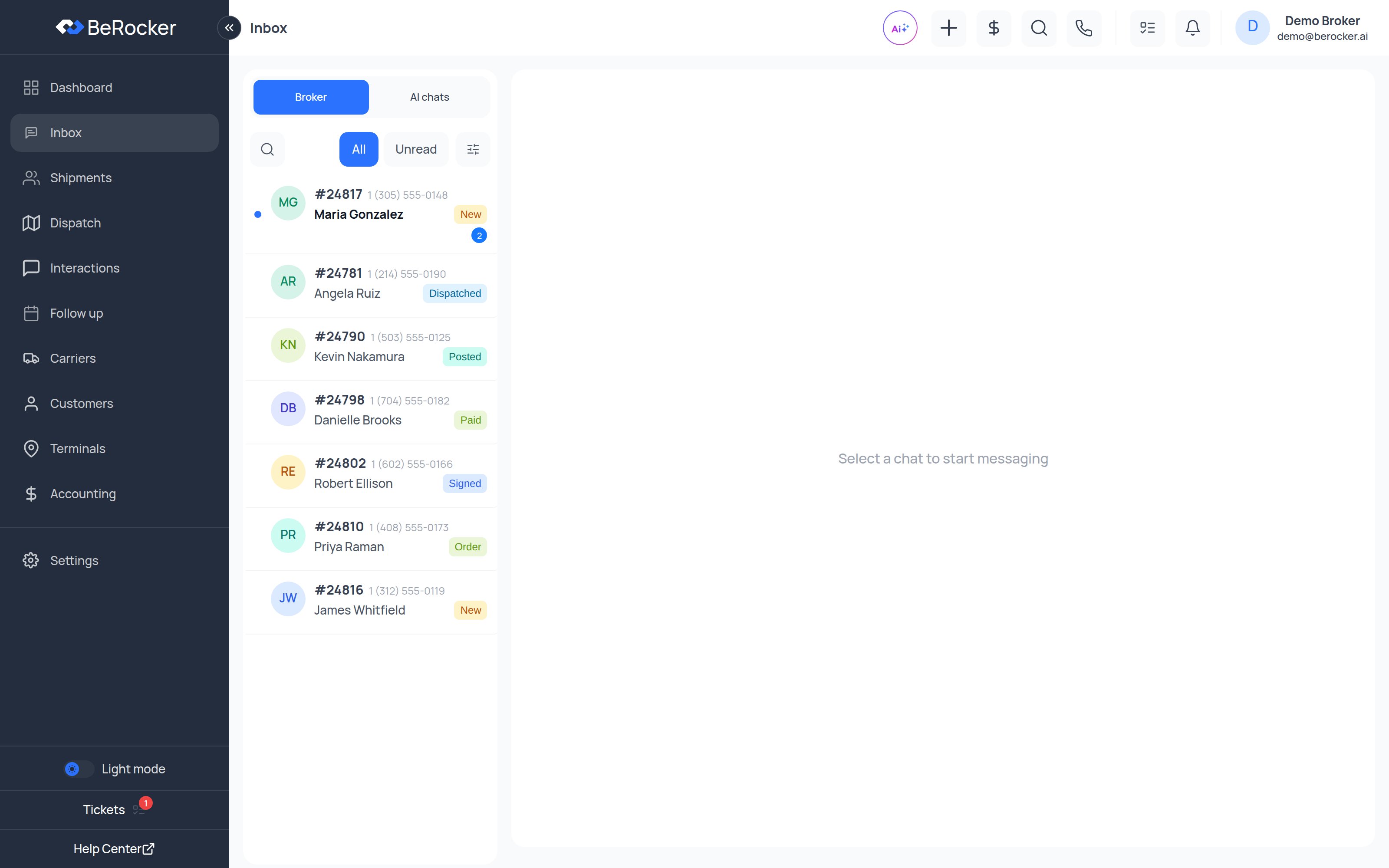 * **Broker / AI chats** — switch between conversations you are handling and the ones the AI is
handling.
* **All / Unread** and the filter icon narrow the list.
* Open a conversation and you get the message thread in the middle and the lead panel on the right,
with tabs for **Lead**, **Documents** and **Drivers**.
Full page: [Inbox](/using/inbox)
***
## Shipments — every lead in one table
* **Broker / AI chats** — switch between conversations you are handling and the ones the AI is
handling.
* **All / Unread** and the filter icon narrow the list.
* Open a conversation and you get the message thread in the middle and the lead panel on the right,
with tabs for **Lead**, **Documents** and **Drivers**.
Full page: [Inbox](/using/inbox)
***
## Shipments — every lead in one table
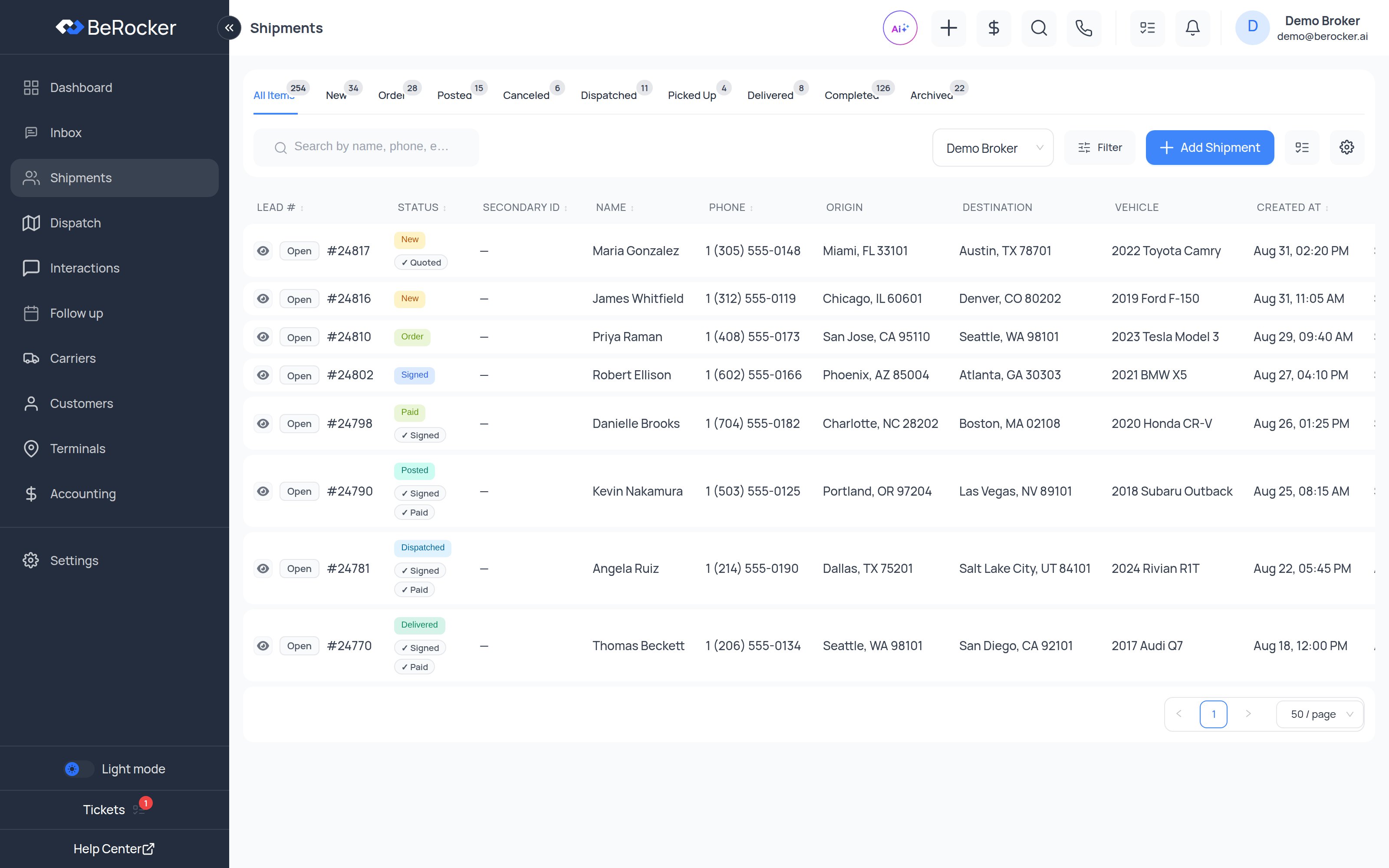 The tabs across the top are the pipeline: **All Items, New, Order, Posted, Canceled, Dispatched,
Picked Up, Delivered, Completed, Archived**, each with a live count. Inside **New**, **Order** and
**Posted** there is a second row of sub-filters (Not Quoted / Quoted, Needs Contract / Contract Sent
/ Signed / Paid, No Offers / Has Offers).
Full page: [Shipments](/using/shipments)
***
## Dashboard — the numbers
The tabs across the top are the pipeline: **All Items, New, Order, Posted, Canceled, Dispatched,
Picked Up, Delivered, Completed, Archived**, each with a live count. Inside **New**, **Order** and
**Posted** there is a second row of sub-filters (Not Quoted / Quoted, Needs Contract / Contract Sent
/ Signed / Paid, No Offers / Has Offers).
Full page: [Shipments](/using/shipments)
***
## Dashboard — the numbers
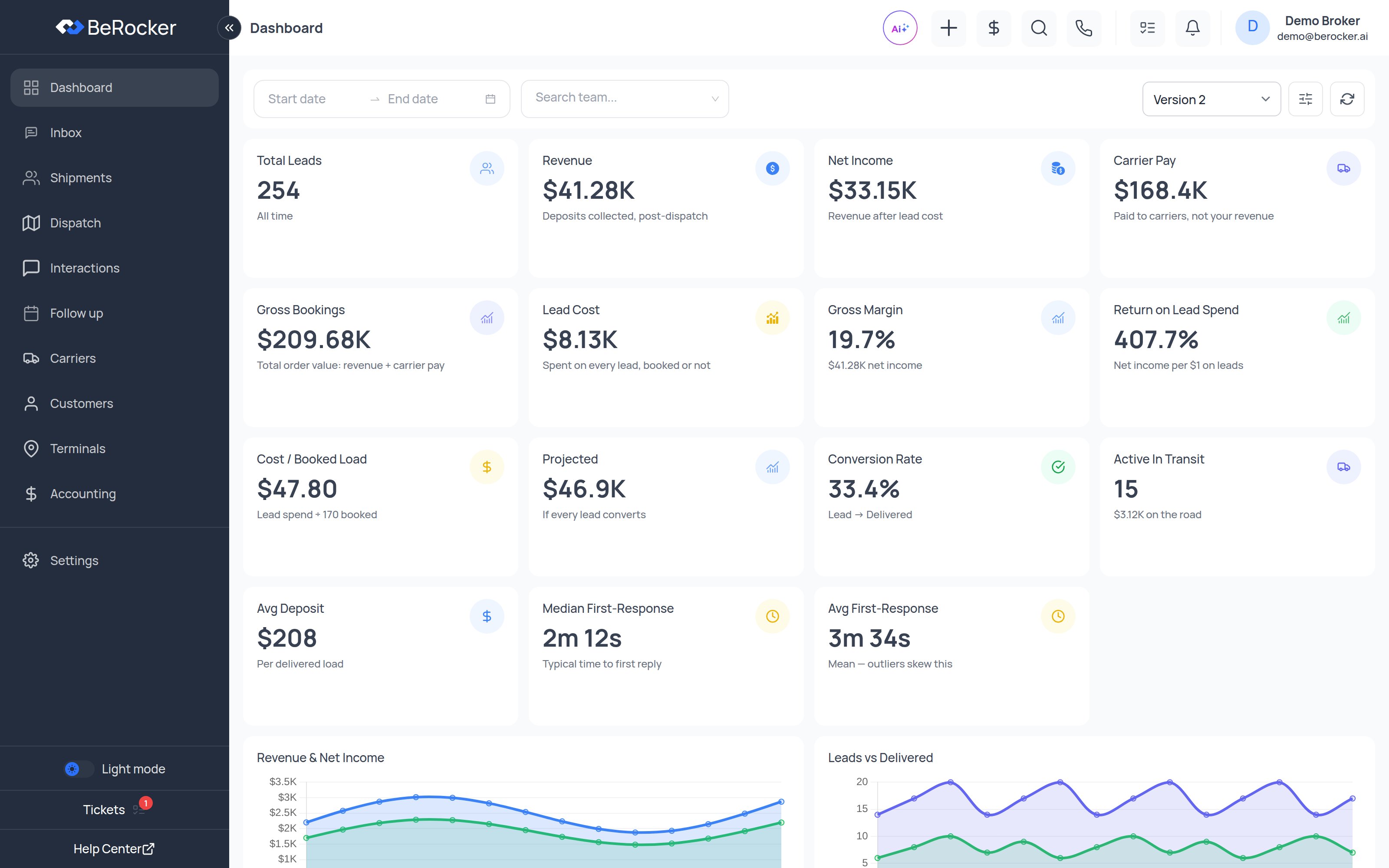 Every tile says what it measures underneath the number, so nobody has to guess whether "Revenue"
means deposits or gross bookings.
Full page: [Dashboard](/using/dashboard)
***
## Settings — one page per thing
Every tile says what it measures underneath the number, so nobody has to guess whether "Revenue"
means deposits or gross bookings.
Full page: [Dashboard](/using/dashboard)
***
## Settings — one page per thing
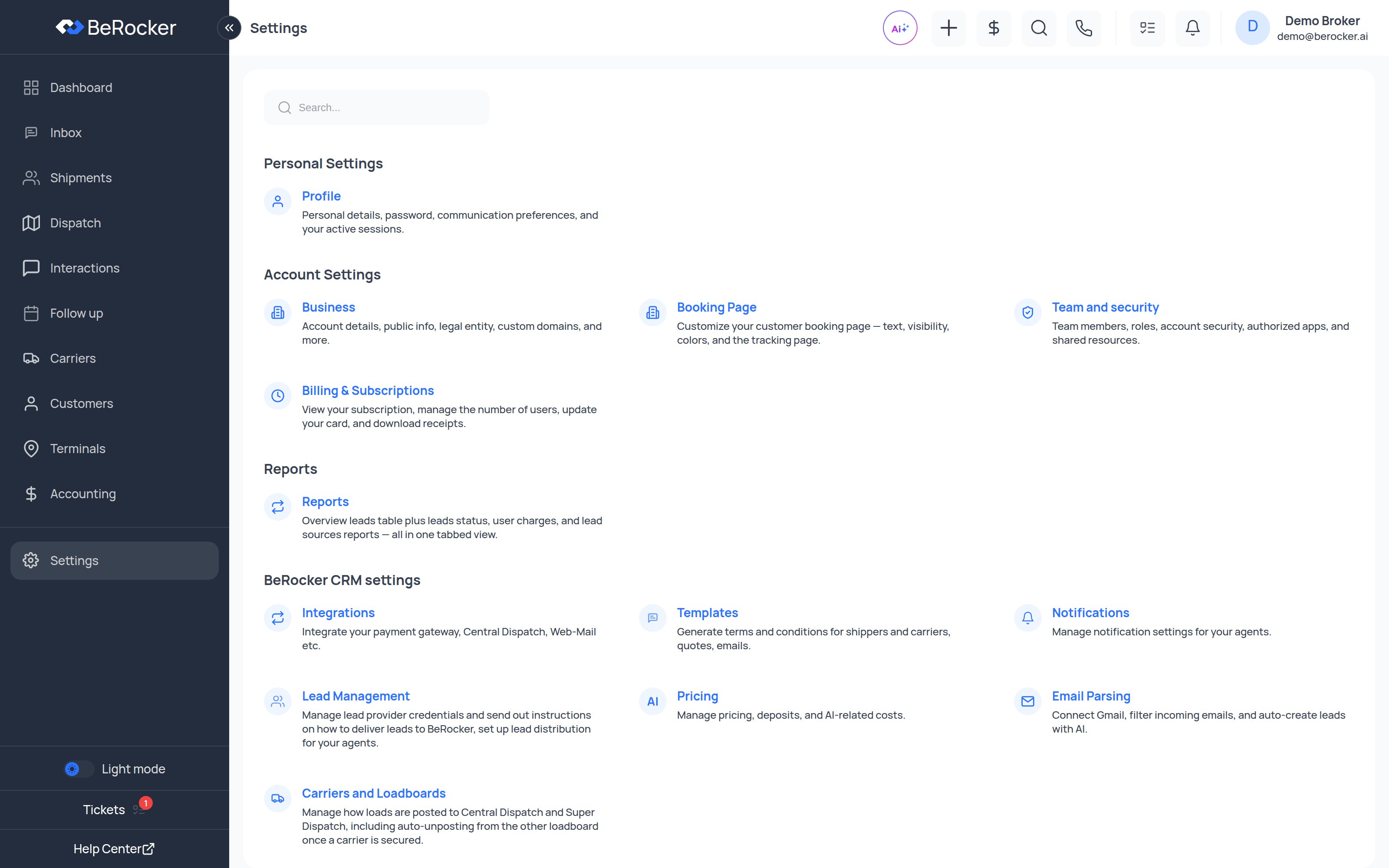 Settings is grouped into **Personal Settings**, **Account Settings**, **Reports** and
**BeRocker CRM settings**. The search box at the top jumps straight to any settings page or tab —
type "quiet hours", "deposit", "2FA" and press Enter.
Full section: [Settings](/settings/profile)
***
## Next
The pipeline explained status by status.
Everything to configure before you go live.
Settings is grouped into **Personal Settings**, **Account Settings**, **Reports** and
**BeRocker CRM settings**. The search box at the top jumps straight to any settings page or tab —
type "quiet hours", "deposit", "2FA" and press Enter.
Full section: [Settings](/settings/profile)
***
## Next
The pipeline explained status by status.
Everything to configure before you go live.