> ## Documentation Index
> Fetch the complete documentation index at: https://help.berocker.com/llms.txt
> Use this file to discover all available pages before exploring further.
# How a lead becomes a load
> The BeRocker pipeline explained status by status — what changes the status, and what you do at each one.
Every shipment in BeRocker carries one **status**. The status is what puts it in a tab on the
[Shipments](/using/shipments) screen, and it moves forward on its own as real things happen —
a quote goes out, a contract is signed, a payment lands, a carrier is dispatched.
***
## The statuses
| Status | What it means | What moves it forward |
| -------------- | -------------------------------------------------------------------- | --------------------------------------------- |
| **New** | A fresh lead. Nobody has committed to anything. | You send a quote and the customer accepts it. |
| **Order** | The customer said yes. It is now an order to be papered and paid. | Contract signed. |
| **Signed** | The agreement is signed but the deposit has not landed. | Payment succeeds. |
| **Paid** | Deposit (or full amount) collected. Ready to go to the boards. | You post it to a load board. |
| **Posted** | Live on Central Dispatch and/or Super Dispatch, waiting on carriers. | You accept a carrier offer and dispatch. |
| **Dispatched** | A carrier is assigned and on the way to pick up. | The load board reports pickup. |
| **Picked Up** | The vehicle is on the truck. | The load board reports delivery. |
| **Delivered** | The vehicle is at the destination. | You close it out. |
| **Completed** | Done and settled. | — |
| **Canceled** | The customer or you called it off. | — |
| **Archived** | Out of the working pipeline. | — |
On the Shipments screen, **Order**, **Signed** and **Paid** are folded into a single **Order** tab
so the tab bar stays short. The individual statuses are still there — use the sub-filters inside
the tab to split them.
***
## Milestones are not statuses
Alongside the status, a shipment carries three **milestones**: *Quoted*, *Signed* and *Paid*. They
show as small check chips in the Shipments table.
Milestones are facts that accumulate — a lead that was quoted stays quoted forever. They are worked
out from records that already exist (the quote message that went out, the signed contract, the
successful payment), so they cannot go stale and nobody has to set them by hand.
That is why a lead can be **Posted** and still show ✓ Quoted ✓ Signed ✓ Paid.
***
## Stage by stage
From a [lead source](/settings/lead-sources) (your website or a provider posting to your
endpoint), from [email parsing](/settings/email-parsing), or added by hand with **+ Add
Shipment**.
[Lead distribution](/settings/lead-distribution) decides which agent gets it, based on the daily
quotas you set per agent and per source.
A conversation is created at the same time, so the lead appears in both **Inbox** and
**Shipments**.
Open the conversation and send a quote. The price comes from your
[pricing engine](/settings/pricing) — BeRocker AI, Super Dispatch's recommended price, or
Central Dispatch's price — adjusted by your correction factor.
The wording comes from your **Quote** [templates](/settings/templates). Keep several versions of
each so customers who get quoted twice do not get identical texts.
The lead now shows ✓ **Quoted**. In the **New** tab it moves from *Not Quoted* to *Quoted*.
Most customers do not answer the first message. Two things chase them for you:
* **Follow-up sequences** — a timed ladder of messages you build once in
[Templates → Follow-up](/settings/templates).
* **[Triage](/using/follow-up)** — reads every live conversation and sorts it into
Rescue / Close / Waiting / Cold / Healthy, so you spend the day on the ones a human can
actually move.
They open your [booking page](/settings/booking-page), confirm the details, sign the agreement
and pay the deposit.
Status → **Order**, then **Signed**, then **Paid** as each piece lands. If automatic payments
are on, the card is charged on booking.
From the shipment's **Carrier** tab, post to Central Dispatch and/or Super Dispatch without
leaving the CRM. Status → **Posted**.
Carrier offers come back into the same tab. The **Posted** tab splits into *No Offers* and
*Has Offers* so you can see which loads are not getting attention.
Accept an offer, or dispatch a carrier directly. Status → **Dispatched**.
If you have it turned on in
[Carriers and Loadboards](/settings/carriers-and-loadboards), BeRocker automatically unposts the
load from the *other* board once a carrier is secured, so you are not fielding calls on a load
that is already covered.
Pickup and delivery come back from the load board and move the status to **Picked Up** and
**Delivered**. The matching customer messages go out automatically if those template events are
active.
Watch it on the [Dispatch](/using/dispatch) map, which shows live GPS where Super Dispatch
reports it and an estimated position where it does not.
Every charge, refund and fee is in [Accounting](/using/accounting). Once the balance is settled,
close the shipment out as **Completed**.
***
## Finding what needs doing
You do not have to remember any of the above. The sub-filters on the
[Shipments](/using/shipments) screen answer it for you:
| Question | Where to click |
| ------------------------------------------- | -------------------------- |
| Which new leads has nobody priced? | **New → Not Quoted** |
| Which orders have no agreement out? | **Order → Needs Contract** |
| Who has signed but not paid? | **Order → Signed** |
| Which posted loads are getting no interest? | **Posted → No Offers** |
And [Follow up → Triage](/using/follow-up) answers the other half — which *conversations* need a
human today, ranked by how much money is riding on them.
***
## The older overview
The original process-flow diagram is still available if you prefer it:
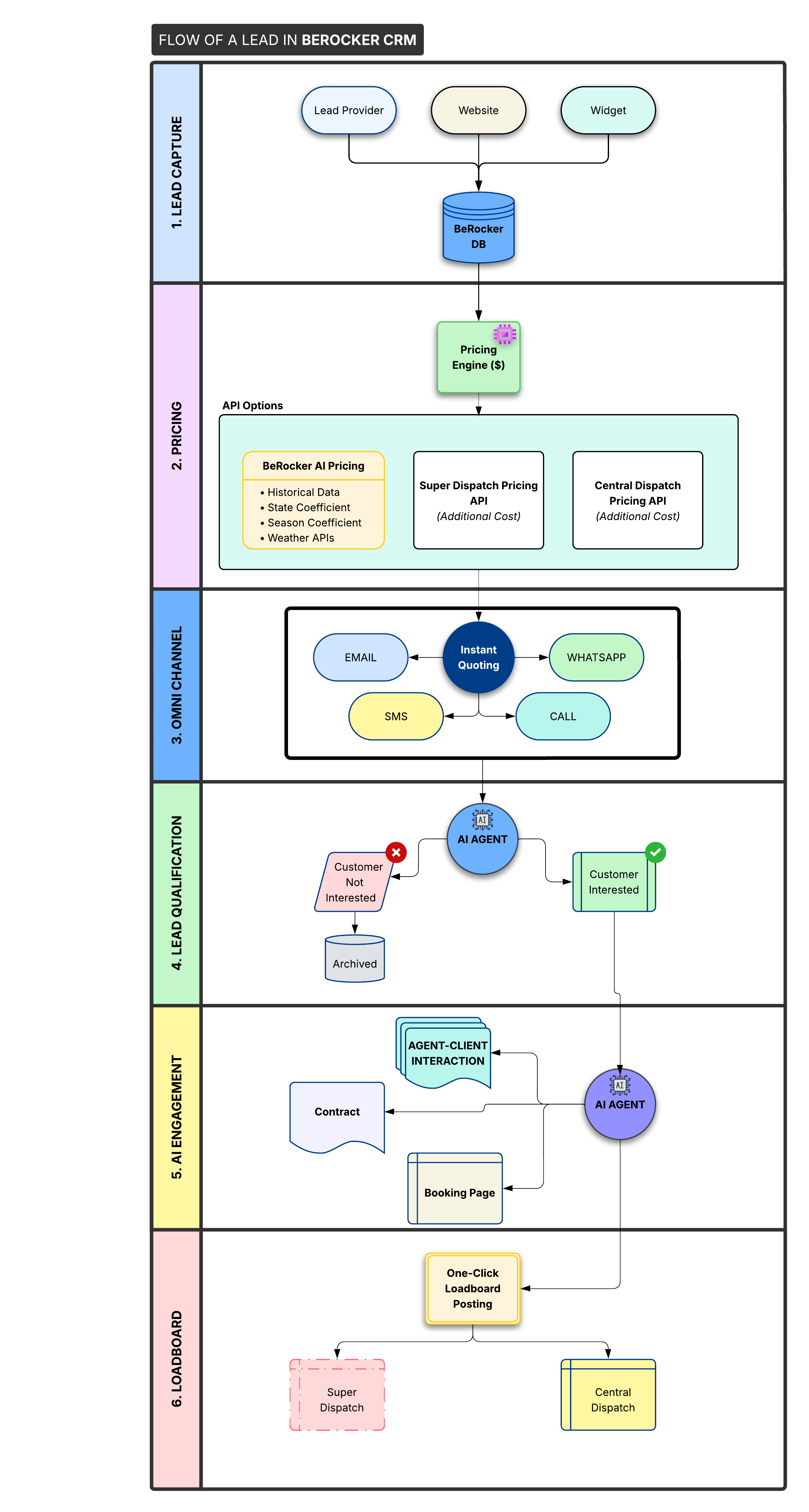 [View the PDF version](/documents/process-flow.pdf)