> ## Documentation Index
> Fetch the complete documentation index at: https://help.berocker.com/llms.txt
> Use this file to discover all available pages before exploring further.
# Choosing your tools
## Connecting Integrations to Power BeRocker CRM
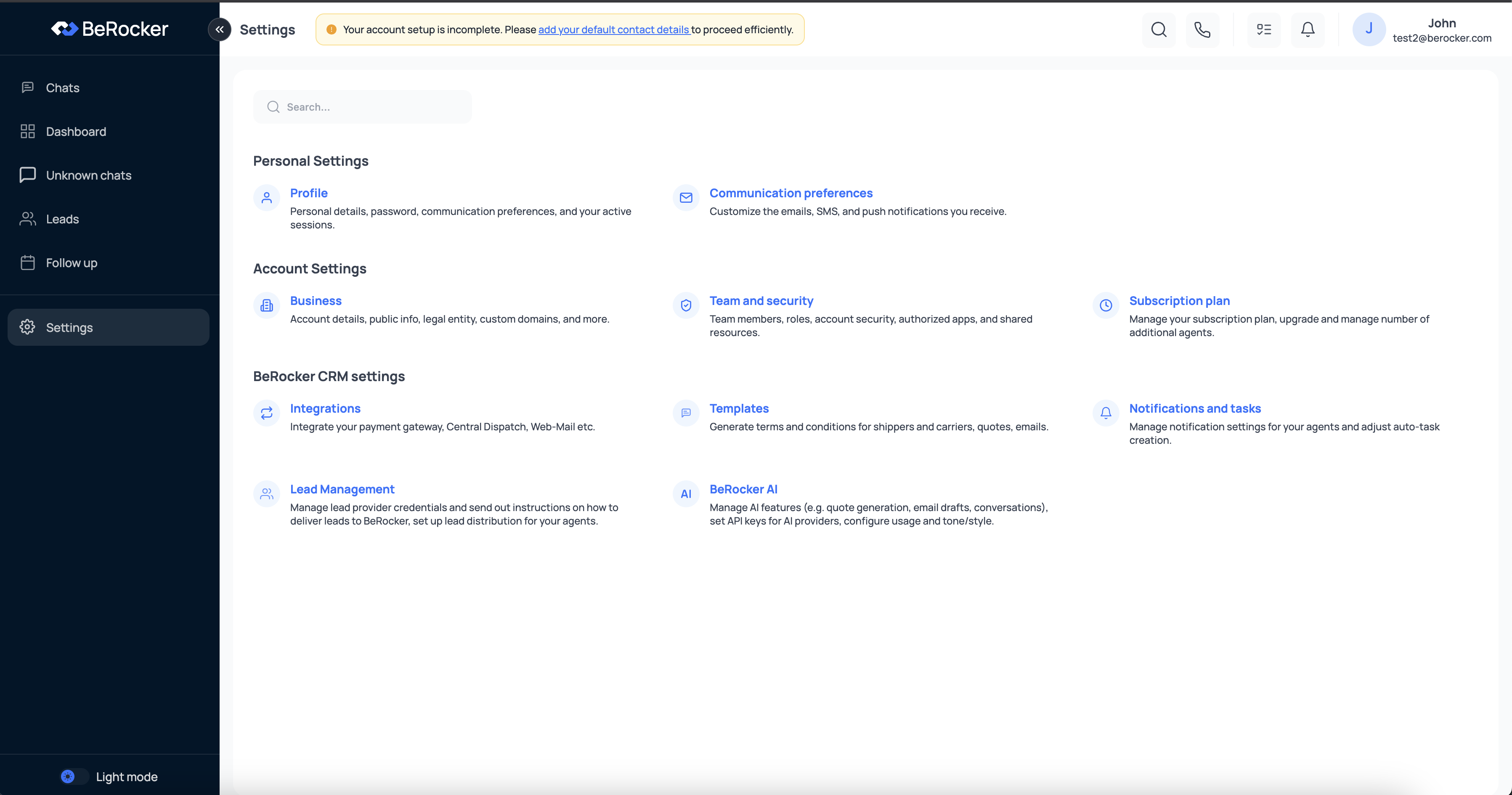 *Settings Page*
Why this matters: Before you can use BeRocker CRM effectively, you need to connect the
communication, email, and load board tools your business already relies on. This is the foundation
of your automation — no integrations = no activity.
Goal of this step: Select and connect the services you already use (e.g. Twilio, Mailgun,
CentralDispatch) so your CRM can send emails, place calls, track shipments, and more.
## Step 1: Log In to Your BeRocker CRM
* Go to [https://app.berocker.com](https://app.berocker.com)
* Log in with your account credentials
* You’ll land on your main dashboard
## Step 2: Go to the Integrations Page
*Settings Page*
Why this matters: Before you can use BeRocker CRM effectively, you need to connect the
communication, email, and load board tools your business already relies on. This is the foundation
of your automation — no integrations = no activity.
Goal of this step: Select and connect the services you already use (e.g. Twilio, Mailgun,
CentralDispatch) so your CRM can send emails, place calls, track shipments, and more.
## Step 1: Log In to Your BeRocker CRM
* Go to [https://app.berocker.com](https://app.berocker.com)
* Log in with your account credentials
* You’ll land on your main dashboard
## Step 2: Go to the Integrations Page
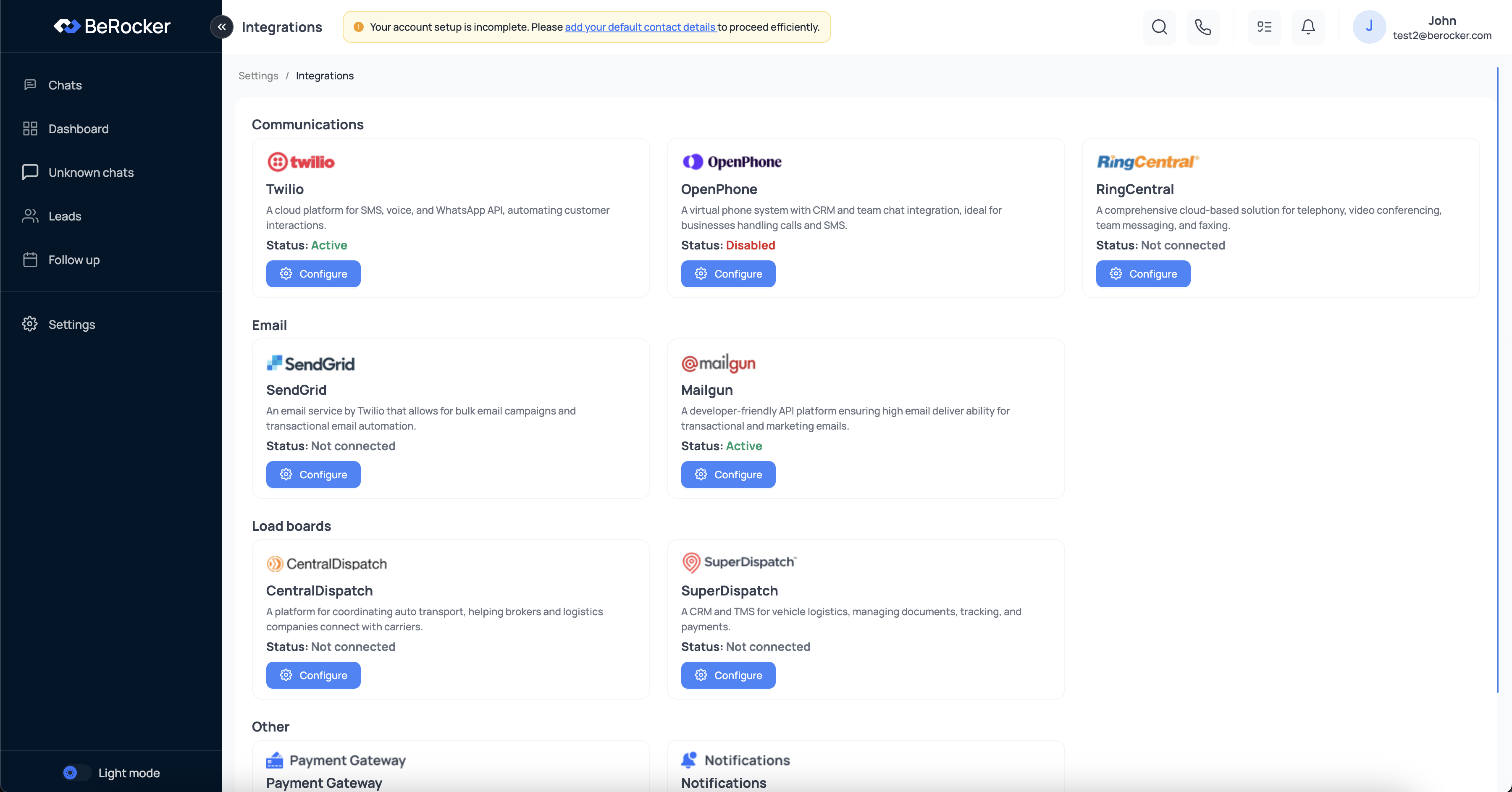 *Integrations Page*
* Click Settings in the left-hand menu
* Under BeRocker CRM settings, click Integrations
## Step 3: Connect Your Core Tools
Pick the tools your business already uses and click Configure next to each one to connect it.
You’ll see integrations grouped into categories:
## Communications
* Twilio
* OpenPhone
* RingCentral
## Email
* Mailgun
* SendGrid
## Load Boards
* CentralDispatch
* SuperDispatch
## Other
* Payment Gateway
* Notifications
> Important: You only need to connect the platforms you actually use. At least one email and one communication integration is required for full CRM functionality.
## Final Step: Set Your Default Contact Info
Before proceeding, click the yellow banner: “Please add your default contact details to proceed
efficiently.”
Add your business name, email, phone number — these will be used in all your outgoing messages and templates.
## FAQ
> Q: What happens if I skip integrations? A: The CRM won’t be able to send messages, place calls, or sync leads from boards — which defeats its purpose. Integrations are essential.
> Q: Can I change tools later? A: Yes. You can disconnect or switch providers anytime from the same Integrations page.
> Q: How do I know if it worked? A: When successfully connected, you’ll see Status: Active in green below the tool.
## You’re now ready to use BeRocker!
Once your integrations are active, BeRocker can:
* Automatically send quotes, updates, and reminders
* Power phone and SMS outreach
* Sync leads and loads directly into your pipeline
If you get stuck, contact our support team anytime.
*Integrations Page*
* Click Settings in the left-hand menu
* Under BeRocker CRM settings, click Integrations
## Step 3: Connect Your Core Tools
Pick the tools your business already uses and click Configure next to each one to connect it.
You’ll see integrations grouped into categories:
## Communications
* Twilio
* OpenPhone
* RingCentral
## Email
* Mailgun
* SendGrid
## Load Boards
* CentralDispatch
* SuperDispatch
## Other
* Payment Gateway
* Notifications
> Important: You only need to connect the platforms you actually use. At least one email and one communication integration is required for full CRM functionality.
## Final Step: Set Your Default Contact Info
Before proceeding, click the yellow banner: “Please add your default contact details to proceed
efficiently.”
Add your business name, email, phone number — these will be used in all your outgoing messages and templates.
## FAQ
> Q: What happens if I skip integrations? A: The CRM won’t be able to send messages, place calls, or sync leads from boards — which defeats its purpose. Integrations are essential.
> Q: Can I change tools later? A: Yes. You can disconnect or switch providers anytime from the same Integrations page.
> Q: How do I know if it worked? A: When successfully connected, you’ll see Status: Active in green below the tool.
## You’re now ready to use BeRocker!
Once your integrations are active, BeRocker can:
* Automatically send quotes, updates, and reminders
* Power phone and SMS outreach
* Sync leads and loads directly into your pipeline
If you get stuck, contact our support team anytime.